5 Ways Zendeck's Asset Library Improves Slides for Non-Designers
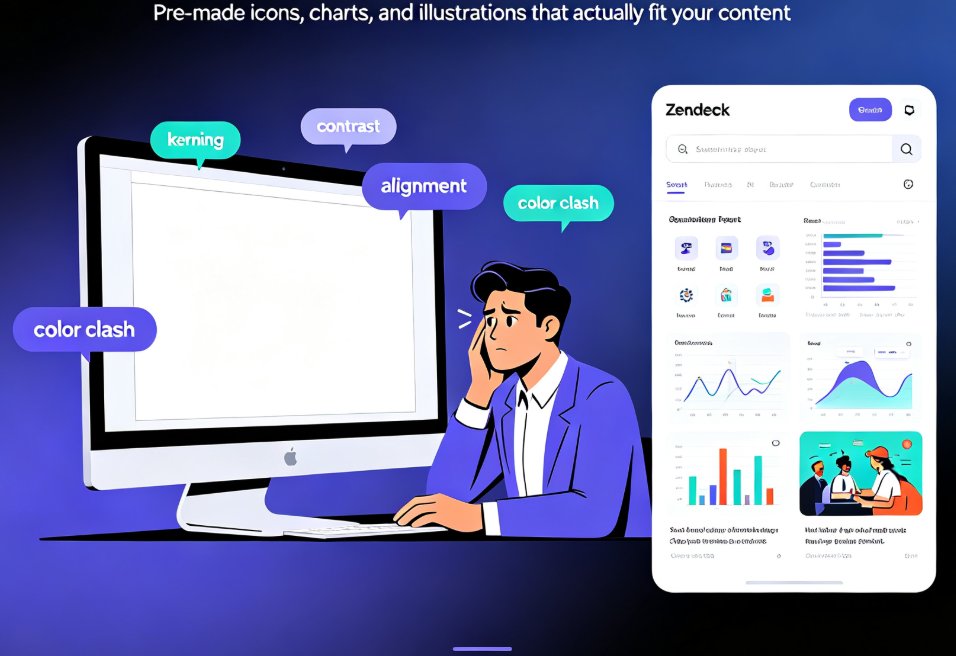
Let's be real: most of us were never trained to make things look good. We were trained to write reports, build lesson plans, run training sessions. Then one Tuesday afternoon your manager says, "Put together a deck for the quarterly review," and suddenly you're staring at a blank slide, thinking about kerning and contrast like you're a graphic designer all of a sudden. It's a disaster waiting to happen.
But here's the thing: the gap between you and a polished presentation isn't talent. The gap is having the right visual assets within reach. When you have a library of pre-made icons, charts, and illustrations that actually fit your content, "design skill" becomes optional.
I. Why Non-Designers Fail at Slides (Hint: It's Not Your Fault)
We need to name the real problem before we fix it. When non-designers build slides, three things go wrong, and none of them are about you personally:
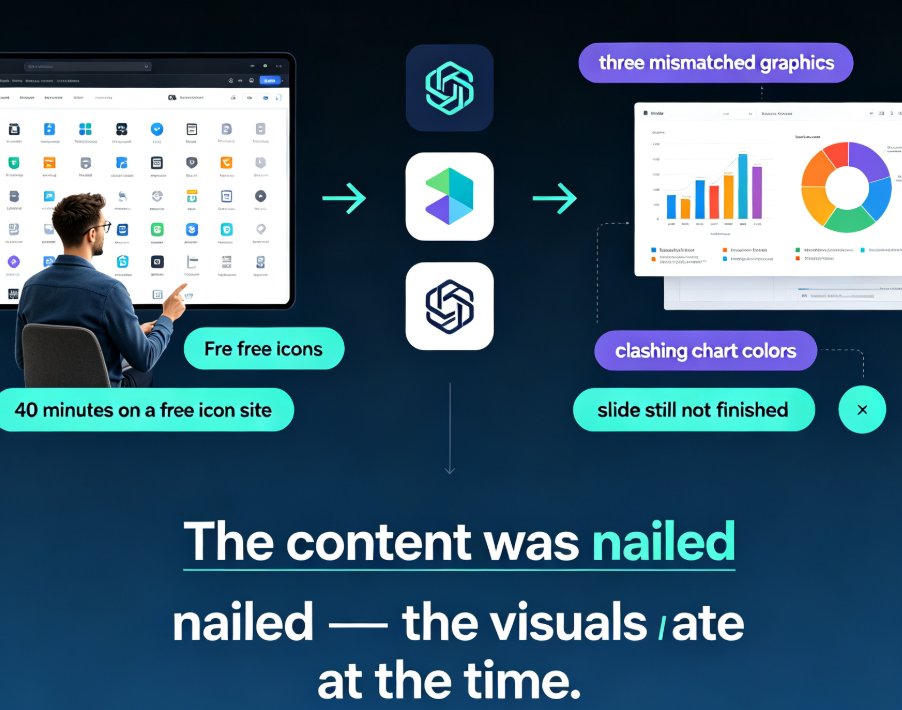
1. You waste time searching for visuals that don't exist. You spend 20 minutes on a stock photo site, scroll past 47 photos of people shaking hands, give up, and use a meaningless stock image of a laptop on a desk.
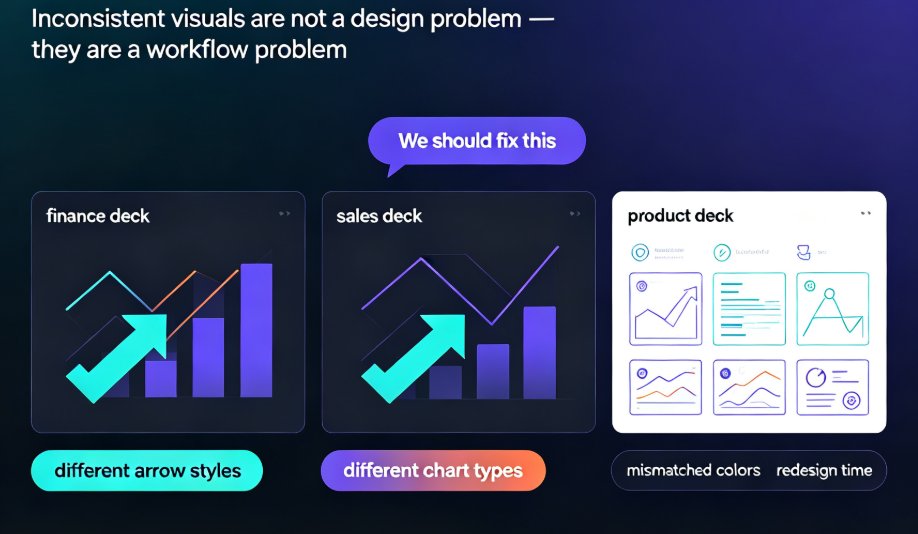
2. You pick the first thing that looks decent, even if it clashes. Your slides end up with mismatched icon styles, inconsistent line weights, and colors that fight each other. It looks amateurish, and you can feel it.
3. You avoid visuals altogether. Many fall back on text-heavy bullet slides because it's the only thing that feels "safe."
Sound familiar? Good. That's the baseline. Now let's talk about the fix.
II. 01 — Turn Sparse Text into Meaning with Ready-Made Icons
The fastest way to make a slide look designed is to add an icon next to each key point. Not a random icon — an icon that carries meaning.
Here's a scenario from real training work: you're building a slide about a five-step onboarding process. Without icons, it's a wall of numbered text. With the asset library, each step gets a symbol — the welcome handshake, the paperwork document, the training flipchart — and suddenly your audience can process the whole process in five seconds. That's not decoration; it's cognitive load reduction.
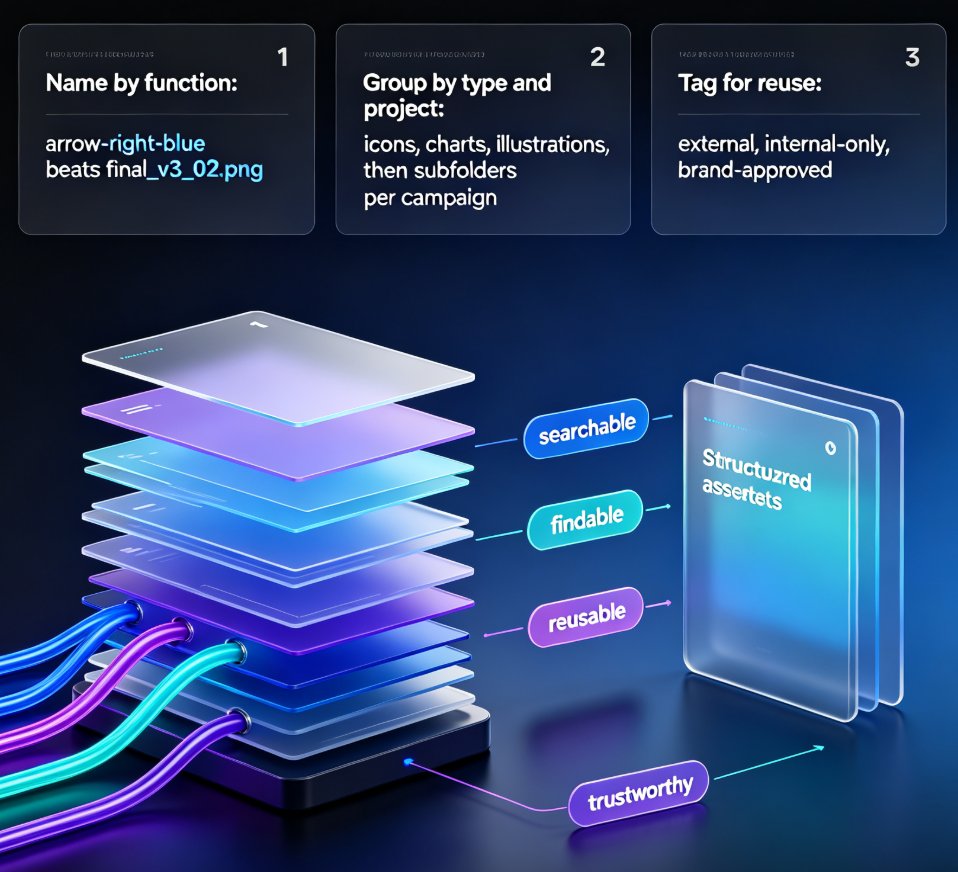
The Zendeck asset library organizes icons by keyword and style. Search "handshake," "chart," or "laptop," and you'll find a consistent icon family. Everything matches in line weight and style out of the box, so you never mix a filled icon with an outlined one by accident.
Offhand tip: Don't sprinkle icons on every slide just because you can. One icon per key point, placed consistently at the same position, reads as intentional. Ten icons scattered randomly reads as a mess. Less seasoning, better taste.
III. 02 — Present Data without Touching Excel (or Crying)
Non-designers fear data slides for two reasons: they don't want to do data entry, and they don't trust their ability to make a chart look good. The asset library handles both.
Our typical use case: an HR manager needs to show turnover rates across four quarters. Old workflow: export numbers from the HR system, paste into Excel, create a chart, copy it into PowerPoint, pray the formatting doesn't break. That's a half-hour of fiddling.
New workflow: pull a chart from the library, click into the data panel, type four numbers. Done. The chart inherits the deck's color palette and font, so it looks like it was designed together with the slide — because it was.
We built a comparison of what this does to a non-designer's schedule:
Those numbers come straight from how our test users work: a project manager timing her own deck-building tasks found she cut roughly 45 minutes off a 15-slide presentation by using the library instead of stock searches. Your mileage may vary, but the pattern holds — the library consistently turns a 20-minute visual task into a sub-5-minute one.
IV. 03 — Tell a Story with Illustrations Instead of Hallway Photos
There's a special place in presentation hell reserved for generic photos of people pointing at graphs they're not actually looking at. The asset library offers a better way: illustration sets.
Illustrations let you represent abstract ideas without making your audience squint at a low-res photo. Let's say you're a curriculum designer explaining a "growth mindset" module. A photo can't show that; a stock photo of a smiling teacher makes it worse. But a clean illustration of a plant growing from a seed to a full tree, in your deck's color palette, carries the concept instantly.
Use illustrations for:
- Metaphors (journey, growth, obstacles)
- Fictional scenarios (a customer using your product)
- Process flows (a character moving through steps)
- Emotive touches (a friendly guide character for learners)
The AI-generated icons and charts in the library keep consistent stroke styles across illustration families, so a 12-slide deck looks like one unified visual system — which is exactly what professional decks do.
V. 04 — Enforce Brand Consistency Without a Brand Manual
Most non-designers don't have a personal brand kit. But if you work for an organization, you have brand guidelines, and violating them is a quiet career hazard. The asset library removes the guesswork.
Here's how it works with Zendeck's brand kit feature: you set your colors and fonts once, and every icon, chart, and illustration you insert automatically adopts those colors. You can't accidentally use the wrong shade of blue because the library doesn't offer it.
This is the silent superpower of a good asset library: it builds your consistency by constraining your choices. Instead of 400,000 stock images in every possible style, you get a curated collection that all plays nicely together. That's the difference between looking like someone copied and pasted images from ten different websites, and looking like a design team made your deck. We wrote more about the why behind this in AI asset libraries and corporate brand consistency.
VI. 05 — Save Enough Time to Actually Rehearse
The average non-designer spends 60% of their deck-building time on design mechanics — resizing, aligning, recoloring, searching. The asset library attacks that number directly.
Think about your next real slide project: a sales deck, a training module, a quarterly report. Every hour you save on visuals is an hour you can spend on the actual content, your delivery, or your lunch break.
If a 20-slide deck costs you three hours of visual tinkering, cutting that to one hour means you've reclaimed two hours for rehearsal. And we all know which deck performs better: the one whose presenter actually practiced, not the one with the perfect color-matched pie chart. The library exists to give you both.
VII. Where to Start: Your First Asset Library Project
If you're sold but wondering where to begin, here's a practical starter plan:
- Take one slide you're unhappy with (we all have one).
- Replace the first text-heavy bullet list with three icons from the library.
- Replace one stock photo with a relevant illustration.
- If you have any numbers on the slide, swap them for a chart.
- Apply your brand colors and walk away.
You'll see the difference by lunchtime. The Zendeck library guide for trainers walks through more scenarios if you need examples, and we cover the broader AI-powered asset library trend for the bigger picture.
VIII. The Takeaway
You don't need to become a designer to make good slides. You need the right assets and a system that makes them fit together automatically. Zendeck's asset library does the heavy lifting: the icons match, the charts are editable, the illustrations fit your story, and the brand colors are already applied.
The next time someone asks you to "make a quick deck" and you feel that familiar wave of panic, remember: the blank slide is no longer the enemy. The library is already loaded and waiting. Find an icon, drop a chart, and get your Tuesday afternoon back.
FAQ
What is Zendeck's asset library?
It's a built-in collection of icons, charts, and illustrations you can drop directly into your slides. Unlike generic stock libraries, the assets are optimized for slide layouts, so they scale, align, and recolor without breaking your deck's structure.
Can I use the asset library without any design skills?
Yes, that's the whole point. The library is built for people who aren't designers. Every asset comes pre-scaled and style-matched to Zendeck's templates, so you just insert it and it fits. There's no fiddling with alignment guides or color matching.
Will icons and illustrations match my brand colors?
Yes. When you apply a theme or brand kit, the insertable assets automatically inherit your color palette and consistent stroke style. That's how the library enforces visual consistency without you doing manual recoloring.
Are the charts in the asset library editable or just static images?
They're editable. You can connect them to live data or adjust values directly in the chart panel. So you get the good looks of a designer-made visualization with the flexibility of editing numbers in real time.
How long does it take to find the right visual in the library?
Most users find what they need in under a minute thanks to the keyword and style filters. Compare that to the 20-plus minutes people typically spend browsing stock sites, and the time savings add up fast across a full deck.