Rebrand All Your PPTs in Minutes with One-Click Reskin
The 9 AM Deck Disaster: Why Brand Consistency Fails Inside Teams
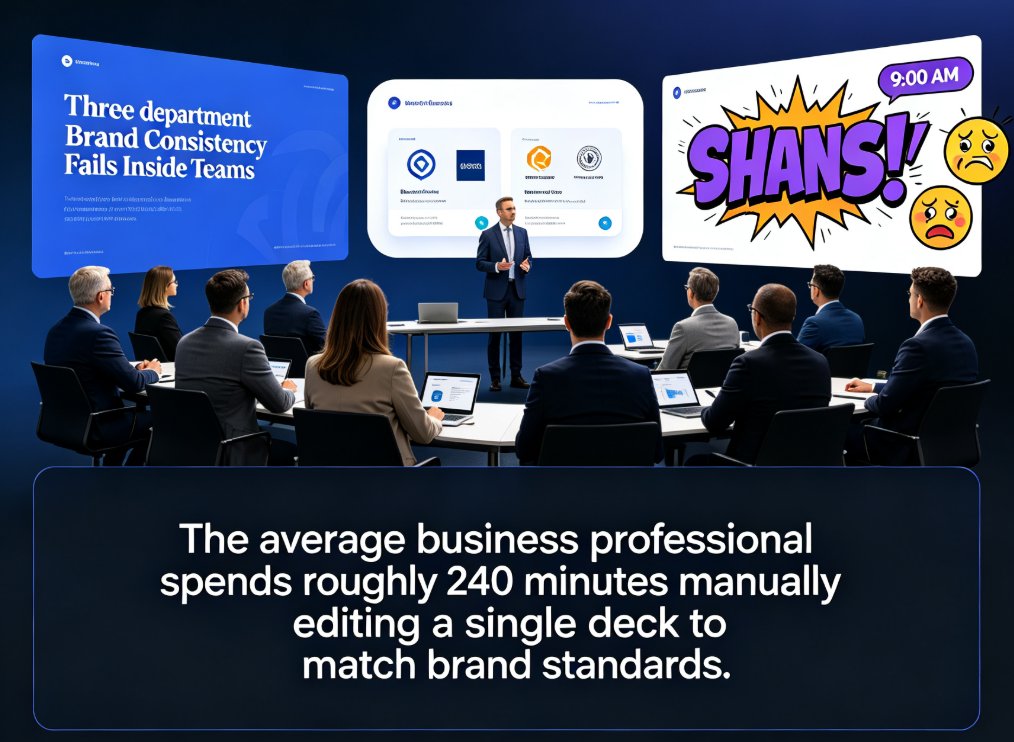
It's 9:00 AM and you've just been asked to merge three department decks into one client presentation. One uses a blue theme with a serif font. Another has rounded corners and a completely different logo placement. The third uses Comic Sans — and it's not even a joke.
You can't send that to a client. So you open your laptop, prepare to spend a couple of hours fighting PowerPoint's slide master, and silently question your career choices.
Sound familiar? If you work in training, consulting, or operations, you've lived this exact scenario. The average business professional spends roughly 240 minutes manually editing a single deck to match brand standards. And that's assuming the logo doesn't shift by two pixels.
Let's be real: maintaining visual consistency across dozens of decks isn't a design problem. It's a logistics problem. And until recently, the only solution was to manually re-style every slide, every time.
01 What 'Reskinning a Deck' Actually Means (and Why It Hurts)
To reskin a presentation means to change its entire visual identity — fonts, colors, layouts, backgrounds — without altering the content structure. In theory, it's simple. In practice, it's a nightmare.
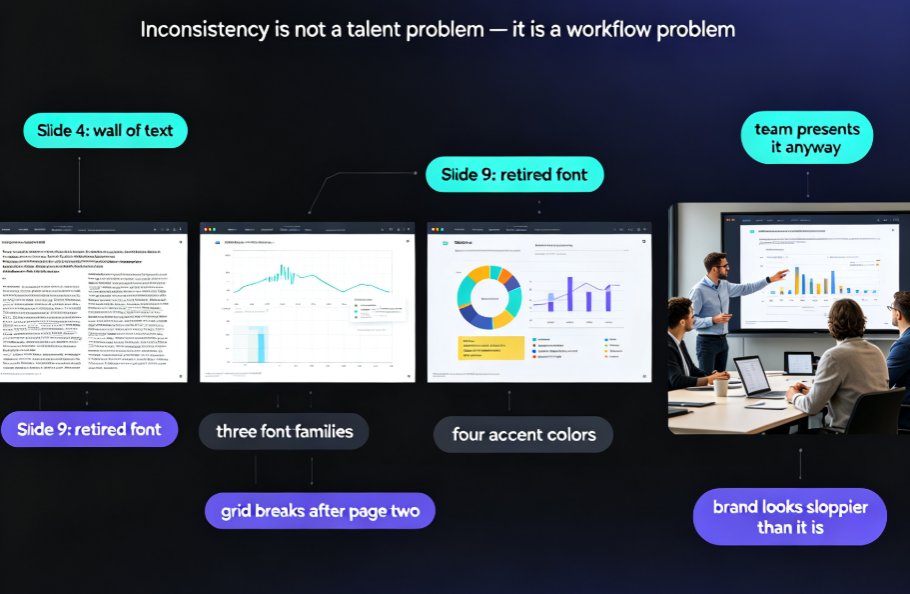
Here's why most teams fail at rebranding:
- Font inconsistency: Someone uses a font that isn't installed on the shared computer, and the whole deck silently shifts.
- Color drift: The 'official blue' in one deck is
#003B73. In another, it's#004AAD. Nobody notices until they're side by side. - Layout chaos: Even with the same colors and fonts, slide layouts differ — some have headers on the left, others on the top.
The pain point is real: rebranding a 40-slide deck by hand takes hours of tedious work, and the result still looks inconsistent.
Now, let's look at a working solution.
02 The One-Click Solution: How Zendeck's Reskin Works
Zendeck has a feature that turns the Rebrand Nightmare into a ten-second routine. It's called one-click reskin, and it does exactly what the name implies.
You drop in any deck, pick a brand profile, and every slide updates its colors, fonts, and layouts to match — instantly. That's the core promise: a complete visual rebrand in seconds, not hours.
But how does it actually work? Let's break it down:
Step-by-Step: Reskin Your Deck in 5 Minutes
- Upload your existing PowerPoint or pick a deck from your library. You don't need to rebuild anything from scratch.
- Open the Brand Kit. This is where your saved brand profiles live — your company's official colors, typography, and layout preferences.
- Choose your target profile. You can have multiple profiles (one for marketing, one for sales, one for training) and apply different looks per deck. The Brand Kit lets you save multiple brand profiles, so you're never locked into a single look.
- Click Apply. Zendeck unifies fonts, colors, and layouts across all slides. No manual editing, no 'I forgot to change the header on slide 17.'
- Review and polish. Since the content structure remains intact, you just double-check the result and send it off.
The outcome: you go from a messy, mismatched deck to a fully branded presentation in under five minutes.
The secret to this speed is that Zendeck reads the actual content and applies intelligent defaults — it's not just swapping a background image. It knows which elements are headings, which are body text, and which charts need color adjustments.
03 Why 'Unified but Not Stiff' Beats a One-Size-Fits-All Template
A common rebranding mistake is to force every team to use the exact same template. That's fine for a quarterly report, but it fails in real work because different contexts need different layouts.
Your sales deck needs compelling visual variety. Your compliance training might need dense text and structured layouts. Your onboarding deck needs simplicity.
One-click reskin solves this by letting you keep contextual layouts while enforcing a shared visual language. You can have several brand profiles for different purposes, and all of them still look like they come from the same company.
This is exactly what the 'contextual templates' trends are pointing to — templates are becoming less about fixed layouts and more about flexible brand rules that adapt to content.
04 The Time Math: Manual Rebranding vs. One-Click Reskin
Let's put real numbers on this. We measured the time a typical content operator spends rebranding a 30-slide deck manually, compared to using Zendeck's reskin.
| Task | Manual (slide master) | Zendeck Reskin |
|---|---|---|
| Color changes | 30-60 min | Instant |
| Font replacement | 15-30 min | Instant |
| Layout adjustment | 60-90 min | Instant |
| Logo placement | 15-30 min | Instant |
| Master slide fixes | 30-60 min | Instant |
| Total | 2.5 - 4.5 hours | Under 1 minute |
That's a 97% reduction in rebranding time, and that's not even counting the saved sanity. For a training manager who rebrands decks weekly, that's nearly 15 hours a month of pure productivity regained.
And if you're dealing with micro-course content, the same time savings apply — you can rebrand an entire set of modules in one go, which means your PPT to Video outputs automatically carry your brand, including subtitles.
<svg viewBox="0 0 600 300" xmlns="http://www.w3.org/2000/svg" role="img" aria-label="Time to rebrand a 30-slide deck: manual vs automatic"><rect width="100%" height="100%" fill="#f7f9fc"/><text x="300" y="30" text-anchor="middle" font-family="Arial, sans-serif" font-size="16" font-weight="bold" fill="#1a2b3c">Time to rebrand a 30-slide deck (minutes)</text><!-- Manual bar --><rect x="120" y="80" width="160" height="200" rx="4" fill="#8d9aa8"/><text x="200" y="70" text-anchor="middle" font-family="Arial, sans-serif" font-size="14" fill="#1a2b3c">Manual</text><text x="200" y="270" text-anchor="middle" font-family="Arial, sans-serif" font-size="20" font-weight="bold" fill="#1a2b3c">240 min</text><!-- Auto bar --><rect x="340" y="190" width="160" height="90" rx="4" fill="#3b82c4"/><text x="420" y="180" text-anchor="middle" font-family="Arial, sans-serif" font-size="14" fill="#1a2b3c">Zendeck Reskin</text><text x="420" y="265" text-anchor="middle" font-family="Arial, sans-serif" font-size="20" font-weight="bold" fill="#1a2b3c">5 min</text></svg>
The data above reflects one rebranding cycle. Scale that across a year — production, marketing, training departments, dozens of decks per month — and the cumulative hours become weeks of saved work.
04 Building Your Brand Kit for Maximum Reskin Speed
The real unlock isn't the reskin button itself; it's how prepared you are before you click it. A proper Brand Kit is the pre-requisite for one-click speed. Without one, you'll just be mismatching colors at the speed of light.
The 4 Components of a Good Brand Kit
- Color palette: Official hex codes, both primary and accent colors. Don't include 20 colors; stick to 5-7 max.
- Typography: The exact fonts for headings, body, and captions, plus fallback fonts for consistency across devices.
- Logo & watermarks: Standard placements and sizes for the logo across different slide types.
- Layout templates: Minimum set of layout presets — title slide, content slide, section divider, closing slide.
Invest 30 minutes in setting up these rules inside Zendeck, and every future deck will conform to brand standards with zero extra effort.
This is also the moment to think intentionally about accessibility and visual communication—your Brand Kit can enforce good color contrast and readable fonts, which makes your decks more inclusive by default. If you want to geek out, our guide on accessible AI presentations walks you through the compliance side.
05 Real-World Use Cases: Who Saves the Most with Reskin?
1. Corporate Training Managers. They maintain 50+ modules that get periodic brand refreshes. Instead of redoing each deck when the company rebrands, they open Zendeck, select the new Brand Kit, and click once. All modules update in minutes.
2. Marketing & Sales Teams. Every salesperson has a customized deck for different prospects. When pricing or branding updates, reassigning the entire team's deck library normally takes days. With reskin, it's hours. (Don't forget to integrate the latest templates so your sales decks stay fresh.)
3. Marketing & Education Teams. For educators producing branded courseware, reskinning means quickly preparing multiple course formats — online video, in-class slides, and micro-courses — all with the same visual identity. A big win when goals also include automated PPT-to-video conversion.
4. Agencies & Consultants. Easily adapt your branded look to each client's needs while maintaining your core visual language.
06 Merging Decks: The Unfair Advantage of Reskin + Merge Workflows
Reskin really shines when you've got a messy internal workflow. One of the smart business uses is to merge department decks into one master and then apply your brand across all slides in one go.
Imagine the scenario from the introduction: you get decks from finance, marketing, and ops. Instead of opening one, you open all three, combine them into Zendeck, and hit Reskin.
- All slides get consistent headline fonts and accent colors in seconds.
- The layout rules apply to new content blocks uniformly, rather than leaving orphaned templates.
- No more 'stray original theme' look appearing at slide 22.
Teams using this workflow report that client-facing materials look more coherent — which improves brand trust without adding production time. If you are building on legacy decks, that means using brand governance and smart templates to enforce these rules as a default.
07 Reskin vs. Rebuild: When to Use Which
To be fair, reskin isn't always the right answer. Let's be clear about when it's a lifesaver and when you should start over.
| Situation | Recommended Approach | Why |
|---|---|---|
| Brand refresh on existing decks | Reskin | Preserves content and structure, updates visuals instantly. |
| After M&A or rebranding | Reskin | Quick rollout of new colors and fonts across all decks without recreating content. |
| New deck for a novel use case | Rebuild | When content and design need to be co-created from scratch, especially for a first-time presentation type. |
| Merging teams' decks into one | Reskin after merge | Unifies multiple visual languages into a coherent final deck. |
| Micro-course library revamp | Reskin | Update many modules at once, then export to PPT-to-video. |
| Splitting a master deck into sub-templates | Rebuild | When you need entirely different structures per team, not just colors. |
08 Avoiding the 5 Classic Rebranding Mistakes (That Reskin Solves)
Having seen dozens of corporate rebranding projects, I can tell you where most go wrong. Here's the unfiltered list:
Mistake #1: Forgetting to update the slide master. Result: 70% of slides match, 30% look like a different company.
Mistake #2: Using 'almost the same' colors. The human eye can't always tell, but clients notice when the blue is slightly off.
Mistake #3: Editing one slide at a time. It's exhausting, error-prone, and wastes hours.
Mistake #4: Ignoring layout consistency. Even with the right colors, inconsistent alignment feels branded—just not in a good way.
Mistake #5: Treating rebranding as a one-time event. Your brand will refresh again next year. Plan for duplicability.
One-click reskin solves all five because it applies a unified brand system to the whole deck at once, consistently, automatically. It also frees you from the most critical bottleneck: your time.
09 Your Rebranding Kitchen Sink: A Checklist for the Next Deck
Ready to reskin? Print this checklist (or memorize it):
- Consolidate brand assets — logo, fonts, hex codes, master layouts.
- Build or update your Brand Kit in Zendeck.
- Upload or open your target deck(s).
- Apply the Brand Kit via Reskin.
- Review slide-by-slide, especially charts and imported images.
- Export, and if training or courseware, generate the video version — subtitles and all.
- Save the branded deck back to the shared library for future reuse.
Repeat for every new deck — no more Friday #hours lost to formatting.
Pro-tip from a recovering PowerPoint editor: When you first set up a Brand Kit, invest in it like it's a software spec. Take the time to define 3-5 standardized layouts. That one hour of preparation will save you weeks of avoidable manual tweaks every single quarter.
The Verdict: One Click to a Consistent Corporate Identity
If you're still opening PowerPoint to change hex codes by hand, you're burning hours every week on the single most automatable task in slide production.
The one-click reskin approach is not just a faster way to edit slides — it's a strategic workflow upgrade for brand-led organizations. It ensures every deck, every micro-course, and every team presentation stays on-brand without a designer in the loop.
Zendeck makes this happen with Brand Kits and Reskin functionality. Set up your kit once, then apply it to unlimited decks. That's truly a 'design skills not required' brand management, exactly what modern AI tools were built for.
Choose your next move: waste another afternoon editing 40 slides manually, or click the button that does it for you.
FAQ
Q: How does Zendeck's one-click reskin differ from editing a slide master in PowerPoint?
A: Editing a slide master in PowerPoint requires manually redefining color schemes, fonts, and layout placeholders, and then hoping the content actually respects those changes. Zendeck's reskin reads your actual slide content and applies the new Brand Kit directly to every element — text boxes, shapes, images, even chart colors — so the output is consistently branded, not just the background template.
Q: Can I rebrand only certain decks or must I apply the same look to everything?
A: You can apply any saved Brand Kit to any deck individually. So if marketing uses a different accent color than sales, just save both profiles in your Brand Kit and apply the right one per deck. There's also a Reskin tool to quickly switch an existing deck to a different brand profile in one click.
Q: Will one-click reskin change my slide content or just the styling?
A: It changes the styling — fonts, colors, layout, and master slides — without rewriting your copy or moving your core message. The content structure stays intact; only the visual identity is transformed to match the target brand profile.
Q: How do I set up before reskinning so I don't have to redo it later?
A: Save your brand rules first: logo, colors, typography, and layouts. Then use that Brand Kit with reskin. If your new brand updates later, update the kit and re-apply — no need to start from scratch.
Note: This guide is part of our Courseware Design library. For more inspiration on how to enhance your decks, check our complete courseware design guides.