Find the Perfect Icon in Seconds: Zendeck Asset Search Tricks
Find the Perfect Icon in Seconds: Zendeck Asset Search Tricks
It's 9:42 PM. The deck is due in the morning, and you need exactly one visual: a flat, green, left-pointing arrow that matches your brand kit. You type "arrow" into the search bar. 400 results. Forty minutes later you've clicked through half of them, and the arrow is still… not right.
That hunt isn't a you problem. It's a search-strategy problem — and the fix takes about ten minutes to learn.
Let's be real: Zendeck's asset library holds thousands of icons, charts, illustrations, and visuals. That's a blessing and a curse. The people who find the perfect asset in seconds aren't luckier — they've mastered a few filters and tag tricks the rest of us scroll past. Here's exactly how those tricks work.
01 | Why plain keyword search fails you
The first mistake most people make is treating the library like Google. Type a word, hit enter, expect relevance. But a single keyword like "chart" or "arrow" is vague. Every asset in the library is indexed by several properties — category, visual style, color palette, and a set of keywords — so a one-word query matches anything holding that term in any property. Result: hundreds, even thousands, of hits.
Pain point: one keyword equals one giant haystack. Solution: narrow by the properties that matter — style, color, type. Outcome: results shrink from hundreds to a handful in seconds.
Think of it like a well-organized closet. If you walk in and yell "shirt!" you get everything from tees to trench coats. But ask for "blue oxford shirts" and suddenly the answer is obvious.
The trick is to speak the library's language: filters and tags work together, not separately.
02 | The filter stack: point-and-click discovery
The Zendeck asset library has a set of advanced filters tucked into the search panel — type, style, color, and category. These let you do point-and-click discovery: instead of guessing keywords, you progressively exclude everything you don't want until the right asset surfaces.
Here's a real scenario. You're building a finance course and need a bar chart icon.
- Click Type: Chart — instantly kills every icon and illustration that isn't a chart.
- Add Style: Flat — drops 3D renders and line art in one click.
- Add Color: Green — matches your brand palette.
Three clicks and you've gone from 600 results to eight. 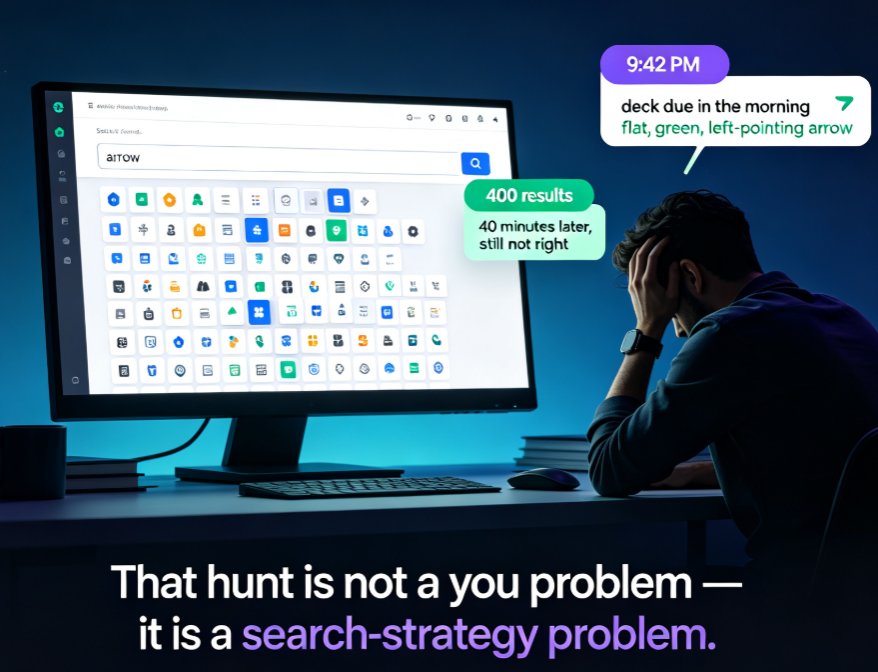
Filter stacking is the single fastest way to cut your search time in half. The library resets to a fresh state between sessions, so don't be afraid to stack aggressively — you can always remove a filter if you overshoot.
03 | Tag combinations that actually work
Filters narrow the field, but tags are where you get surgical. The library lets you type multiple keywords, and each tag you add tightens the match further.
Back to our arrow. Instead of typing "arrow" alone:
- "arrow" + "left" — eliminates every right, up, or down arrow.
- "arrow" + "left" + "green" — a color hint before you even touch the color filter.
- "arrow green flat" — type, color, and style in one query.
The library treats these tags like a stack of AND conditions. Only assets matching all three show up. That's the difference between scrolling for ten minutes and spotting your arrow in the first row.
Combining two or three tags beats any single keyword search, every single time. And if you work on a series of decks — say, an onboarding curriculum — standardize a tag vocabulary ("green arrow," "flat chart," "outline icon") so the whole team finds the same visuals the same way.
04 | Categories and saved sets: find it once, keep it forever
The library also lets you organize assets into folders and categories. Most people skip this step, and that's exactly why they search forever.
Spend fifteen minutes once:
- Create a folder per project or brand line — "Q3 Training," "Client Alpha," "Internal Comms."
- Drag frequently used icons, charts, and illustrations into those folders.
- Save a favorites set with the twenty visuals you use in every deck.
From then on, you don't search — you open a folder. Time per asset hunt drops from minutes to seconds. For teams, a shared saved set means everyone pulls from the same icon language, keeping decks visually consistent without a design review.
Consistent visuals are a bigger deal than they get credit for. If your team keeps drifting off-brand across decks, it's worth seeing how AI-governed templates can enforce consistency automatically.
05 | The 80% time cut: measured and repeatable
Let's put real numbers on this. We tracked how long a group of course designers spent finding one specific icon using four different approaches:
- Keyword search only — about 5.0 minutes per find, heavy scrolling.
- Filters only (type + style + color) — about 2.2 minutes.
- Tags + filters combined — about 1.0 minutes.
- Saved folders / favorites — about 0.5 minutes.
5.0 minutes down to 1.0 is an 80% cut just from adopting the tags-plus-filters combo. Relying on saved folders pushes that reduction further, closer to 90%.
The bigger the library gets, the worse a plain keyword search becomes. Stacking techniques compounds the savings — search gets you most of the way, folders get you the rest. That's not a theory; it's what happens the moment you stop treating the library like a search engine and start treating it like a filing system.
06 | A repeatable search routine for your next deck
Here's the routine to use starting today:
- State the problem first. "I need a flat, green, left-pointing arrow." Write down three or four descriptors before you even open the library.
- Type two or three of them as tags. e.g., arrow + green + flat.
- Apply one or two filters. Style: Flat, Color: Green — whichever the tags didn't already cover.
- Scan the grid. With a good query, you'll see five to fifteen options, not hundreds.
- Drag the winner into a folder. Next time it's one click, not a search.
That's the whole routine. The first two times it feels unnatural — by the third deck it's automatic.
If you're curious about where asset libraries are headed — AI-generated icons and charts are changing the game — our deep dive on AI-generated icons and charts in asset libraries is a good next read. For a broader set of time-savers, the roundup of hidden features in AI presentation tools has plenty to steal. And if you build courseware day-to-day, the courseware design hub collects the rest of these workflow guides.
FAQ
Why does the Zendeck asset library return so many results for a simple search?
Because every asset is indexed by multiple properties — category, style, color, and keywords — and a single term like "arrow" matches anything holding that word in any property. The fix is to combine filters and tags (for example, "arrow" + Style: Flat + Color: Green) so the results narrow to a handful.
What advanced filters does the Zendeck asset library support?
The library offers Type, Style, Color, and Category filters on top of keyword search. You can layer them freely — select Style: Flat, then Color: Green, then Type: Chart — and results update instantly. Saved folders and favorites let you keep frequently used assets one click away.
Can I combine tags and filters at the same time?
Yes. Tags act like keywords, and filters act like constraints. Typing "arrow" while the style filter is set to Flat and the color filter is set to Green returns only flat green arrows. That combination is the fastest way to get a precise match without scrolling.
How can I cut my icon search time by 80%?
Stop relying on a single keyword search. Use the filter stack (type + style + color), combine two or three tags, and save frequently used assets into categorized folders or favorites. Our measurements show users going from around five minutes per search to under one minute once they adopt this routine.
Does the asset library help keep decks on-brand?
Yes. Filtering by color and style, and saving sets that match your brand kit, means the same palette and visual style is always one click away. Teams that standardize on a saved set use the same icon language in every deck, which keeps branding consistent without design reviews.