Zendeck Asset Library: Find Icons & Illustrations in Seconds
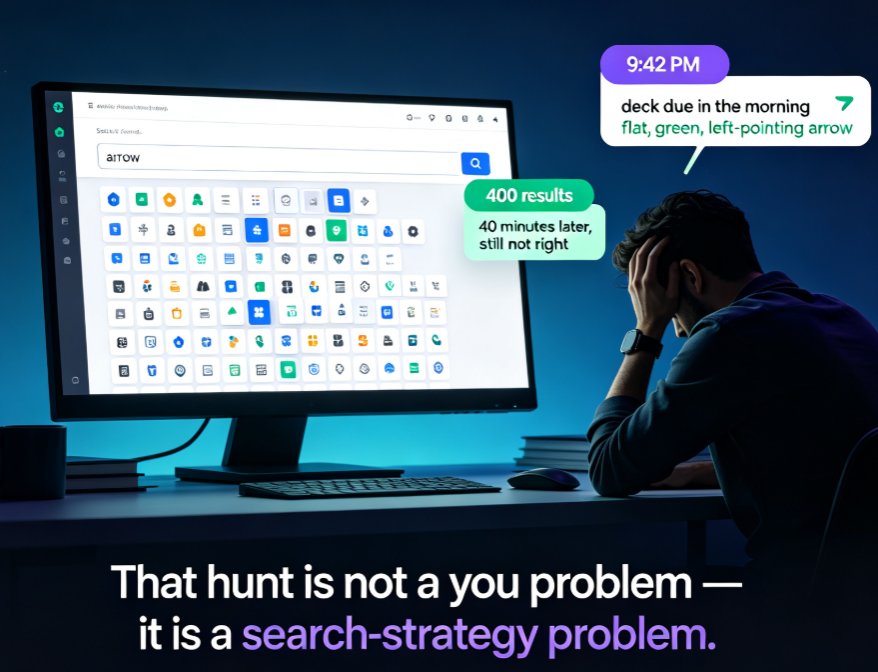
You know the drill. You're mid-flow building a training deck, you need a simple icon to represent "communication," and suddenly you're three tabs deep in a free icon site, squinting at watermarked PNGs and wondering if the license actually allows commercial use. Twenty minutes later, you've downloaded a mismatched set of icons that look like they came from three different designers.
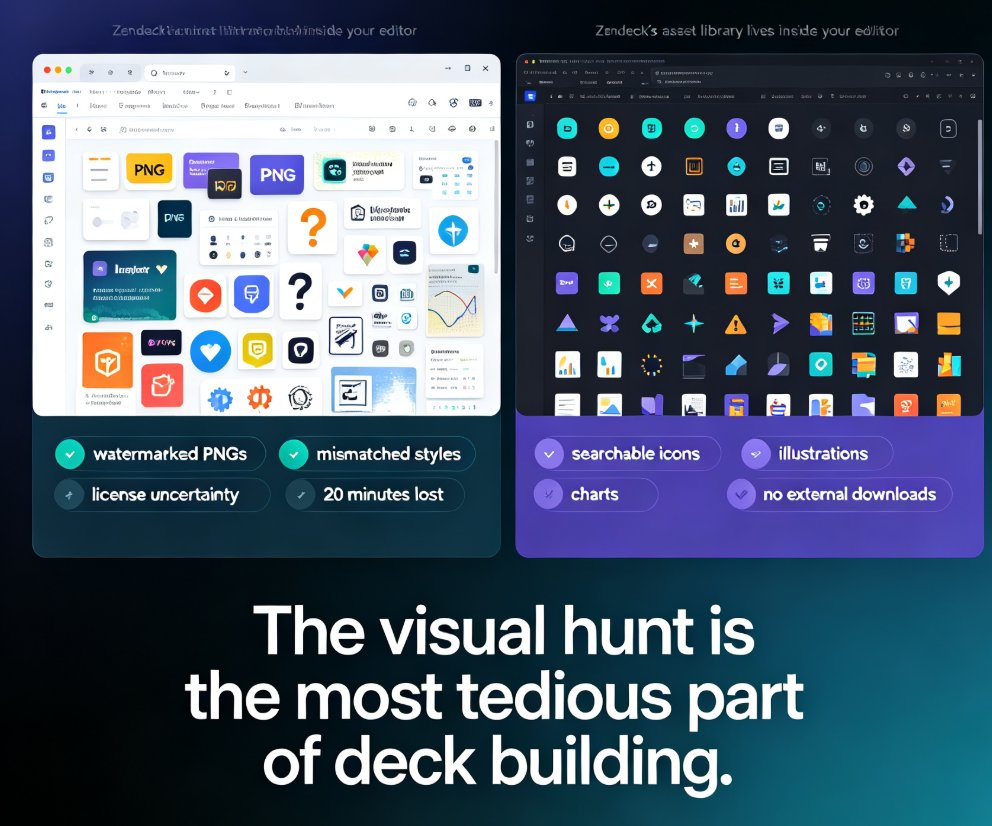
Let's be real: the visual hunt is the most tedious part of deck building. And it's the exact problem Zendeck's asset library was built to solve.
Zendeck's asset library puts searchable icons, charts, and illustrations directly inside your editor — no external downloads, no licensing guesswork, no style mismatches.
This guide walks through how the library works, how to search it effectively, and why a curated in-platform library beats the open-web scavenger hunt for anyone building courseware, training decks, or client presentations.
01. Why a Curated Library Beats the Open Web
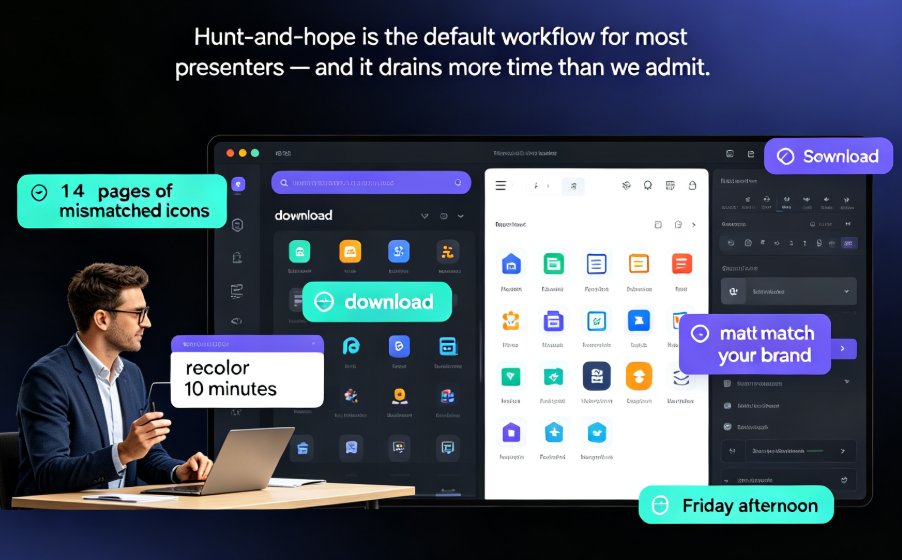
Here's the thing about pulling visuals from random free sites: you're not just paying with time, you're paying with consistency. Free icon packs come in different line weights, different corner radii, different color philosophies. Stack three of them on one slide and the deck instantly looks amateur — even if the content is solid.
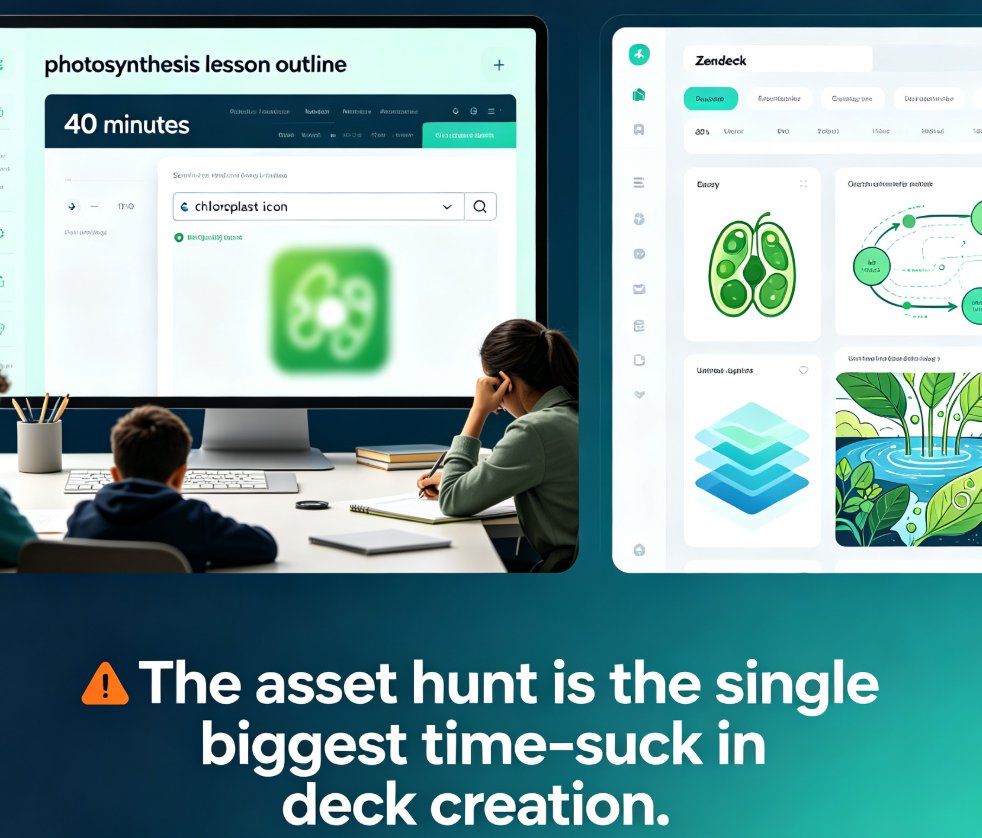
For educators and trainers, this is a credibility problem. Your audience might not know why a slide feels off, but they feel it. Inconsistent visuals signal sloppy preparation.
Zendeck's asset library sidesteps this entirely. Every icon, chart, and illustration in the library is designed to work together — same visual language, same stroke weights, same aesthetic DNA. When you build a deck entirely from the library, it looks like one designer crafted it.
The real value of Zendeck's asset library isn't the volume of assets — it's the consistency. Every visual speaks the same design language, so your deck looks professionally unified without any design skill.
And there's the time angle. A quick survey of how people actually build decks shows that visual sourcing eats 15-20 minutes per deck. That's time you could spend refining your message, rehearsing your delivery, or — let's be honest — going home on time.
02. Searching for Icons: The 30-Second Workflow
Let me walk you through the actual search flow, because it's simpler than you'd expect.
From the Zendeck editor, open the asset library from the right-hand panel. You'll see a search bar, category filters, and a grid of thumbnails. Type what you need — "brain," "training," "growth," whatever — and the library filters instantly.
The workflow looks like this:
- Open the asset library from the editor sidebar.
- Type a keyword — the search handles natural language, so "team meeting" works as well as "meeting."
- Filter by style — line icons, filled icons, duotone, or illustrations.
- Click to insert — the asset drops onto your slide, already sized and styled to match your deck's theme.
That's it. No downloads, no file management, no "where did I save that PNG?" moments.
The search is genuinely fast — results appear as you type, and the library's tagging is smart enough to surface relevant alternatives. Search "chart" and you'll get bar charts, line charts, pie charts, and the icons that typically accompany them.
03. Charts and Data Visuals: Built In, Not Bolted On
Icons are the most obvious use case, but the asset library really shines with charts and data visuals. If you've ever tried to build a decent-looking chart in a traditional presentation tool, you know the pain: default charts look like they're from 2003, and customizing them takes forever.
Zendeck's library includes a range of chart assets — bar charts, line graphs, donut charts, comparison matrices — that you can drop in and customize. The data visualization assets are designed to match the same visual language as the icons, so your data slides don't look like a different document wandered in.
For trainers building courseware, this is huge. A well-designed chart can replace three paragraphs of explanation. And when the chart looks polished, your audience trusts the data more. That's not fluff — visual presentation directly affects how credible your numbers feel.
If you want to go deeper on interactive charts, check out our guide on adding interactive charts to your AI slides with Zendeck's asset library. It covers the full workflow from data input to polished visual.
04. Illustrations: When Icons Aren't Enough
Icons are great for simple concepts, but sometimes you need something with more personality — a scene, a character, a metaphor. That's where illustrations come in.
The asset library includes a solid collection of illustrations designed for common presentation scenarios: people collaborating, learning, presenting, growing. These aren't generic stock photos; they're stylized illustrations that match the library's visual language.
When should you reach for an illustration instead of an icon?
- Explaining a process — an illustration can show a sequence of actions in a single visual.
- Setting a tone — illustrations add warmth and personality that line icons can't.
- Cover slides — a strong illustration makes an immediate first impression.
The rule of thumb: icons for concepts, illustrations for scenes. Mixing both in one deck works fine as long as they share the same visual style — which they do in Zendeck's library, by design.
05. The Time-Saving Math
Let's put some numbers on this. Based on how typical users work, here's a rough comparison of visual sourcing time with and without a built-in library:
| Task | Without library (open web) | With Zendeck library | Time saved |
|---|---|---|---|
| Find 5 matching icons | 15-20 min | 2-3 min | ~15 min |
| Build a data chart | 20-30 min | 5-8 min | ~20 min |
| Source an illustration | 15-25 min | 3-5 min | ~15 min |
| Ensure style consistency | Manual, error-prone | Automatic | N/A |
Across a typical 20-slide deck, that's roughly 45-60 minutes saved — and that's before you factor in the time you save not redoing slides because the visuals clashed.
Here's the same data as a quick visual:
Across a typical 20-slide deck, Zendeck's asset library saves roughly 45-60 minutes of visual sourcing time — and eliminates the rework that comes from mismatched styles.
06. Best Practices for Getting the Most Out of the Library
After watching hundreds of users work with the library, a few habits consistently produce better decks faster:
Search with synonyms, not just exact terms. The library's tagging is smart, but it's not magic. If "growth" doesn't surface what you need, try "progress" or "increase." The asset library's AI-powered search understands context, but a quick synonym swap often surfaces better options.
Use the style filter before you search. If you know you want filled icons, filter first. It narrows the results and keeps you from falling in love with a line icon that won't match your deck's theme.
Don't over-icon. A slide with six icons on it isn't more informative than a slide with two well-chosen ones. The library makes it easy to add visuals — resist the urge to add them everywhere. Use icons to reinforce, not decorate.
Customize after inserting. Every asset in the library can be recolored and resized after it lands on your slide. The default styling matches your deck theme, but you can always tweak. This is where the library really pays off — you get consistency by default, flexibility on demand.
Build a personal favorites set. If you're a trainer who builds courseware weekly, you'll develop a go-to set of icons and illustrations. The library remembers your recent and frequently used assets, so your most-used visuals are one click away.
07. Beyond the Library: How Assets Fit Into Your Full Workflow
The asset library isn't an island — it's part of a larger workflow that includes AI-generated slides, smart layouts, and one-click reskinning. When you generate a deck from an outline, Zendeck's AI already pulls appropriate visuals from the library. You're not starting from a blank slide and hunting for icons; the deck arrives with sensible visuals already placed.
That's the bigger picture: the asset library is the safety net that guarantees your deck always has quality visuals, whether you're generating from scratch or fine-tuning an AI-generated draft.
If you're curious about how asset libraries are evolving more broadly — including AI-generated icons and charts — our article on AI-generated icons and charts and how asset libraries are evolving covers the trend. And for teams worried about brand consistency, how AI asset libraries are revolutionizing corporate brand consistency is worth a read.
08. The Bottom Line
Let's recap what the asset library actually does for you:
- Saves time — visual sourcing drops from 15-20 minutes per task to 2-5 minutes.
- Guarantees consistency — every asset shares the same design language.
- Eliminates licensing guesswork — everything in the library is cleared for use.
- Integrates with your workflow — assets work with AI-generated decks, smart layouts, and reskinning.
If you've been building decks the old way — tab-hopping between free icon sites, wrestling with mismatched styles, and praying the license covers your use case — the asset library is the upgrade you didn't know you needed. It's not the flashiest feature in Zendeck, but it might be the one that saves you the most time.
FAQ
Q: Is the Zendeck asset library included with my plan? A: Yes, the asset library is built into Zendeck's editor and available to all users. There's no separate purchase or per-asset fee — search, insert, and customize as much as you need.
Q: Can I recolor icons and illustrations from the library? A: Absolutely. Every asset can be recolored after insertion to match your deck's theme or your brand palette. The default styling already matches your deck, but you have full control.
Q: What types of assets are in the library? A: The library includes line icons, filled icons, duotone icons, charts (bar, line, pie, donut, and more), and stylized illustrations covering common presentation scenarios like collaboration, learning, and growth.
Q: Can I upload my own icons alongside Zendeck's library assets? A: Yes. You can upload custom assets to your workspace and use them alongside the built-in library. Both appear in the same asset panel, so you can mix your brand-specific visuals with Zendeck's library.
Q: Are the library assets licensed for commercial use? A: Yes. All assets in Zendeck's library are cleared for use in your presentations, including commercial and client-facing decks. No attribution required.