How Sales Teams Use Zendeck's Smart Layout to Standardize Client Decks
Let's be honest: if you've ever opened a client deck from a teammate and wondered whether it came from a different company, you're not alone. One rep uses navy blue and Arial. Another uses teal and Calibri. A third pasted a chart that looks like it was formatted in 2009. The content is solid, but the deck looks like five different people made it — because five different people did.
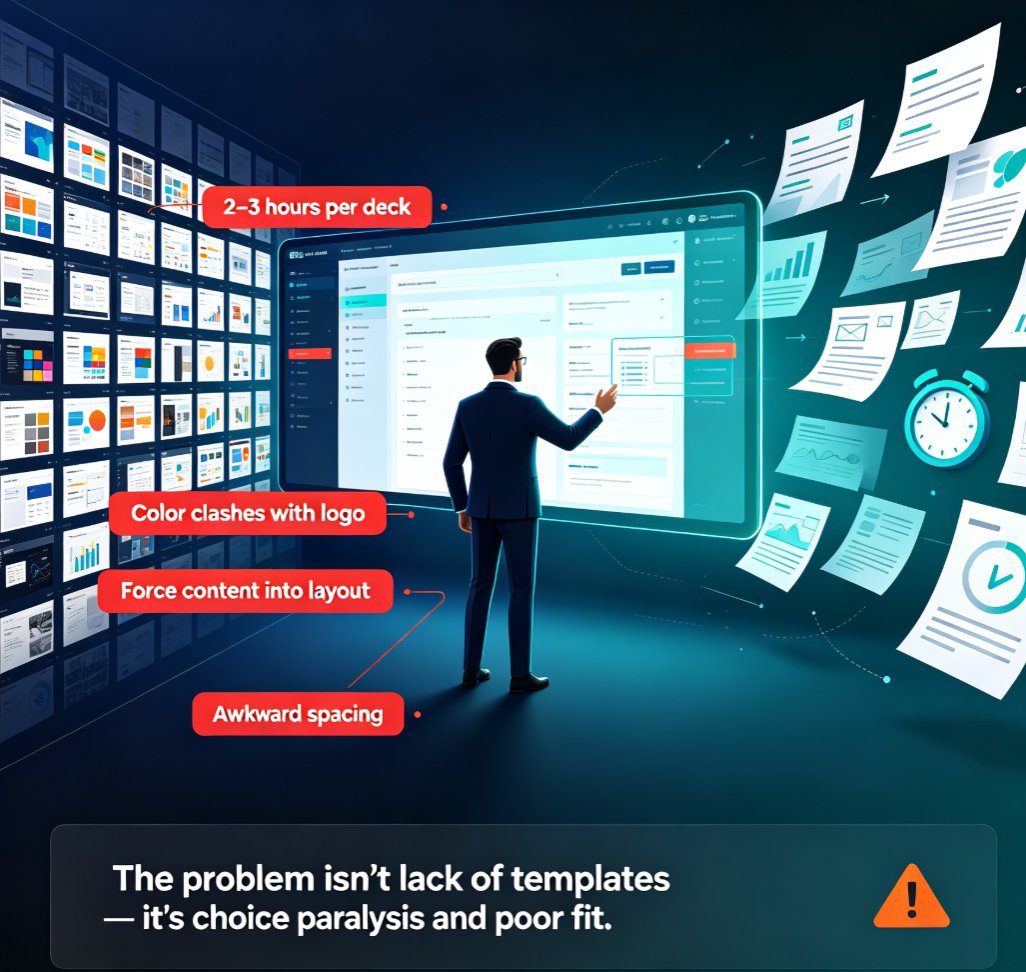
That inconsistency isn't just a cosmetic annoyance. In B2B sales, your deck is your credibility on a slide. When a prospect sees mismatched fonts and clashing colors, they subconsciously question whether your product is as polished as your pitch. And when your sales manager has to spend two hours per deck fixing formatting before a big meeting, that's time nobody gets back.
The fix isn't more training or stricter guidelines. It's a tool that enforces consistency automatically. Here's how sales teams use Zendeck's Smart Layout to standardize client decks — and why it's becoming the quiet backbone of modern sales enablement.
01 Why Sales Decks Go Off-Brand (and Why It Costs You Deals)
Every sales team starts with good intentions. Someone builds a master template, shares it on the drive, and everyone promises to use it. Then reality hits: a rep is in a hurry before a client call, so they grab an old deck from last quarter and tweak the numbers. Another rep finds a template they like from a conference and adapts it. A third just builds from scratch because they can't find the master file.
Within three months, you have four versions of the "official" template floating around. The average sales team maintains 3-5 unofficial deck variants at any given time, and most reps can't tell which one is current.
This isn't just a design problem — it's a revenue problem. When your deck looks inconsistent, prospects notice. They might not say anything, but they register the mismatch. In competitive deals where the buyer is comparing you against two other vendors, that small signal of disorganization can tip the scale.
There's also the hidden cost of manual fixing. Sales managers and marketing ops folks routinely spend 2-3 hours per deck reformatting slides before client meetings. Multiply that by every proposal, every pitch, every quarterly business review, and you've lost days of productive work every month.
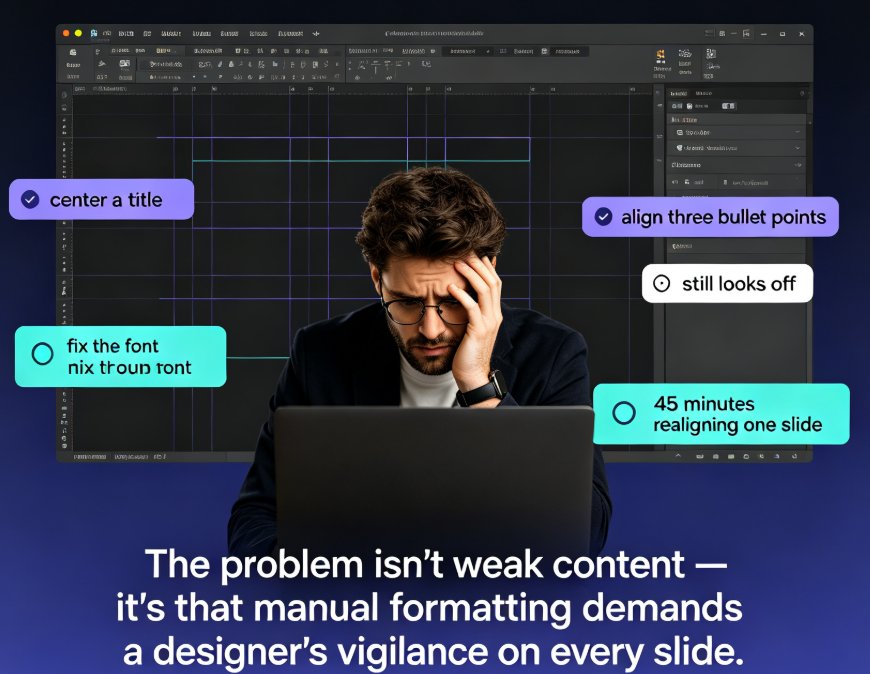
The root cause is simple: you're relying on human discipline to enforce visual consistency, and humans are busy, distracted, and prone to shortcuts. The solution is to remove the manual step entirely.
02 What Smart Layout Actually Does (and Doesn't Do)
Smart Layout is Zendeck's engine for visual consistency. When you build a deck — whether from a Word outline, pasted Markdown, or an imported PDF — Smart Layout automatically applies your team's approved design system to every slide.
Concretely, it handles four things:
- Typography: One font family for headings, one for body text, consistent sizes and weights across all slides.
- Color palette: Your brand colors are locked in. No more random accent colors that clash with the logo.
- Spacing and alignment: Margins, padding, and object alignment follow a consistent grid, so nothing looks randomly placed.
- Slide structure: Common slide types (title, agenda, data, comparison, closing) get matched to the right layout automatically.
What Smart Layout doesn't do is homogenize your content. It standardizes the visual system, not the message. Each rep still writes their own narrative, chooses their own data points, and decides which slides to include. The difference is that every deck — regardless of who built it — looks like it came from the same professional design team.
That distinction matters. Sales reps don't want to feel like they're being forced into a straitjacket. They want the freedom to tell their story, but they also want to look good doing it. Smart Layout gives them both.
03 Setting Up Smart Layout for Your Sales Team in 30 Minutes
Here's the practical part. Getting your sales team standardized with Smart Layout takes less time than your next team meeting.
Step 1: Create or upload your brand kit.
Your brand kit is the source of truth for fonts, colors, and logo usage. If you already have brand guidelines, upload them. If not, Zendeck's brand kit builder lets you define your palette and typography in a few clicks. This is the same mechanism that powers consistent decks across marketing, so you're not building something new — you're reusing what already works. If you need a refresher on setting this up, the brand kit setup guide walks through it step by step.
Step 2: Pick a base template.
Choose a template that matches the tone of your sales materials — clean, professional, and focused on data. You can start with one of Zendeck's premium templates or build a custom one that reflects your brand personality. The key is that this template becomes the default for all sales decks.
Step 3: Save it as the team default.
Once your brand kit and template are configured, save them as the default for your workspace. Now every rep who creates a deck in Zendeck automatically inherits the same visual system. No one has to remember to apply the template — it's just there.
Step 4: Test with a real deck.
Take one of your existing client decks and run it through Smart Layout. Import the file, let Zendeck apply the design system, and review the result. This is also a great moment to check that your data-heavy slides — charts, tables, comparison matrices — render cleanly. The data-to-deck workflow is worth a look if your decks are chart-heavy.
Step 5: Roll it out.
Share the new workflow with your team. The good news: there's almost no learning curve. Reps just build their deck as usual — import their outline, add their content, and Smart Layout handles the rest.
That's it. Thirty minutes of setup, and you've eliminated the most common source of deck inconsistency.
04 The Workflow: From Outline to Standardized Deck
Here's what the day-to-day looks like once Smart Layout is in place.
A rep is preparing for a client meeting on Thursday. They've been collecting notes, data points, and talking points all week. On Wednesday afternoon, they open Zendeck, paste their outline (or upload a Word doc), and hit generate.
Zendeck builds a structured deck from their content — slides, headings, bullet points, even suggested visuals. Smart Layout applies the brand kit and template automatically. The rep reviews, tweaks the wording, maybe swaps in a specific chart they want to highlight, and exports to PPTX or PDF.
Total time: about 20 minutes. Compare that to the old workflow where the rep would spend an hour formatting, then the manager would spend another hour fixing alignment issues.
The result: a deck that's on-brand, on-message, and ready to present — with zero formatting arguments.
This workflow scales across the whole team. When a new rep joins, they don't need a two-hour training session on template rules. They just start building, and Smart Layout keeps them on track. When marketing updates the brand colors, you don't have to chase down every rep to update their files — you update the brand kit once, and the next deck they build reflects the new palette automatically. That's the same logic behind AI-governed brand consistency with smart templates.
05 The Before/After: What Standardization Actually Changes
Numbers help here. Here's a realistic comparison of what changes when a sales team moves from manual formatting to Smart Layout:
| Aspect | Before Smart Layout | After Smart Layout |
|---|---|---|
| Fonts across team | 4-6 different font families | 1 brand font set |
| Color palette | 5+ accent colors in rotation | Locked brand palette |
| Slide layouts | 3-5 unofficial variants | 1 approved template |
| Time to format a deck | 2-3 hours (rep + manager) | 20-30 minutes |
| Rebranding effort | Manual redo of every file | One-click reskin |
| New rep onboarding | 2+ hours of template training | Near zero (auto-applied) |
These aren't theoretical. Teams that standardize their deck production consistently report cutting formatting time by 70-80% — not because they're working faster, but because the work simply disappears.
06 Best Practices From Teams That Do This Well
The teams that get the most out of Smart Layout share a few habits. Steal them.
Keep the brand kit lean. Don't stuff it with 15 fonts and 30 colors. Two or three fonts and a tight palette are easier to maintain and look more professional. If you're building a custom brand kit, the guide to custom brand kits has practical tips.
Standardize the slide order, not just the design. Smart Layout handles visuals, but you should also agree on a narrative structure — problem, solution, proof, ask. When every rep follows the same story arc, your decks become predictable in the best way: prospects always know where the value proposition lands.
Review one deck per quarter. Pick a recent client deck and audit it against your brand kit. This catches drift early, before it becomes a habit. It's also a good moment to update the template if your messaging has evolved.
Let reps customize content, not design. The moment a rep starts moving margins or changing fonts, the consistency breaks. Smart Layout removes that temptation by making the design system automatic. If a rep wants a different look, they should request a template update — not hack the current one.
Use it for more than client pitches. The same Smart Layout setup works for internal QBRs, team meetings, and onboarding decks. The more you standardize across all sales materials, the stronger your brand becomes. If you're curious how other teams handle this, the marketing agency standardization case study shows a similar playbook in action.
07 The Bottom Line
Sales decks are the most expensive 12-20 slides your company produces. They carry your pitch, your proof, and your credibility into rooms where deals get won or lost. Treating them like a formatting afterthought is a mistake.
Smart Layout doesn't replace your sales strategy or your messaging. It removes the friction that gets between your reps and a polished deliverable. When formatting is automatic, your team spends its energy on what actually matters: the story, the data, and the conversation.
If you're still manually fixing fonts and alignment before every client meeting, you're not saving time — you're wasting it. Set up Smart Layout once, and let every future deck carry your brand without asking anyone to think about it.
FAQ
Q: What exactly does Zendeck's Smart Layout do for sales decks?
Smart Layout automatically unifies fonts, colors, spacing, and slide structure across an entire deck. When a sales rep imports a Word outline or pastes Markdown, Smart Layout applies the team's approved brand kit and template rules, so every slide follows the same visual system without manual formatting.
Q: How long does it take to set up Smart Layout for a sales team?
Most teams get a working setup in under 30 minutes. You create or upload a brand kit with your logo, fonts, and color palette, then choose a base template. Once saved, every rep who builds a deck in Zendeck automatically inherits those rules — no per-user configuration needed.
Q: Can Smart Layout handle decks with lots of data and charts?
Yes. Smart Layout recognizes common slide types — title, agenda, data, comparison, closing — and applies the right layout for each. Charts and tables get consistent styling automatically, so a Q3 revenue slide looks just as clean as a customer testimonial slide.
Q: Does Smart Layout work with existing PowerPoint files?
You can import existing PPTX files into Zendeck and apply Smart Layout as a one-click reskin. This is especially useful when you're consolidating legacy decks from multiple reps into one standardized format without rebuilding everything from scratch.
Q: Will Smart Layout make all our decks look identical and boring?
No — it standardizes the visual system, not the content. Each rep still writes their own messaging, chooses which slides to include, and adds their own data. Smart Layout just ensures the fonts, colors, and spacing stay consistent, which is what makes a deck look professional rather than generic.