From 50-Page Word Proposal to Client-Ready Deck: A Zendeck Workflow
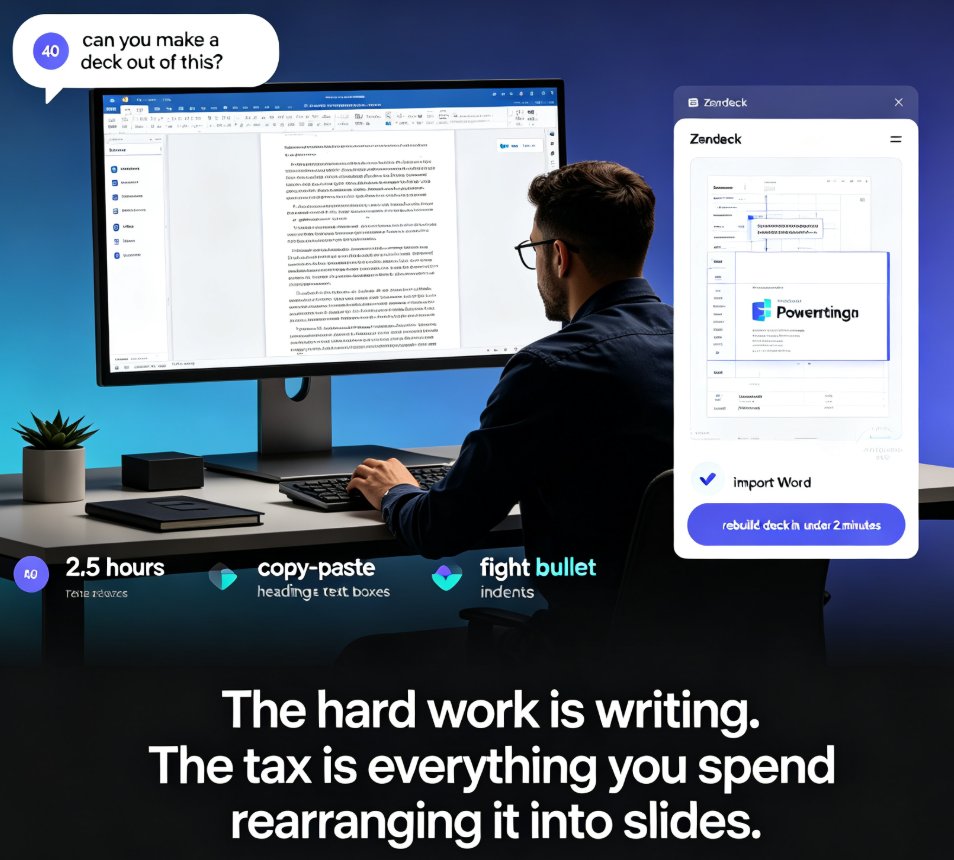
You've just spent three weeks writing a 50-page proposal. The client loves the content, but now they want a 10-slide presentation for the steering committee. What do you do? If you're like most consultants, you copy-paste the executive summary, shrink the font, and call it a day. That's a mistake.
Client decks are not shorter because they are simpler. They are shorter because the thinking is sharper. This line from a recent guide on consulting slides nails it. The real work isn't converting formats—it's condensing narrative. And that's exactly where Zendeck shines.
Let's walk through a workflow that turns a dense Word proposal into a client-ready deck without losing your sanity.
I. Why Most Word-to-PPT Conversions Fail
If you've ever tried to convert a Word document into a presentation manually, you know the pain. You open the doc, copy a paragraph, paste it onto a slide, then spend an hour fiddling with bullet points and font sizes. The result? A deck that looks like a Word document on a projector.
The problem isn't the tool—it's the approach. Most conversion tools focus on formatting: they map headings to slide titles and paragraphs to body text. But they ignore the narrative structure. A proposal has an argument, a flow, a story. A presentation needs a different story—one that's visual, concise, and decision-oriented.
That's why consultants at firms like McKinsey, BCG, and Bain don't just convert. They restructure. They move supporting detail to the appendix. They sharpen the message. They make every slide earn its place.
Zendeck was built for this. It doesn't just convert your Word file—it helps you condense it into a persuasive story.
II. The Zendeck Workflow: From 50-Page Word to Client-Ready Deck
Here's the step-by-step process I use with Zendeck. It takes about 10 minutes of active work, plus a few minutes of review.
Step 1: Import Your Word Document
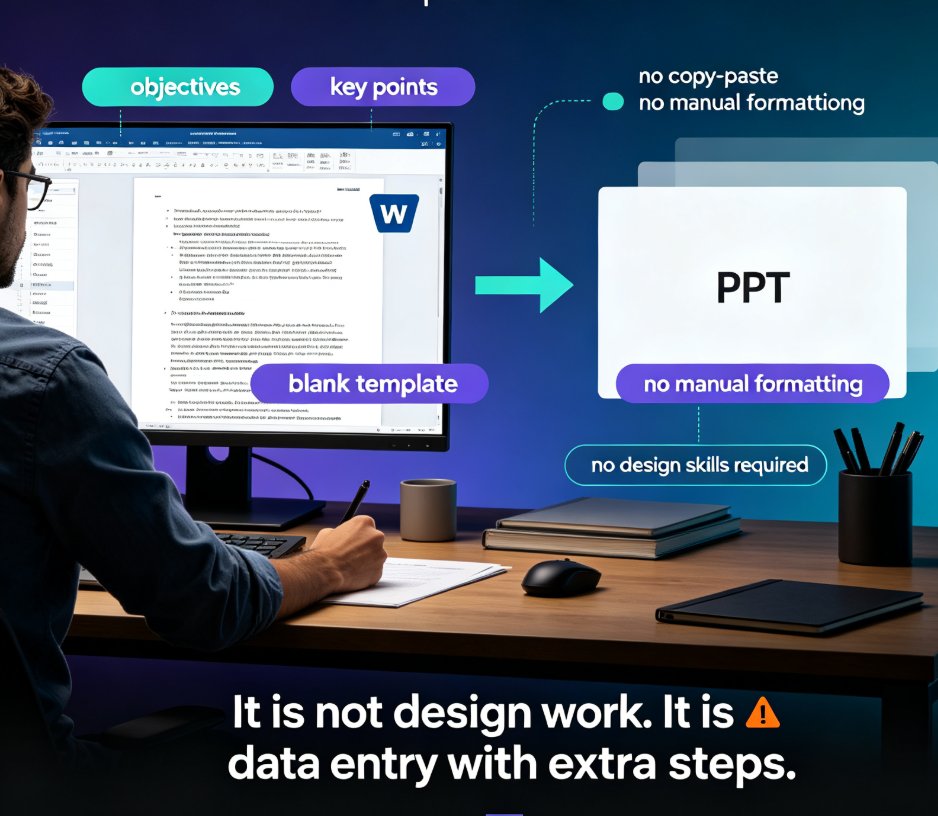
Log into Zendeck and create a new presentation. Choose "Import from Word" and upload your proposal. Zendeck accepts .docx files, and you can also paste Markdown or plain text if you prefer.
Zendeck's AI parses the document, identifying headings, paragraphs, lists, and tables. It creates a slide outline based on the document's structure. You'll see a list of slides on the left, each mapped to a section of your proposal.
Step 2: Let Zendeck Extract and Structure the Content
Once imported, Zendeck doesn't just dump text onto slides. It analyzes the content and suggests a logical flow. For a 50-page proposal, you might see 30 or 40 slides initially. That's fine—you're going to condense.
Zendeck's AI identifies the core narrative—key arguments, data points, and recommendations—and suggests a condensed structure. You can accept the suggestion or manually drag slides to reorder. The goal is to get to a 10-12 slide deck that tells your story.
Step 3: Condense and Refine the Narrative
This is where the magic happens. Zendeck offers a "Condense" feature that summarizes long sections into bullet points or short statements. For example, a three-page market analysis becomes a single slide with three key takeaways.
You can also use the built-in AI prompts to rewrite content for a client audience. Ask Zendeck to "make this more persuasive" or "highlight the financial impact" and it will adjust the wording.
Every slide must earn its place. Redundancy is eliminated. Ambiguity is removed. This is the consulting principle, and Zendeck helps you apply it without starting from scratch.
Step 4: Apply Brand and Design
Once your content is condensed, it's time to make it look professional. Zendeck's template library has 500+ options, but the real power is in brand kits. If your firm has a brand kit set up, Zendeck automatically applies your fonts, colors, and logo to every slide.
If you're working with a client's brand guidelines, you can create a custom kit in minutes. This ensures your deck looks like it came from your firm, not from a generic template.
Step 5: Review and Export
Before you export, review the deck for consistency. Zendeck's smart layout tools align objects, fix spacing, and ensure visual hierarchy. You can also add charts, icons, and images from the asset library.
Export to PPTX, PDF, or Google Slides with one click. If you need to present remotely, you can even turn the deck into a narrated video using Zendeck's PPT-to-video feature.
III. How to Condense a Proposal into a Persuasive Story
Condensing isn't just about cutting words. It's about restructuring for a different medium. Here's what I've learned from years of consulting and from studying how top firms do it.
Start with the Pyramid Principle
Put the conclusion first. Your client wants to know your recommendation immediately. Then support it with three or four key arguments. Then add evidence. This is the classic McKinsey approach, and it works.
Zendeck helps you apply this by letting you reorder slides and rewrite headlines. You can move the executive summary to the front and push detailed analysis to the appendix.
Quantify Everything
Client-ready decks are financially explicit. They articulate strategic alternatives, quantify impact, outline risk exposure, and clarify implementation sequencing. If your proposal has numbers, make them front and center.
Zendeck's data visualization tools turn raw numbers into charts and graphs. You can import a table from your Word doc and convert it into a bar chart in seconds.
Be Defensible
Consulting-grade slides are defensible under scrutiny. Data sources are cited. Assumptions are transparent. Sensitivities are understood. Zendeck lets you add footnotes and source annotations to every slide, so you're ready for tough questions.
IV. Traditional Word-to-PPT vs. Zendeck: A Comparison
Let's be real: you could do this manually, but it would take hours. Here's a side-by-side comparison.
| Aspect | Traditional Method | Zendeck Workflow |
|---|---|---|
| Content extraction | Copy-paste manually | AI parses structure automatically |
| Narrative condensation | You rewrite everything | AI suggests summaries and key points |
| Design consistency | Manual formatting | Brand kits and smart layout |
| Time to 10-slide deck | 4-6 hours | 10-15 minutes |
| Client-ready polish | Requires design skills | Built-in templates and asset library |
| Collaboration | Email back-and-forth | Real-time co-editing and sharing |
The time savings are dramatic—but the real win is the narrative quality. Zendeck forces you to think about the story, not the formatting.
V. Tips for Client-Ready Decks
Here are a few extra tips I've picked up, some from the consulting world and some from trial and error.
Every Slide Must Earn Its Place
If a slide doesn't advance your argument, cut it. Move supporting detail to the appendix. Zendeck makes this easy with a simple drag-and-drop to the appendix section.
Use the Appendix Wisely
Your appendix is your safety net. Put all the data sources, detailed charts, and backup slides there. This keeps your main deck clean while ensuring you're prepared for questions.
Test Your Narrative
Before you present, run through the deck with a colleague. Does the story flow? Are the transitions smooth? Zendeck's presentation mode lets you rehearse and even get AI feedback on pacing.
Don't Forget the Call to Action
Your last slide should be a clear ask. Whether it's approval, funding, or a next meeting, make it explicit. Zendeck's template library has CTA slide designs that make this easy.
VI. Why Zendeck Is the Smart Choice for Consultants
If you're a consultant or B2B team that regularly turns proposals into presentations, Zendeck is a game-changer. It's not just a converter—it's a narrative condenser. It helps you apply the same rigor that top firms use, without the design team.
Zendeck empowers anyone without design skills to create client-ready decks in minutes. You focus on the thinking; Zendeck handles the visuals.
I've seen consultants use Zendeck to win deals, HR teams to automate onboarding decks, and marketing agencies to standardize client presentations. The use cases are endless.
If you're ready to stop fighting with formatting and start telling better stories, give Zendeck a try. Your next proposal could become your best pitch yet.
FAQ
How does Zendeck import a long Word document?
Zendeck lets you upload a Word file directly. It automatically parses headings, paragraphs, lists, and tables, then structures them into a slide deck outline. You can also paste Markdown or TXT if you prefer.
Can Zendeck condense a 50-page proposal into a 10-slide deck?
Yes. Zendeck's AI identifies the core narrative—key arguments, data points, and recommendations—and suggests a condensed structure. You can further refine by dragging slides, deleting sections, or using the built-in summarization prompts.
Will my deck look on-brand after conversion?
Absolutely. Zendeck offers brand kits that automatically apply your company's fonts, colors, and logos across all slides. You can also choose from 500+ templates and customize them to match your client's expectations.
Can I export the final deck to PowerPoint or PDF?
Yes, Zendeck supports export to PPTX, PDF, and Google Slides. You can also turn your deck into a narrated video using the PPT-to-video feature, which is great for asynchronous client reviews.
Is Zendeck suitable for consultants who aren't designers?
Definitely. Zendeck is built for professionals without design skills. The AI handles layout, alignment, and visual hierarchy, so you can focus on the story. You can also collaborate with your team in real time and share a link for client feedback.
Ready to turn your next proposal into a client-ready deck? Explore more tips in our consultant case study or learn how to import PDFs and reports for even faster workflows.