Accessibility Gaps in Courseware? Zendeck Auto-Adds Alt Text for You
Accessibility Gaps in Courseware? Zendeck Auto-Adds Alt Text for You
Last semester, a colleague of mine got a short email from her university's disability office that made her stomach drop. Three of her course decks had failed the accessibility audit. Not because the content was wrong — the material was solid. The problem was delivery. Forty charts had no alt text. Several slides used gray-on-light-gray text that barely passed contrast checks. And a few slides read in the wrong order on a screen reader, so students using assistive tech heard the punchline before the setup.
She spent a full weekend rebuilding those decks. That's the reality of accessible courseware in 2026: it's mandatory, it's tedious, and most AI presentation tools pretend it doesn't exist.
Here's the thing — accessibility isn't a checkbox you add at the end. It's a design decision you make at the start. And that's exactly where Zendeck differs from the rest of the AI deck tools out there. Instead of generating pretty slides that are invisible to assistive technology, Zendeck bakes accessibility into the generation step: auto alt text, readable layouts, and structured slide content that screen readers can actually follow.
Let's break down what that means for you, your students, and your compliance record.
I. Why accessibility is now a hard requirement, not a nice-to-have
Let's be real: for years, accessibility in courseware was treated as an "if we have time" task. Those days are over.
Three forces are pushing accessibility from optional to mandatory in education right now.
First, the legal pressure. ADA Title II rules and Section 508 requirements have been tightening, and universities and training organizations have faced a steady stream of accessibility-related complaints and lawsuits. WCAG 2.2 — the Web Content Accessibility Guidelines — is increasingly the yardstick that audits use, and it now covers things like focus appearance and consistent help that older versions ignored. If your courseware is digital, it's likely in scope.
Second, the student reality. A significant share of learners use assistive technology — screen readers, keyboard navigation, screen magnifiers. When your deck is inaccessible, you're not just failing an audit; you're shutting those students out of the lesson.
Third, the expectation shift. Accessibility is becoming a quality signal. Institutions and employers increasingly ask about it in procurement and course reviews. A deck that's accessible reads as professionally made; one that isn't reads as an afterthought.
The pain point is clear: you want to meet these standards, but the manual work is brutal. The solution is to stop treating accessibility as a cleanup task and start treating it as a generation feature. The outcome — decks that pass audits and serve every learner, without you spending weekends fixing slides.
II. The three biggest accessibility gaps in AI-generated courseware
Here's the uncomfortable truth about most AI presentation tools: they optimize for visual wow, not for readability. That's how you end up with gorgeous decks that fail every accessibility check. Let's name the three gaps that come up again and again.
◉ Gap 1: Missing or useless alt text
Alt text is the text description that screen readers speak aloud in place of an image. Most AI tools generate images and charts but leave the alt text field empty — or worse, fill it with the filename. A student using a screen reader hears "chart_2026_final_v3.png" instead of "Bar chart showing enrollment growth of 18% from 2024 to 2026."
Alt text isn't a nicety — it's the difference between a chart being information and a chart being noise for a screen reader user.
◉ Gap 2: Low contrast and unreadable layouts
AI tools love trendy design: light gray text on white backgrounds, thin fonts, decorative overlays. These look modern on a laptop screen and become illegible on a projector or for a student with low vision. WCAG requires a contrast ratio of at least 4.5:1 for normal text. Plenty of AI-generated decks don't come close.
◉ Gap 3: Broken reading order and unstructured content
Screen readers navigate slides in the order elements appear in the document tree, not the order they appear visually. When an AI tool scatters text boxes, images, and shapes arbitrarily, a screen reader might read the title last, or jump from a footnote to a header. The slide looks fine visually and reads like nonsense aloud.
Here's how the manual fix compares to the Zendeck approach:
| Accessibility task | Manual workflow | With Zendeck |
|---|---|---|
| Alt text | Write descriptions for every image and chart by hand | Auto-generated from slide content, editable in seconds |
| Contrast and fonts | Manually check contrast ratios and adjust colors | Smart layouts enforce readable contrast by default |
| Reading order | Reorder elements so screen readers follow the logic | Structured slide content keeps a logical reading order |
| Captions and transcripts | Record and transcribe separately, then sync | PPT-to-video adds narration and subtitles in one pass |
| Time per deck | Hours of cleanup and rework | Minutes of review and polish |
The pattern here is simple: the more you rely on manual cleanup, the more you'll skip it. The solution is to choose a tool that generates accessible structure from the start. The outcome is courseware that's compliant without a heroic effort.
III. How Zendeck auto-fixes these gaps at generation time
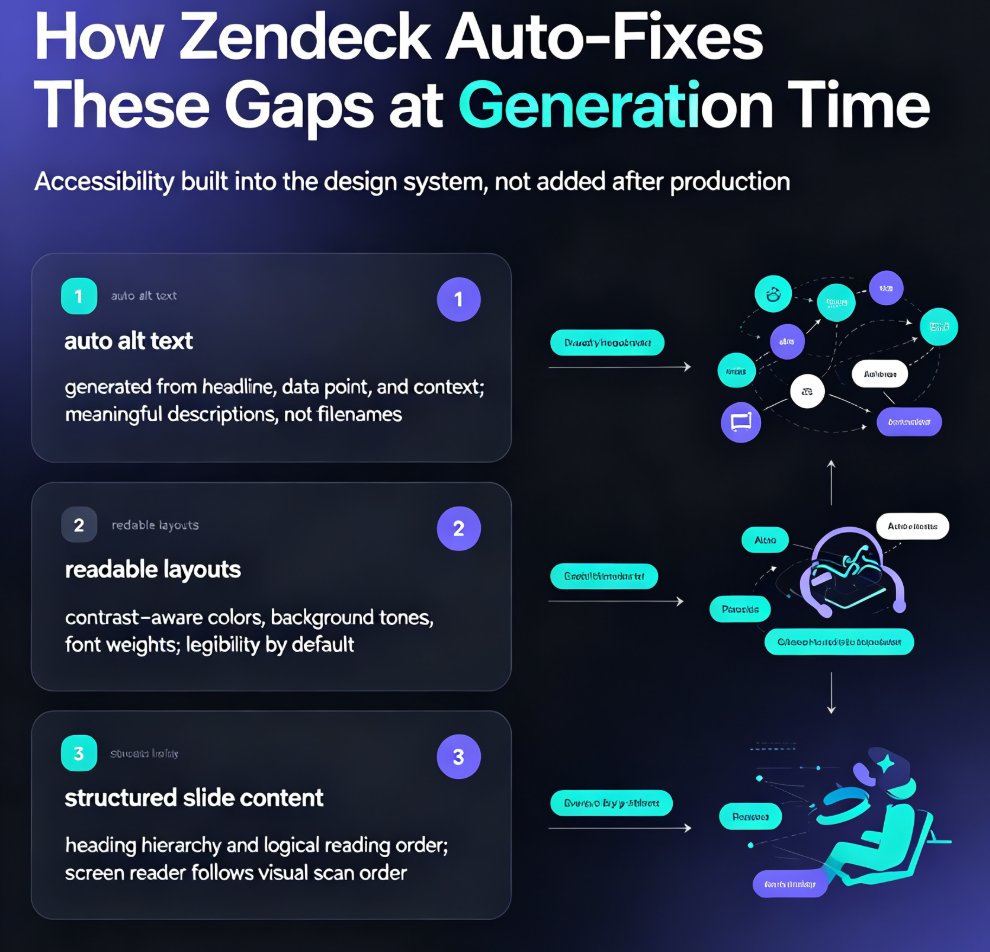
Zendeck's approach is different because it treats accessibility as part of the design system, not as a post-production filter. When you generate a deck, three things happen automatically.
Auto alt text, generated from real content
When Zendeck places an image, chart, or icon, it generates alt text based on the actual slide content — the headline, the data point, the context. You get a meaningful description, not a filename. And because it's editable, you can refine it for nuance. For a chart, the alt text describes the takeaway, which is exactly what screen reader users need.
Readable layouts enforced by smart design
Zendeck's smart layout system doesn't just align elements — it applies contrast-aware choices. Text colors, background tones, and font weights are selected to keep readability within accessible ranges. You're not fighting the tool to make text legible; legibility is the default.
Structured slide content for logical reading order
This is the one most tools miss. Zendeck builds slides with a proper heading hierarchy and a logical element order, so a screen reader navigates the slide the way a sighted person scans it: title first, then the main point, then supporting visuals. No more hearing the punchline before the setup.
Figure: Illustrative capability coverage across common accessibility tasks. Manual workflows typically leave large gaps; Zendeck covers them at generation time.
The takeaway: when accessibility is automated, it actually happens. You're not relying on your own discipline to remember alt text on slide 23 — the tool handles it, and you just review.
IV. Your workflow: building an accessible deck in Zendeck
So what does this look like in practice? Here's the workflow I'd recommend, and it takes minutes, not weekends.
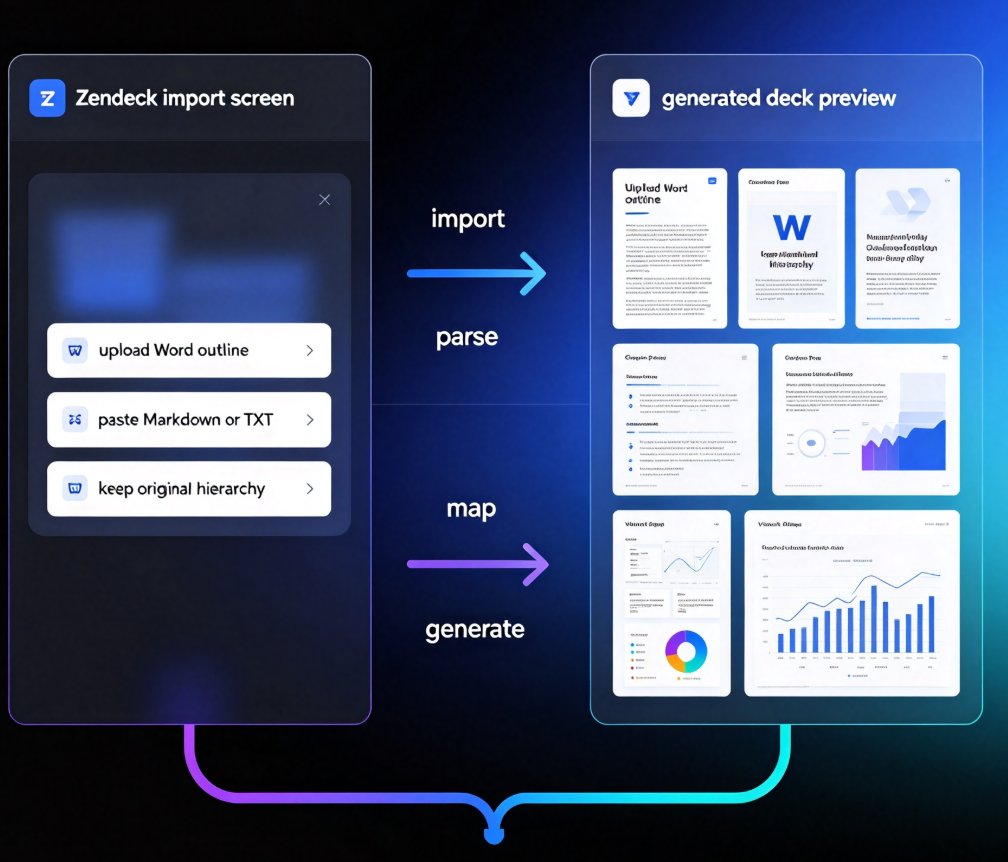
Step 1: Start with your outline. Paste a Word outline or Markdown into Zendeck. The structure of your outline becomes the structure of your slides — which is the foundation of a logical reading order.
Step 2: Let Zendeck generate the deck. The AI builds slides with smart layouts, readable contrast, and auto-generated alt text for every visual element. You're not designing from scratch; you're reviewing a draft that's already accessible.
Step 3: Review the accessibility details. Open the alt text panel and refine any descriptions that need nuance — for example, clarifying that a chart shows a regional breakdown rather than a national one. Check the reading-order preview to confirm the flow.
Step 4: Add narration if you're building a micro-course. Zendeck's PPT-to-video feature lets you add voiceover and subtitles, which covers the audio and captioning requirements that many courseware audits check. This turns an accessible deck into an accessible learning experience.
Step 5: Export and share. Share via link or export, knowing your deck meets the structural requirements that matter.
A quick tip from someone who's been burned: don't wait until the audit email to check accessibility. Run a quick review of your deck's alt text and reading order before you publish — it takes five minutes and saves you a weekend. If you're building decks regularly, make this part of your standard workflow, not an emergency response. For more on the common pitfalls, check out our guide on AI presentation mistakes to avoid in 2026.
V. Beyond compliance: accessibility improves learning for everyone
Here's the part that often gets lost in the compliance conversation: accessible courseware isn't just for students with disabilities. It's better courseware, full stop.
Designing for accessibility is designing for clarity. Alt text forces you to articulate what each visual actually communicates. Readable contrast makes slides work on projectors and in bright rooms. Logical reading order helps every student follow the argument, not just those using screen readers. Structured content is easier to skim, easier to review, and easier to turn into study notes.
This is the principle behind Universal Design for Learning — build for the edges, and everyone benefits. Captions help students in noisy environments and non-native speakers. Clear headings help everyone find what they need. When you build accessible courseware, you're not accommodating a minority; you're raising the floor for the whole class.
And there's a professional payoff too. Accessible decks signal that you know what you're doing. They pass audits, impress reviewers, and hold up when someone shares them beyond your original audience. If you're creating training materials for a company, accessible courseware is increasingly a procurement requirement — AI-generated video decks are already replacing traditional corporate training, and accessibility is part of why they're accepted.
VI. What to do next
If you've been treating accessibility as a manual cleanup task, the fix isn't to work harder — it's to change the tool. Zendeck auto-generates alt text, enforces readable layouts, and structures slide content so screen readers follow the logic. That's the difference between courseware that passes an audit and courseware that serves every learner.
Start with your next deck. Paste an outline, generate, and spend your time reviewing the content instead of fixing the formatting. If you want to go deeper on the standards, our guide on WCAG compliance in AI presentations walks through what the guidelines actually require, and the Zendeck-specific WCAG tips show you exactly where to look in the tool. For the broader picture of how accessible design fits into modern courseware, browse the courseware design category.
FAQ
Q: Does Zendeck automatically add alt text to every image and chart?
A: Yes. When Zendeck generates a deck, it creates alt text for visual elements based on the actual slide content — headlines, data points, and context — rather than leaving the field empty or using a filename. You can edit any description afterward to add nuance.
Q: What accessibility standards does Zendeck help with?
A: Zendeck's auto alt text, contrast-aware layouts, and structured reading order align with core WCAG 2.1/2.2 principles, which are the basis for ADA Title II and Section 508 compliance in education. It covers the structural requirements most audits check first.
Q: Can I check the reading order of my slides before sharing?
A: Yes. Zendeck provides a reading-order preview so you can confirm that a screen reader will navigate the slide logically — title first, then main points, then supporting visuals — before you publish.
Q: Does accessible courseware only benefit students with disabilities?
A: No. Accessible design — clear alt text, readable contrast, logical structure — improves clarity for every learner, including those in noisy environments, non-native speakers, and anyone reviewing slides on a projector. It's the core idea behind Universal Design for Learning.
Q: How does Zendeck handle captions for video courseware?
A: Zendeck's PPT-to-video feature lets you add narration and subtitles to your slides, covering the audio and captioning requirements that many courseware accessibility audits include. This turns an accessible deck into an accessible learning experience.