Accessible E-Learning: Zendeck Auto Captions & Inclusive Layouts
You've spent hours building that courseware—polishing slides, recording narration, aligning graphics. Then a learner with hearing impairment asks for a transcript, and a colleague mentions the color contrast is weak for her dyslexia. Sound familiar? Most courseware teams don't plan for accessibility until someone complains, and by then it's patchwork. But there's a better way: bake accessibility into the tool you use from the start, so every deck you ship is inclusive by default.
01 Why Accessibility in Courseware Is Non-Negotiable
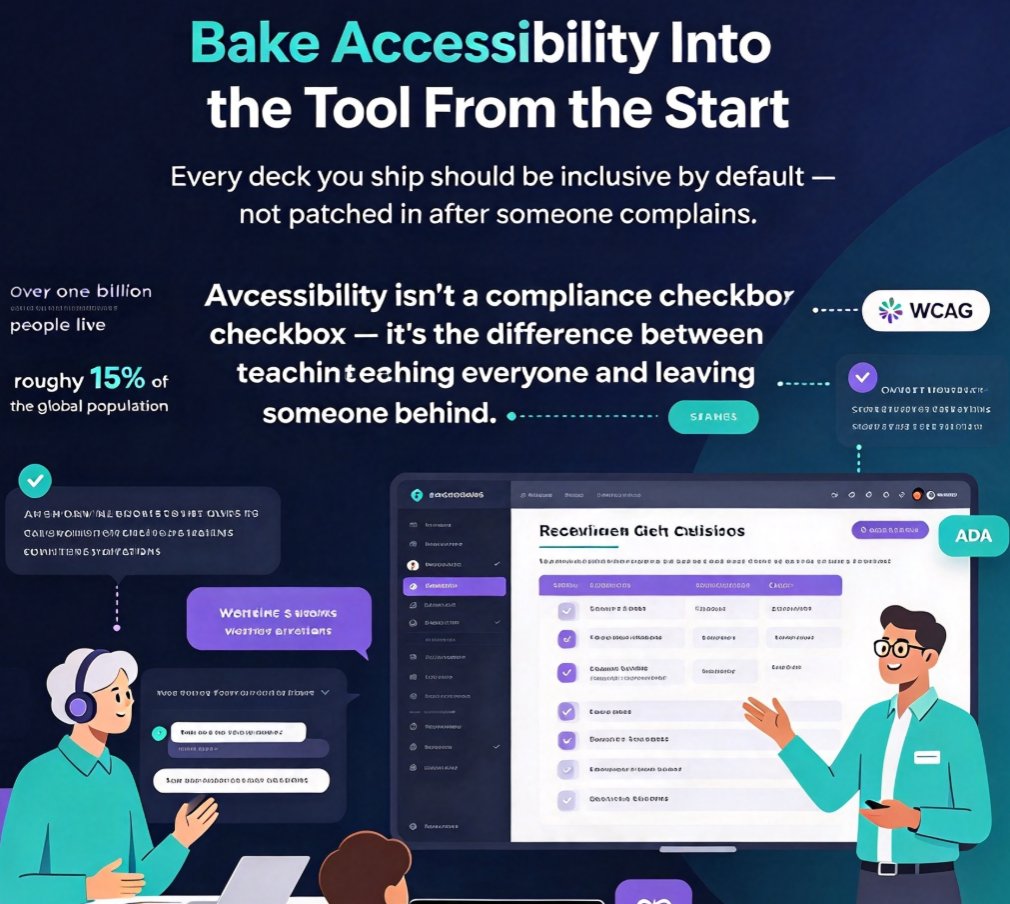
Let's start with a reality check. According to the World Health Organization, over one billion people live with some form of disability—roughly 15% of the global population. That's not a niche audience; it's a massive, often underserved learner group. When your courseware lacks captions, has unreadable contrast, or uses chaotic slide hierarchy, you're turning away a significant chunk of your learners.
But accessibility isn't just about doing the right thing morally. It's also a legal requirement. Standards like WCAG (Web Content Accessibility Guidelines) and laws like ADA (Americans with Disabilities Act) apply to digital learning content. Institutions and companies that ignore these rules face lawsuits and reputation damage. Yet the real payoff is better learning for everyone.
Accessibility isn't a compliance checkbox—it's the difference between teaching everyone and leaving someone behind.
Inclusive design benefits all learners, not just those with disabilities. Captions help non-native speakers and people in noisy environments. High contrast aids readability on mobile screens. A logical slide structure makes content easier to scan and retain. When you design for the edges, you improve the core experience.
02 The Hidden Gaps That Exclude Learners
What does inaccessible courseware actually look like? Let's break down the most common failures I see in training decks and online modules.
No Captions or Transcripts for Video and Audio
If your micro-course relies on a narrated video, learners with hearing impairment can't follow along. Even learners without hearing issues often prefer to watch with captions when they're in a quiet workspace or learning a second language. Without captions, you're forcing everyone to decode audio in suboptimal conditions.
Low Color Contrast
Text that blends into the background is a nightmare for people with low vision or color blindness. It's also a headache for anyone viewing slides on a projector in a bright room. Contrast isn't a design luxury—it's a readability requirement.
Confusing Slide Hierarchy and Complex Layouts
When slides cram too much content or use a scattered arrangement, screen readers can't interpret the reading order. Learners with cognitive differences get lost. Even neurotypical learners struggle to extract the key message.
Missing Alt Text for Images
Every pie chart, icon, and screenshot needs descriptive alt text. Without it, learners using screen readers hit a wall of audio silence. Alt text isn't just for web pages—it's critical for courseware too.
Most courseware fails not because of content, but because of poor accessibility defaults.
The good news? Tools like Zendeck have started addressing these gaps automatically. Instead of remembering every rule, you can rely on built-in features that enforce accessibility while you design.
03 How Zendeck Auto Captions Fix the Audio Problem
Let's talk about captions, because that's the #1 ask from learners. Zendeck's PPT-to-video workflow automatically generates subtitles from your slide narration. When you upload a deck and add a voiceover—or let Zendeck's AI synthesize one—captions appear in sync with the audio. No manual transcription, no timing headaches.
Here's a real scenario: You're a corporate trainer rolling out a safety module to teams in three countries. Two team members have hearing impairments, and most others are non-native English speakers. With Zendeck's auto captions, everyone reads while they listen. Comprehension improves, and you don't spend a week subtitling. That's the outcome you want.
Auto captions don't require extra effort—Zendeck generates them as part of the slide-to-video workflow.
Want to dive deeper into how this works? Check out how accessible micro-courses auto-generate subtitles from PPT and see the exact steps for turning slides into inclusive video lessons.
04 Inclusive Layouts: Design Defaults That Work for Everyone
Captions solve the audio gap, but what about the visual side? Your slide structure and color choices either welcome or exclude learners. Zendeck's template library includes accessible defaults: high-contrast palettes, generous font sizes, and logical reading orders. When you pick a template, you're not just choosing a look—you're choosing a baseline that meets WCAG best practices.
Let's compare accessible and non-accessible courseware side-by-side. This table shows what you should expect from a tool that takes inclusivity seriously.
| Checkpoint | Accessible Courseware | Non-Accessible Courseware |
|---|---|---|
| Captions | Auto-generated, synced | Missing or manual |
| Color contrast | Meets WCAG AA (4.5:1) | Low, hard to read |
| Font size | At least 24pt for headings | Under 20pt, cramped |
| Reading order | Logical, sequential | Random, fragmented |
| Alt text | Auto-added or prompted | None or placeholder |
That last row—alt text—is a big one. Zendeck assists by suggesting alt text for images and charts, so you never skip the step. You can learn more about how Zendeck auto-adds alt text in a dedicated walkthrough.
05 Practical Checkpoints for Accessible Courseware
So you're convinced accessibility matters and Zendeck helps. But you still need a few manual checks to close every gap. Here's my short checklist, the one I use before publishing any courseware.
- Run an accessibility checker. Zendeck has built-in checks, but also use browser extensions like WAVE or axe to catch missed issues.
- Verify contrast yourself. Use a color contrast analyzer. Don't trust your eyes—especially if you're designing on a high-end monitor.
- Test the reading order. Toggle on the accessibility panel in your slide editor to see how a screen reader would navigate. Keep it linear: title, content, image, citation.
- Read your alt text. If each image's alt text doesn't convey the same meaning as the visual, rewrite it.
- Check captions for accuracy. Auto captions can hallucinate names and technical terms. Give them a quick pass before hitting publish.
This isn't a formal verification process—it's a 15-minute habit that pays off. And if you're building decks regularly, Zendeck's smart layout will reduce the time you spend on visual tweaks, leaving more room for accessibility QA.
06 The Business Case for Accessible Courseware
You might still think: "Accessibility is extra work. Does it really move the needle?" Let's look at the outcome from an organizational perspective.
- Broader audience: You're not turning away the 15% of people with disabilities—or the many more who prefer captions and clean layouts.
- Higher learner engagement: When content is easy to consume, completion rates climb. Learners don't quit because they can't read the screen.
- Lower legal risk: ADA lawsuits over inaccessible content are rising. Proactive accessibility keeps you out of court.
- Better brand perception: Publicly stating your content meets WCAG sends a strong signal to clients and employees.
Investing in accessibility pays back at multiple levels: engagement, reach, and peace of mind.
And the best part is you don't have to build accessibility from scratch. Tools like Zendeck have made it a default, not afterthought. You just need to commit to using the features and running your checkpoints.
07 FAQ
Why is accessibility in e-learning courseware important?
Accessibility matters because over one billion people worldwide live with some form of disability, according to the WHO. Without captions, contrast, and clear layouts, you exclude these learners and risk non-compliance with standards like WCAG and ADA. Inaccessible courseware also reduces engagement and limits your audience reach.
How does Zendeck auto-generate captions for courseware?
Zendeck's PPT-to-video feature automatically generates subtitles from your slide narration. When you convert slides to a micro-course, captions appear in sync with the audio, eliminating manual transcription. This works for both new videos and existing decks, so you get accessible content without extra effort.
What are the key inclusive layout features in Zendeck?
Zendeck's template library includes high-contrast color schemes, large readable fonts, and logical reading orders. These defaults ensure your slides maintain proper hierarchy, which is critical for screen readers and learners with visual or cognitive impairments. You can apply these templates in one click.
Do I still need to manually check WCAG compliance if I use Zendeck?
Zendeck automates many accessibility checks, like adding alt text and maintaining contrast, but you should always verify colors and reading order manually. Use an accessibility checker as a final pass. Zendeck accelerates the process but doesn't replace your responsibility to test with real users.
Ready to make your next courseware accessible without losing your mind? Start with Zendeck's auto captions and inclusive templates, then add your own checkpoint ritual. Your learners—all of them—will thank you.