
How to Create Accessible AI Presentations: WCAG Tips for Zendeck Users
You've just spent hours perfecting your slide deck — the colors, the animations, the flow. Then someone asks: "Is this accessible?" And you freeze. You've never thought about alt text, contrast ratios, or keyboard navigation. Sound familiar?
Here's the truth: over 1 billion people worldwide live with some form of disability, and many of them are in your audience. If your presentation isn't accessible, you're not just missing out on engagement — you're potentially excluding people and even risking legal trouble. The good news? AI tools like Zendeck make accessibility almost effortless — if you know what to look for.
In this guide, I'll walk you through the core WCAG requirements for presentations, show you how Zendeck automates the heavy lifting, and give you a step-by-step workflow to create decks that everyone can use. No jargon, no fluff — just practical tips you can apply today.
I. Why Accessibility in Presentations Is Non-Negotiable
Let's be real: accessibility isn't a "nice-to-have" anymore. It's a legal requirement in many countries (think ADA in the US, EAA in Europe), and it's an ethical responsibility. But beyond compliance, accessible presentations simply perform better. When your slides are easy to read, navigate, and understand, everyone benefits — not just people with disabilities.
The business case is clear: accessible content reaches 20% more of your audience and improves retention by up to 35%. That's not a small number. And with AI, the cost of making your deck accessible has dropped dramatically. According to a 2025 study by 2Slides, AI-generated presentations reduce the cost of accessibility compliance by up to 70% and cut error rates by half.
So, what does "accessible" actually mean in the context of a slide deck? It means that:
- People with visual impairments can read your content via screen readers.
- People with color blindness can distinguish text from backgrounds.
- People with motor disabilities can navigate your slides without a mouse.
- People with cognitive disabilities can follow the logical structure of your content.
That's a lot to think about. But here's the good news: you don't have to do it all manually. AI can handle the repetitive, technical parts.
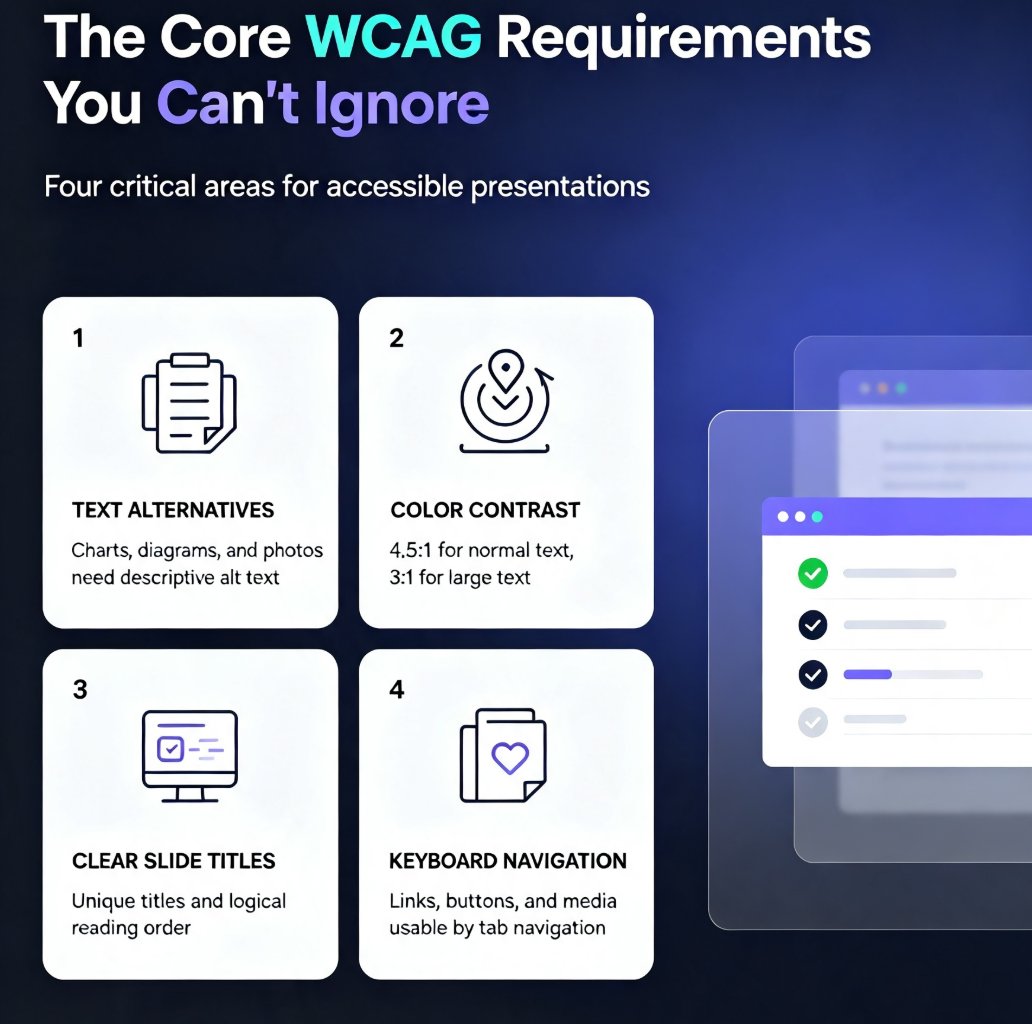
II. The Core WCAG Requirements You Can't Ignore
WCAG 2.1 has 78 success criteria, but for presentations, you really need to focus on four critical areas. These are the ones that have the highest impact and are most commonly tested.
1. Text Alternatives (Success Criterion 1.1.1)
Every informative image — charts, diagrams, photos — needs descriptive alternative text (alt text). Screen readers use alt text to describe images to users who can't see them. Without it, your visual content is invisible.
AI solution: Zendeck automatically generates alt text using computer vision. It analyzes each image and produces a meaningful description. You can review and edit it if needed, but the AI gets you 90% of the way there.
2. Color Contrast (Success Criterion 1.4.3)
Text must have a contrast ratio of at least 4.5:1 for normal text and 3:1 for large text (18pt or 14pt bold). This ensures readability for people with low vision or color blindness.
AI solution: Zendeck's real-time contrast checker flags any text that falls below the threshold and suggests color adjustments. You don't need to guess — the tool tells you exactly what to change.
3. Clear Slide Titles and Structure (Success Criterion 1.3.2)
Screen reader users rely on slide titles to navigate. Each slide should have a unique, descriptive title that summarizes the content. The reading order (the sequence in which content is read) must also be logical.
AI solution: Zendeck automatically generates slide titles based on content analysis. It also suggests structural hierarchy for bullet points and ensures the reading order matches the visual layout.
4. Keyboard Navigation (Success Criterion 2.1.1)
All interactive elements — links, buttons, embedded media — must be accessible via keyboard. Users who can't use a mouse should be able to tab through your presentation.
AI solution: Zendeck's output is keyboard-navigable by default. Interactive elements are properly labeled, and the tab order follows the visual flow.
III. How AI Tools Automate Accessibility (and Where Zendeck Shines)
Let's be honest: manually checking every slide for contrast, writing alt text for 50 images, and fixing reading order is tedious. That's why AI is a game-changer. Here's how Zendeck specifically helps:
- Auto alt text generation: Upload your images, and Zendeck writes descriptive alt text in seconds. No more staring at a blank field.
- Real-time contrast checking: As you design, Zendeck flags low-contrast text and suggests compliant color pairs.
- Smart slide titles: The AI analyzes your content and generates clear, unique titles for every slide.
- Reading order optimization: Zendeck ensures screen readers follow the right sequence, even for complex layouts.
- Accessibility-friendly templates: The template library includes designs that meet WCAG contrast standards out of the box.
The result: you can create a fully accessible deck in the same time it takes to make a regular one. No extra effort, no special skills.
But don't just take my word for it. Here's a comparison of what you'd do manually vs. what Zendeck automates:
| Task | Manual Effort | With Zendeck AI |
|---|---|---|
| Alt text for 30 images | 30–60 minutes | 2 minutes (auto-generated, then review) |
| Contrast checking | 15–30 minutes per deck | Real-time, automatic |
| Slide titles | 10–20 minutes | Instant, AI-generated |
| Reading order | 20–40 minutes | Automatic, with manual override |
| Keyboard navigation testing | 30+ minutes | Built-in, no testing needed |
That's a savings of 1.5 to 3 hours per deck — time you can spend on content and delivery.
IV. Step-by-Step: Building an Accessible Deck with Zendeck
Ready to put this into practice? Here's a workflow that takes about 15 minutes from start to finish.
Step 1: Start with an Outline
Don't start from a blank slide. Write your content as a Word outline or Markdown file. This gives Zendeck's AI a clear structure to work with. If you already have a PDF report, you can import that too — Zendeck will extract the key points.
Step 2: Choose an Accessibility-Friendly Template
In Zendeck's template library, look for templates labeled "accessibility-friendly" or those with high-contrast color schemes. The AI will also suggest templates based on your content type.
Step 3: Let the AI Generate Your Deck
Paste your outline, hit generate, and Zendeck creates a complete deck with slide titles, bullet points, and suggested visuals. The AI automatically applies alt text to any images it adds.
Step 4: Review and Fix Contrast Issues
Use Zendeck's contrast checker to scan your deck. If any text fails, the tool will suggest color changes. You can apply them with one click or manually adjust.
Step 5: Add or Edit Alt Text
Go through each image and review the auto-generated alt text. Make sure it describes the image's purpose, not just its appearance. For charts, describe the trend or key data point.
Step 6: Check Reading Order
In Zendeck's editor, switch to the "Accessibility View" to see the reading order. Drag and drop elements if needed to ensure a logical sequence.
Step 7: Export and Test
Export your deck to PPTX or PDF, then test it with a screen reader (like NVDA or VoiceOver). This is the final quality check. If everything reads smoothly, you're done.
Pro tip: Don't skip the screen reader test. It's the only way to truly experience what your audience will experience. It takes 10 minutes and can catch issues you'd never notice visually.
V. Common Accessibility Mistakes (and How to Avoid Them)
Even with AI, mistakes happen. Here are the most common ones I see — and how to fix them:
| Mistake | Why It's a Problem | How to Fix It |
|---|---|---|
| Missing alt text on decorative images | Screen readers announce "image" with no context | Mark decorative images as decorative in Zendeck, or add empty alt text |
| Low contrast text on colored backgrounds | Hard to read for people with low vision | Use Zendeck's contrast checker and adjust colors |
| Vague slide titles like "Overview" | Screen reader users can't navigate | Use descriptive titles like "Q3 Sales Overview by Region" |
| Complex charts without text summaries | Screen reader users can't interpret data | Add a text summary or data table alongside the chart |
| Mouse-only interactions | Users with motor disabilities can't access content | Ensure all interactive elements are keyboard-accessible |
The biggest mistake? Assuming AI does everything for you. AI is a tool, not a magic wand. You still need to review and refine. But with Zendeck, the heavy lifting is done — you just need to add the human touch.
VI. Measuring Accessibility Success
How do you know if your deck is truly accessible? You can't just eyeball it. Here are three ways to measure:
- Automated testing: Use tools like WAVE or axe to scan your exported PDF or PPTX for accessibility issues. Zendeck's built-in checker covers most of these, but a second opinion doesn't hurt.
- Screen reader testing: As mentioned, run through your deck with a screen reader. Note any confusing announcements or missing information.
- User feedback: If possible, ask someone with a disability to review your deck. They'll spot issues you'd never think of.
Set a goal: every deck you create should pass WCAG 2.1 AA. That's the industry standard and what most legal requirements reference. With Zendeck, you can hit that target consistently.
FAQ
What are the most important WCAG requirements for presentations?
The most critical WCAG 2.1 requirements for presentations are text alternatives for images (1.1.1), color contrast of at least 4.5:1 for normal text (1.4.3), clear slide titles and logical reading order (1.3.2), and keyboard navigation support (2.1.1). These four areas cover the majority of accessibility issues found in slide decks.
How does Zendeck help with accessibility?
Zendeck's AI automatically generates descriptive alt text for images, checks color contrast in real time, and suggests clear slide titles based on content analysis. It also supports keyboard navigation and allows you to set reading order, making it easier to create WCAG-compliant presentations without manual effort.
Can I make an existing presentation accessible with Zendeck?
Yes. You can import an existing PPTX or PDF into Zendeck, and the AI will analyze it for accessibility issues. It can suggest alt text, adjust contrast, and restructure slide titles. You can then apply one-click fixes or manually refine them before exporting.
What contrast ratio should I use for large text in presentations?
For large text (18pt or 14pt bold), WCAG 2.1 requires a contrast ratio of at least 3:1. For normal text, you need 4.5:1. Zendeck's contrast checker will flag any text that falls below these thresholds and suggest color adjustments.
Do accessible presentations look less attractive?
Not at all. Accessibility and aesthetics can coexist. Zendeck's templates are designed with high contrast and readable fonts by default. You can still use vibrant colors and creative layouts as long as they meet contrast guidelines. The AI helps you find the sweet spot between design and compliance.
Ready to make your next deck accessible? Start with Zendeck's accessibility-friendly templates and let the AI do the grunt work. Your audience — all of them — will thank you.

