Is Your AI Presentation Too Generic? Customize It Instantly with Zendeck's Asset Library
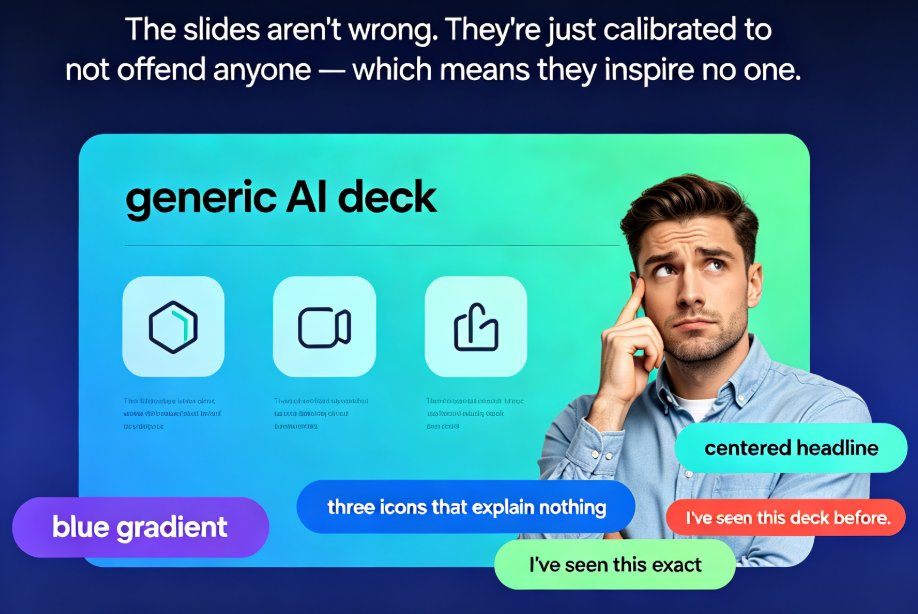
You’ve just spent 10 minutes generating a complete AI presentation deck. It’s structured, relevant, and even has nice transitions. But something feels off. It looks… generic. Like it could have been made by anyone, for anyone. The audience is going to check out before slide three.
That’s the dirty secret of AI presentation tools: they’re optimized for the average, not for the exceptional. But here’s the good news: you can fix that instantly without ditching the AI workflow. The key is to inject personality and brand into your slides using a tool like Zendeck’s built-in asset library.
I. The Generic Slide Trap: Why It Happens and How to Escape
AI slide generators work by scanning millions of existing presentations. They learn which layouts, images, and color schemes are most common. When you ask for a “sales deck” or “lesson plan,” you get the statistical average of all those examples. The result is a deck that feels safe but forgettable.
Your audience doesn’t want safe. They want memorable. A 2024 study by Presenti.ai found that presentations with custom visuals hold audience attention 40% longer than those with generic stock imagery. The problem isn’t AI; it’s that most people stop at the AI output and don’t customize further.
The fix is simple: treat AI as your first draft, then layer on unique assets. Zendeck’s asset library is designed for exactly this workflow. It provides hundreds of icons, charts, and illustrations that you can drop into your slides with one click.
II. What Makes Zendeck’s Asset Library a Game-Changer?
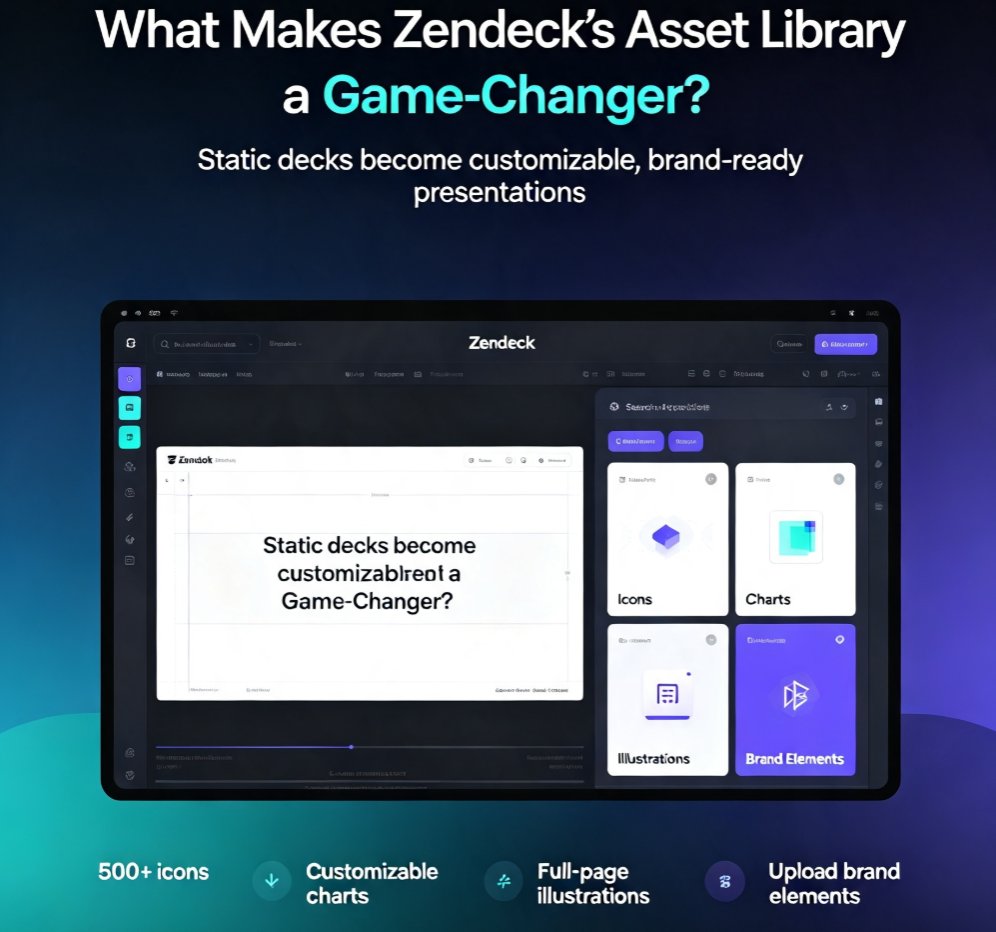
Most AI presentation tools give you a static deck. You’re stuck with whatever clipart or generic icons they bundled in. Zendeck flips that model. Its asset library is a dynamic, searchable collection of:
- Icons: Over 500 professionally designed icons across categories like business, education, technology, and healthcare.
- Charts & Graphs: Bar charts, line graphs, pie charts, and more that you can style instantly.
- Illustrations: Full-page illustrations for section dividers, title slides, and callout pages.
- Brand Elements: Upload your own logos, colors, and fonts to create a consistent look.
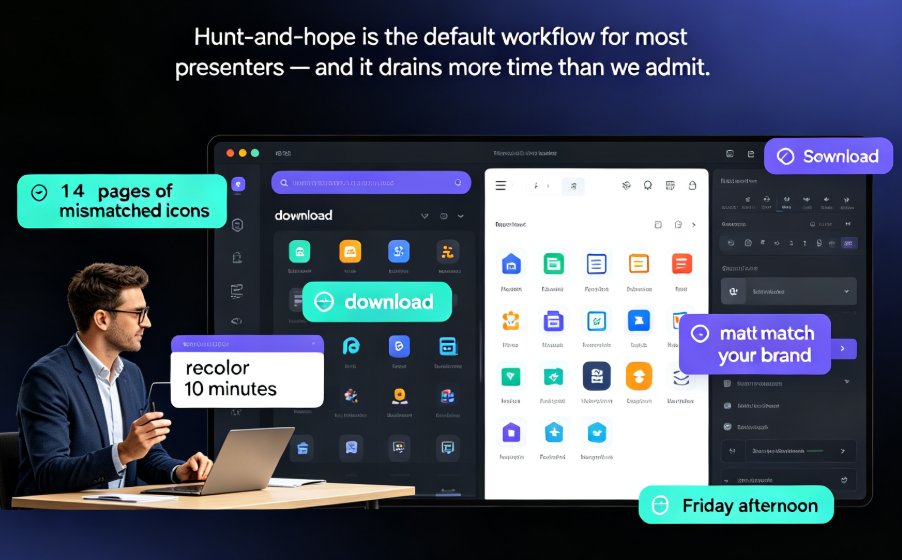
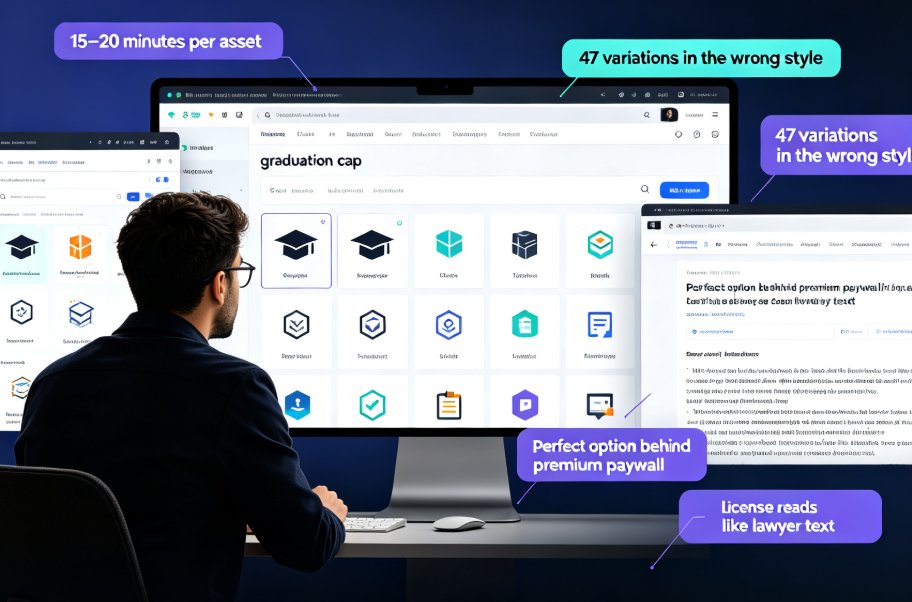
Every asset is customizable. Change colors, sizes, and positions to match your brand. No more hunting for the perfect icon on a third-party site. Everything is inside Zendeck, ready to use.
How It Works in Practice
- Generate your AI deck using Zendeck’s outline-to-slides feature.
- Spot a slide with a generic icon (e.g., a handshake for “partnership”).
- Open the asset library, search “partnership” or “team,” and find a unique icon that fits your brand.
- Drag and drop it in place of the generic one. Done.
This process takes less than 30 seconds per slide. In under 10 minutes, you can transform an entire deck from “factory-built” to “custom-designed.”
III. Before and After: A Real-World Comparison
Let’s look at two versions of a slide on “Revenue Growth.”
| Element | Generic AI Slide | Customized with Zendeck Asset Library |
|---|---|---|
| Icon | Standard green arrow up (overused) | Custom brand-colored rocket icon |
| Chart | Default bar chart, gray palette | Brand-colored bar chart with gradient |
| Font | System default (Arial/Calibri) | Brand font from your Brand Kit |
| Layout | Perfectly centered, symmetrical | Asymmetrical, dynamic layout |
| Visual Impact | Safe, expected | Distinct, memorable |
The customized slide is more likely to be remembered. According to research from Winning Presentations, executives are 3x more likely to approve a proposal that uses unique visuals over generic templates.
IV. How to Use Zendeck’s Asset Library for Maximum Impact
Step 1: Start with a Strong Outline
Don’t ask AI to “create a deck.” Instead, write a structured outline that includes your key messages, audience, and desired outcome. Zendeck’s Word import feature lets you upload a document and instantly turn it into slides. This gives you a human-designed skeleton, not a generic AI guess.
Step 2: Apply Your Brand Kit
Before touching the asset library, set up your brand in Zendeck. Brand Kits store your logos, color palette, and fonts. Once applied, every new element you add automatically inherits these settings. This is the fastest way to eliminate the “generic AI smell.”
Step 3: Replace Generic Icons with Custom Ones
Go through your deck slide by slide. For each visual element, ask: “Is this the best representation of my idea?” If not, open the asset library and find a better one. You can also import your own graphics if you have specific files.
Step 4: Add Charts and Data Visualizations
Nothing kills a presentation faster than a generic data table. Zendeck’s asset library includes interactive charts that you can populate with your own data. Use color to highlight key data points—a technique that boosts comprehension by 60% (source: visual learning studies).
Step 5: Use Illustrations for Key Slides
Title slides, transition slides, and closing slides benefit from full-page illustrations. Zendeck offers a growing library of market-tested illustrations. Drop one in, and your deck instantly looks premium.
V. Beyond the Asset Library: Other Ways to Personalize Your AI Slides
Zendeck’s asset library is powerful, but it’s part of a larger ecosystem for creating on-brand, non-generic presentations. Consider these additional features:
- AI-powered design suggestions: The tool analyzes your content and recommends layouts that break the mold. Read more about AI-powered design suggestions.
- Real-time collaboration: Get feedback from your team before you finalize. Teams can co-edit and version control to ensure the deck stays polished.
- PPT-to-Video: Turn your customized deck into a narrated micro-course to reach a wider audience. Learn how.
These tools work together to ensure your final presentation is not just functional, but unforgettable.
VI. The Bottom Line: Own Your Content
AI is a fantastic accelerator. It can generate structure, research, and even rough drafts. But the final mile—the personalization—is where you earn your audience’s trust. Zendeck’s asset library gives you the ammunition to win that mile without spending hours in design software.
Stop accepting generic slides. Start customizing with Zendeck. Your audience will thank you.
FAQ
Q: Why do AI-generated slides look so generic? A: AI tools are trained on millions of slide examples, so they produce the statistical 'average' design. This leads to predictable layouts, generic stock photos, and a lack of personality. The result is a deck that feels like everyone else's.
Q: How can I make AI slides look unique without spending hours? A: Use a platform like Zendeck that offers a rich asset library of icons, charts, and illustrations. After generating your AI slides, you can swap out generic visuals for custom ones that match your brand—saving time while achieving a distinct look.
Q: What is Zendeck's asset library? A: Zendeck's asset library is a collection of over 1000+ icons, charts, illustrations, and design elements that you can directly insert into your AI-generated slides. All assets are searchable and easily customizable, allowing you to maintain brand consistency without leaving the editor.
Q: Can I import my own brand assets into Zendeck? A: Yes. Zendeck allows you to upload your own logos, color palettes, and fonts via Brand Kits. Combined with the built-in asset library, you can ensure every slide aligns with your corporate identity.
Q: Does using an asset library slow down the design process? A: Not at all. The library is integrated into the editor, so you can drag and drop assets in seconds. It actually speeds up customization because you don't need to search external sites or create visuals from scratch.