PPTX, PDF, or Google Slides? Zendeck Multi-Format Export Guide
Let's be honest: the moment a deck is "done" is rarely the end of the story. You've polished the slides, tightened the narrative, and then someone asks, "Can you send this as a PDF?" Or your client says, "We're a Google Workspace shop — can you drop this into Slides?" Or your teammate wants the editable PPTX so they can tweak a chart before the big meeting.
This is where most presentation tools hit a wall. You built the deck in one ecosystem, and now you're stuck there. Zendeck takes a different approach: it's format-agnostic by design. You create once, then export to PPTX, PDF, or Google Slides — whichever your audience actually uses.
This guide breaks down each export format, when to reach for it, and how to pick the right one without overthinking. No lock-in, no "which tool do I open this in" friction.
01 — Why Export Format Is a Workflow Decision, Not a Technical Detail
Here's the thing: format choice is rarely about the file itself. It's about the people on the other end.
Think about the last time you received a deck in a format you couldn't open. Maybe it was a Keynote file on a Windows laptop, or a .pptx that rendered fonts wrong in Google Slides. That friction kills momentum. Your audience doesn't care which tool you used to build the deck — they care that it opens, looks right, and lets them do what they need to do next.
The right export format is the one that matches your audience's workflow, not your authoring tool's default.
So before you hit export, ask three questions:
- Does the recipient need to edit this deck, or just view it?
- Where will they open it — desktop, browser, or mobile?
- Is this a working draft or a final deliverable?
Your answers point to one of three formats: PPTX for editable handoffs, PDF for locked-down sharing, or Google Slides for cloud-native collaboration. Let's walk through each.
02 — PPTX Export: The Editable Standard
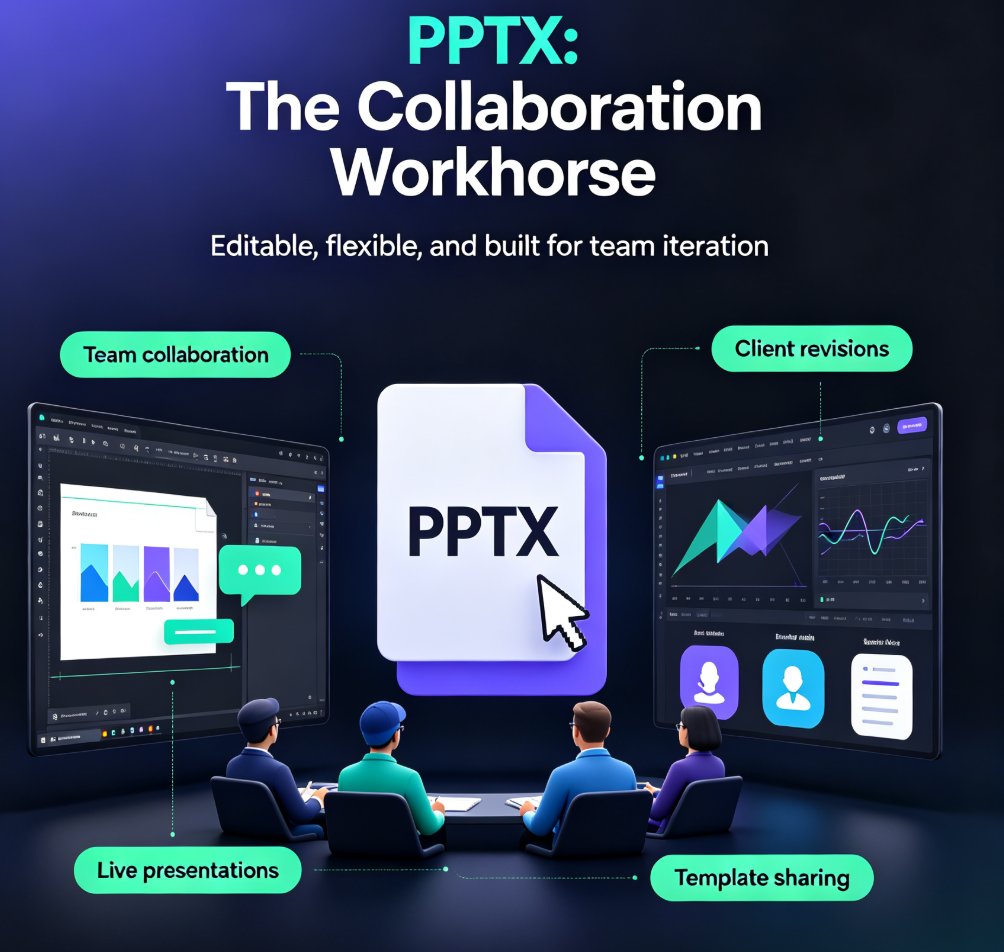
PPTX is the universal editable format. It's what PowerPoint uses, and it's the closest thing the presentation world has to a lingua franca. When you export a Zendeck deck to PPTX, every text box, shape, chart, and image stays editable — so your team or client can continue working in PowerPoint without starting over.
When PPTX is the right call:
- Your client needs to tweak numbers before a board meeting. They'll open the file, adjust a figure, and send it back. Editable is non-negotiable.
- Your team collaborates in PowerPoint. Some organizations standardize on Office. Exporting to PPTX means your deck slots into their existing review process.
- You want a master file for future edits. Keep a PPTX version as your working copy, then generate PDFs or Google Slides versions from it as needed.
One thing to watch: design fidelity. When a deck moves between tools, fonts and layouts can shift. Zendeck's export engine preserves your brand kit and layout rules, so what you see in the editor is what lands in PowerPoint. If you've ever opened an AI-generated deck and found misaligned elements, you know how much this matters — Zendeck's approach to clean, structured output is exactly why its slides survive the trip. (Related: why AI-generated slides look messy and how Zendeck fixes it.)
03 — PDF Export: The Locked-Down Shareable
PDF is the "final answer" format. It's not editable by design, which is exactly why it's perfect for certain situations. When you export a deck to PDF, you're saying: "This is the version. Approve it, print it, share it — but don't change it."
When PDF is the right call:
- Final approval. Your stakeholder needs to sign off. A PDF shows exactly what they'll get, with no risk of accidental edits.
- External sharing. Sending a deck to a client, partner, or vendor? PDF is universally openable — no software required beyond a browser.
- Printing and archiving. Compliance docs, training materials, conference handouts — PDF keeps the layout locked and prints consistently.
- Compliance and audit trails. If you need a timestamped, unchangeable record of what was presented, PDF is your friend.
The trade-off is obvious: nobody can edit a PDF. So only use it when the deck is truly final, or when you're okay with the recipient coming back to you for changes. That's not a bug — it's the point.
04 — Google Slides Export: The Cloud-Native Workflow
Google Slides has become the default for teams that live in Google Workspace. It's free, browser-based, and built for real-time co-editing. If your client or team is a Google shop, exporting to Google Slides removes every barrier to collaboration.
When Google Slides is the right call:
- Real-time co-editing. Multiple people need to work on the deck simultaneously. Google Slides handles this natively, and it's become a baseline expectation for modern teams.
- Google Workspace organizations. Schools, startups, and many enterprises run on Google. A native Slides file integrates with Drive, Meet, and the rest of the ecosystem.
- Lightweight sharing. No downloads, no file attachments — just a link with the right permissions.
The catch: Google Slides doesn't support every PowerPoint feature perfectly. Complex animations, certain fonts, and some chart types can degrade. Zendeck's export to Google Slides is designed to preserve what matters — layout, branding, and readability — so your deck doesn't fall apart in the transition.
If you're working with external clients who need access, Zendeck also supports real-time collaboration with granular permissions, so you can share a live deck without exporting at all. (See: how to collaborate with external clients on Zendeck presentations.)
05 — Side-by-Side Comparison
Here's the quick-reference table I wish someone had given me years ago:
| Criterion | PPTX | Google Slides | |
|---|---|---|---|
| Best for | Editable handoffs, team edits | Final approval, sharing, printing | Cloud-native teams, live co-editing |
| Editable? | Yes — full editing | No — locked | Yes — in browser |
| Design fidelity | High | Highest | High (with minor feature limits) |
| Collaboration | Desktop/offline | Read-only | Real-time, browser-based |
| Opens with | PowerPoint, LibreOffice, WPS | Any browser, Acrobat | Google Workspace, any browser |
| Version control | Manual | Manual | Built-in history |
| Best scenario | Client tweaks figures | Board approval, compliance | Google Workspace team sprint |
06 — How to Export in Zendeck: A Quick Walkthrough
The actual export process in Zendeck is deliberately simple — you shouldn't need a manual for this.
- Finish your deck. Build it with Zendeck's AI, apply your brand kit, and review the slides. (If you need to make manual tweaks, you can — Zendeck supports full editing after AI generation. See: can I manually edit AI-generated slides in Zendeck?.)
- Open the export menu. You'll see the three format options: PPTX, PDF, and Google Slides.
- Pick your format. Based on the audience questions above.
- Export. Zendeck processes the file and hands you the output — or pushes it directly to Google Slides if that's your choice.
That's it. No conversion tools, no "save as" gymnastics, no reformatting after the fact. If you're new to Zendeck's workflow, the PPT tutorial hub has more walkthroughs to get you up to speed.
07 — Choosing the Right Format for Your Audience
Let's make this concrete with a few real scenarios.
Scenario 1: The client review. You've built a pitch deck for a potential client. They want to review it with their team and add comments. Send PPTX. They need to edit and annotate, and PowerPoint is their standard. (If you're building pitch decks from scratch, Zendeck's AI can help you go from problem to solution in minutes — check out this AI pitch deck guide.)
Scenario 2: The board approval. Your quarterly business review is final. The board needs to approve it, and you need a clean record. Send PDF. Locked, printable, and unambiguous.
Scenario 3: The Google Workspace team. Your training team collaborates in Google Slides. They need to co-edit the onboarding deck in real time. Export to Google Slides. It lands in their Drive, and they're working in minutes.
Scenario 4: The hybrid workflow. You're not sure what the audience uses. Export PPTX as the master, then generate PDF for quick sharing and Google Slides for collaboration. Zendeck makes all three available without rework.
The takeaway: match the format to the audience's next action. If they need to edit, give them PPTX or Google Slides. If they need to approve or consume, give them PDF. If they need to collaborate live, give them Google Slides.
FAQ
Q: Can I export a Zendeck presentation to Google Slides? A: Yes. Zendeck supports direct export to Google Slides format, so your deck drops into Google Workspace with layout and branding preserved. You can also push it straight to your Drive for immediate sharing.
Q: What's the difference between PPTX and PDF export in Zendeck? A: PPTX keeps everything editable — text, shapes, charts, and images — so teams can continue working in PowerPoint. PDF locks the design for sharing, printing, or final approval, with no risk of accidental edits.
Q: Will my branding and fonts stay consistent across all export formats? A: Yes. Zendeck applies your brand kit and template rules before export, so colors, fonts, and layout stay consistent whether you output PPTX, PDF, or Google Slides. No reformatting needed after the fact.
Q: Which format should I use for client presentations? A: It depends on what the client needs to do next. If they need to edit or annotate, send PPTX. If it's a final deliverable for approval, PDF is safer. If the client is on Google Workspace, export to Google Slides for seamless collaboration.
Q: Does Zendeck lock me into its own file format? A: No. Zendeck is format-agnostic by design — you can export to PPTX, PDF, or Google Slides at any time, so you're never locked into a proprietary format. Your decks stay portable and workable wherever your audience lives.