Markdown to PPT in Minutes: Zendeck's Text-to-Deck Workflow
You've got the content. It's sitting in a Markdown file, a README, a spec doc, or maybe just a messy text file with headings and bullets. And now you need to turn it into a presentation. The old way? Copy the text, paste it into PowerPoint, spend twenty minutes fighting with font sizes, bullet indentation, and alignment. The new way? Paste the Markdown into Zendeck and let the AI do the layout work.
Zendeck's text-to-deck workflow turns raw Markdown or plain text into a structured, visually consistent presentation in minutes — no design skills required. This isn't a niche feature for developers; it's the fastest path from notes to slides for anyone who thinks in outlines.
Let's walk through why this workflow matters, how it works, and exactly what you should paste to get the best results.
01 Why Markdown-to-Deck Is the Workflow You've Been Skipping
Here's a scenario you'll recognize. You're a consultant who just finished a case study. The analysis is done, the numbers are in, and the findings are written up in a structured document. Now you need to turn that into a client deck. The content is 90% there — headings, subheadings, bullet points — but the presentation tool doesn't understand structure. So you spend an hour reformatting: making sure every heading becomes a slide title, every bullet group becomes a content block, every sub-point nests correctly.
That hour is pure waste. The structure already exists in your document; the tool just can't read it.
Markdown solves this because it encodes structure in plain text. A # heading tells you "this is a slide title." A - bullet tells you "this is a content point." A nested bullet tells you "this is a sub-point." When you paste Markdown into an AI presentation tool like Zendeck, the parser reads that structure and generates slides that match your intent — not the tool's guess.
The biggest time sink in presentation creation isn't design; it's reformatting content that already has structure. Zendeck eliminates that step entirely.
For technical teams, this is especially powerful. Developers live in Markdown — READMEs, API docs, design specs, meeting notes. The ability to paste a Markdown file and get a deck back in minutes changes how quickly you can communicate. But it's not just for engineers. Anyone who writes structured notes — educators, trainers, HR professionals, product managers — can benefit. If you've ever tried to turn a brain dump into a structured presentation, you know exactly how much friction this removes.
02 How Zendeck's Text-to-Deck Works: Paste, Parse, Present
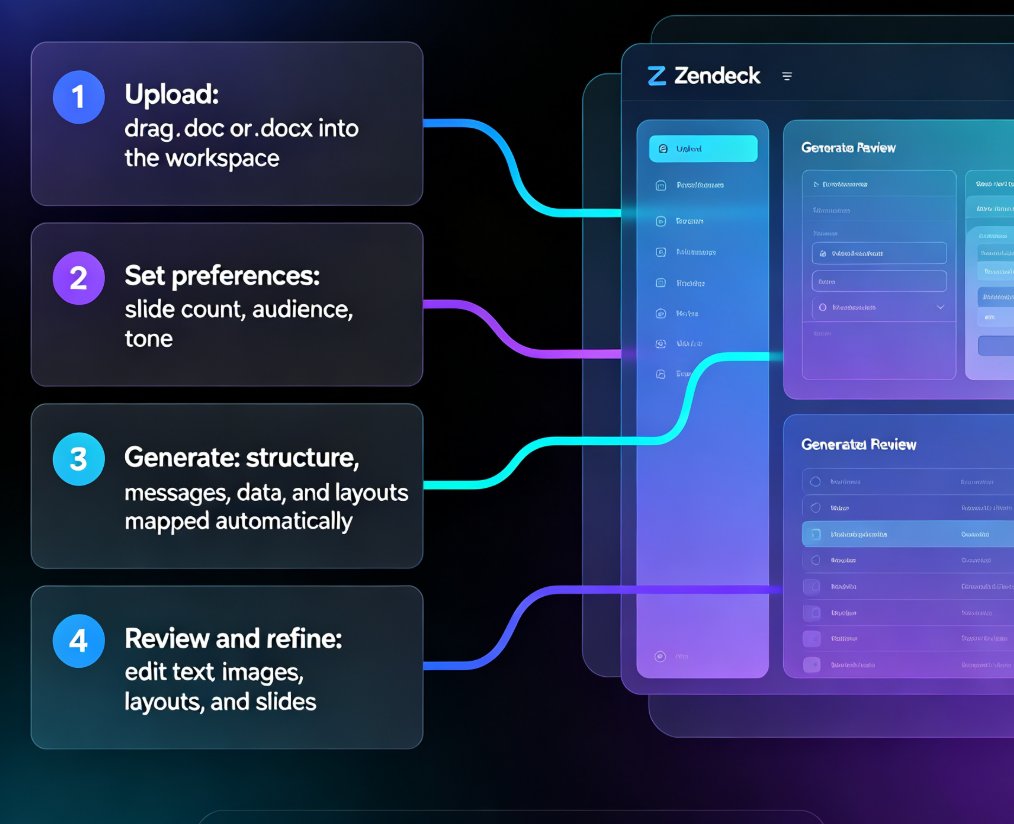
The workflow is deceptively simple. Here's the step-by-step:
Step 1: Open Zendeck and start a new deck. You can begin from a blank canvas or pick a template from the library. If you have a brand kit set up, Zendeck will automatically apply your fonts, colors, and logo treatment to the generated slides.
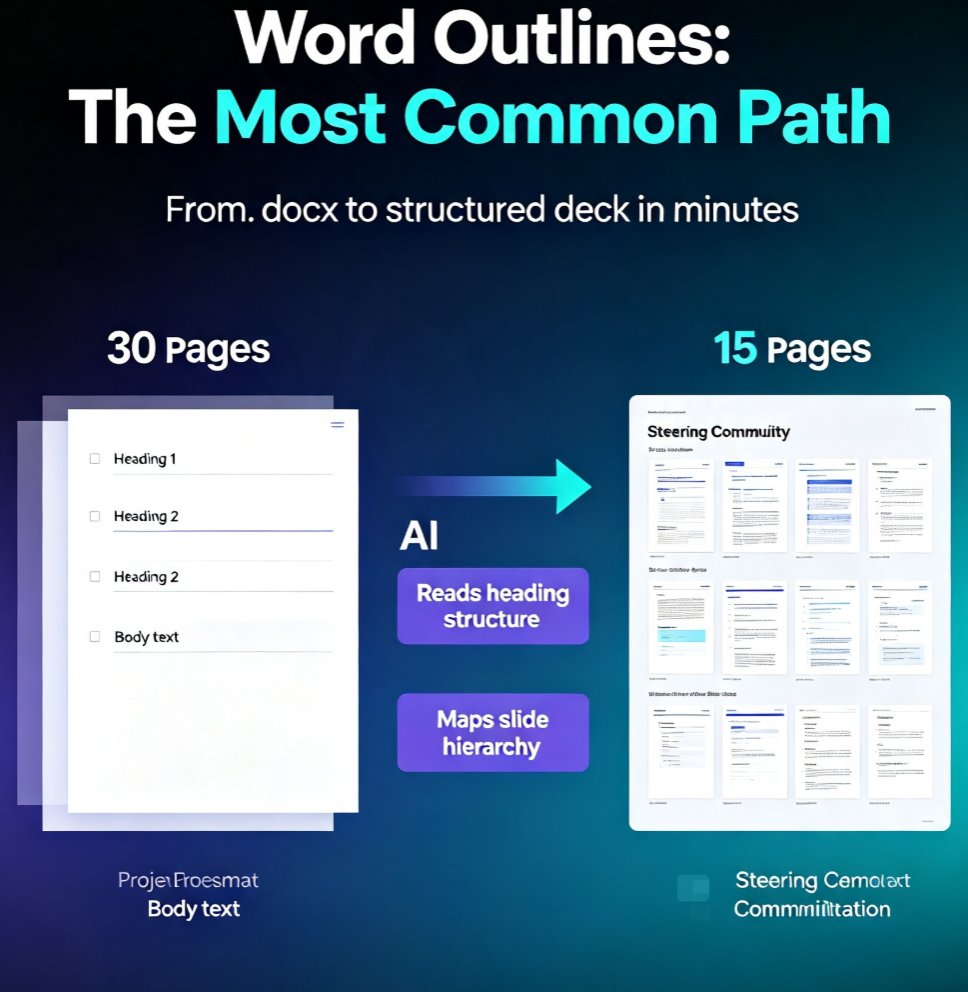
Step 2: Choose your input method. Zendeck accepts Markdown, plain text, or a Word outline. If you're pasting Markdown, the parser reads the full hierarchy — headings, subheadings, nested bullets, and content blocks.
Step 3: Paste your content. No preprocessing, no cleanup. Paste the raw Markdown directly into the input field. The AI parses the structure and generates a slide deck that reflects exactly what you wrote.
Step 4: Review and refine. Within seconds, your deck appears — formatted according to the Markdown hierarchy and styled to match your chosen template. From here, you can edit any slide manually, swap templates, or add assets from the library.

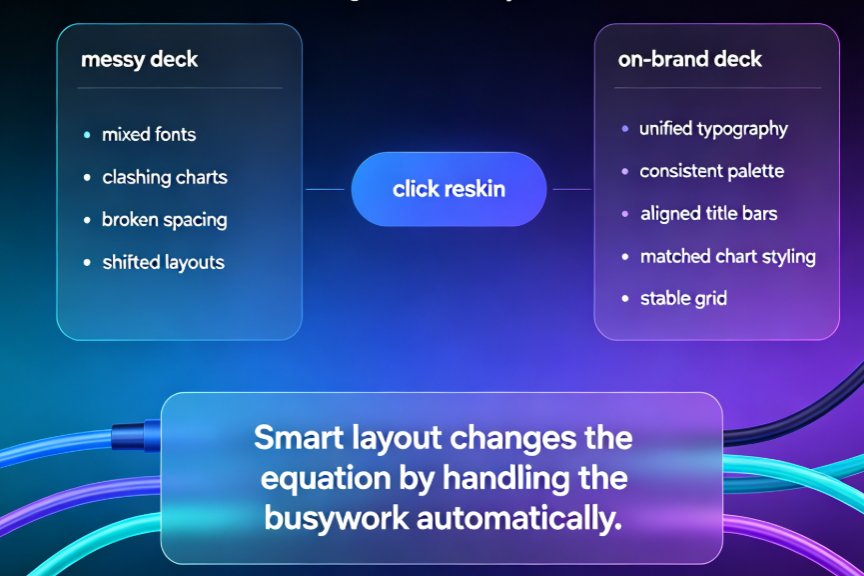
The key difference from plain-text input: when you paste unstructured text, the AI has to guess what's a heading versus a bullet. With Markdown, the structure is explicit, so the output matches your intent on the first pass. Fewer corrections, faster results. And if you're worried about the output looking messy, Zendeck's design engine handles the visual consistency for you — no manual tweaking required.
03 What You Can Paste: Real Markdown Examples That Work
Let's get concrete. Here are three content types, what you'd paste, and what slide each produces.
Example 1: Heading + three bullets → clean bullet-list slide
# Authentication Overview
- OAuth 2.0 used for all external API access
- JWT tokens expire after 15 minutes
- Refresh tokens stored server-side, never in the client
This produces a clean, single-focus bullet-list slide. The # heading becomes the slide title, and the three bullets are laid out as body content in the deck's active style.
Example 2: Heading + two subheadings with nested bullets → two-section hierarchical slide
# Q3 Performance Review
## Revenue
- Total revenue up 18% quarter-over-quarter
- Enterprise segment grew 24%
- New customer acquisition up 12%
## Costs
- Operating costs reduced by 9%
- Marketing spend efficiency improved 15%
This generates a two-section slide with clear visual separation between "Revenue" and "Costs" — each with its own bullet group.
Example 3: Multi-heading outline → multi-slide deck
# Introduction
- Problem statement
- Why now
# Solution Overview
- Core architecture
- Key features
# Implementation Roadmap
- Phase 1: Discovery
- Phase 2: Pilot
- Phase 3: Scale
Each # heading becomes a separate slide, and the bullets become content blocks. The result is a complete deck skeleton in seconds.
A quick formatting tip: always leave a blank line before and after lists in your Markdown. This ensures the parser correctly identifies list boundaries and doesn't merge content into unexpected blocks. It's a small habit that saves you from weird output.
04 Old Workflow vs. Zendeck: A Side-by-Side Comparison
Let's be real about what this replaces. Here's the traditional path versus the Zendeck path:
| Step | Traditional Workflow | Zendeck Text-to-Deck |
|---|---|---|
| Content preparation | Write notes, then manually copy into slides | Write notes in Markdown/text, paste directly |
| Formatting | Strip formatting, re-apply styles manually | AI reads Markdown hierarchy automatically |
| Slide structure | Manually create each slide, assign layouts | AI generates slides from heading structure |
| Design consistency | Manual font/color alignment across slides | Brand kit applied automatically |
| Time to first draft | 45-90 minutes | 2-5 minutes |
| Revisions | Manual re-layout for every change | Edit text, regenerate, or tweak individual slides |
| Design skills needed | Yes, for polished results | None |
The time difference isn't subtle. What takes an hour with traditional tools takes under five minutes with Zendeck's text-to-deck workflow. That's a 90% reduction in time-to-first-draft for structured content.
05 Markdown Best Practices for Cleaner AI-Generated Slides
Your Markdown quality directly affects slide quality. Here are the habits that produce the cleanest decks:
Use heading levels intentionally. # for slide titles, ## for section headers within a slide, ### for sub-points. Don't skip levels — a jump from # to ### confuses the parser and produces awkward layouts.
Keep bullets parallel. If one bullet starts with a verb, make them all start with verbs. If one is a noun phrase, keep them all as noun phrases. Parallel structure produces visually balanced slides.
Limit bullets per slide. Three to five bullets per slide is the sweet spot. If you have more, split the content into two slides or use subheadings to create sections.
Include numbers and data. Slides with specific numbers (like "revenue up 18%") are more compelling than vague statements. The AI preserves your data points, and the deck becomes more persuasive.
Use blank lines around lists. As mentioned earlier, this ensures the parser correctly identifies list boundaries. It's the single most common formatting mistake in Markdown-to-deck workflows.
Don't over-nest. Two levels of nesting (bullets and sub-bullets) is usually enough. Three levels start to get visually cluttered on a slide.
If you're seeing odd output from your AI-generated slides, the problem is often in the input, not the tool. A quick review of your Markdown structure usually fixes it. For deeper troubleshooting, check out our guide on why AI-generated slides look messy and how to fix them.
06 When Text-to-Deck Saves You the Most Time
This workflow isn't for every presentation, but it shines in specific scenarios:
Technical documentation to deck. Turning a README, API spec, or architecture doc into a presentation for stakeholders. The structure is already there; Zendeck just renders it.
Lecture outlines to courseware. Educators who plan lessons as structured outlines can convert them into slide decks in minutes. This pairs well with Zendeck's PPT-to-video feature for creating narrated micro-courses.
Meeting notes to status update. You took notes in Markdown during a project sync. Now you need a status deck for leadership. Paste the notes, get a structured update.
Blog post to presentation. If you've written a long-form article, the headings and subheadings map naturally to slide structure. Zendeck's AI can also help condense paragraphs into punchy bullets — check out our guide on turning a blog post into a slide deck for the full walkthrough.
Consultant deliverables. Case studies, research findings, and strategy documents all have natural heading structures. Converting them to client-ready decks becomes a two-minute operation instead of a two-hour one.
If you're already working in Markdown or structured text, the text-to-deck workflow is the fastest way to get a presentation. And if you're not, it's worth adopting the habit — the payoff in time saved is substantial. For more on how Zendeck handles the broader AI courseware workflow, browse the AI courseware category.
FAQ
Can Zendeck really turn raw Markdown into a full presentation? Yes. Paste Markdown or plain text into Zendeck, and the AI parses the heading hierarchy, bullet structure, and content blocks to generate a structured deck with consistent styling. No design skills or manual formatting required.
What Markdown syntax does Zendeck support for slide generation?
Zendeck handles standard Markdown structures: # headings become slide titles, ## subheadings become section headers, bullet lists become content blocks, and nested lists become hierarchical layouts. You can paste CommonMark-style content directly without preprocessing.
How is this different from pasting plain text into other AI tools? With plain text, the AI has to guess what's a heading versus a bullet. With Markdown, the structure is already explicit, so the generated slides match your intended hierarchy — fewer corrections, faster results.
Can I edit the slides after Zendeck generates them from Markdown? Absolutely. Every slide Zendeck generates is fully editable. You can adjust layouts, swap templates, change colors, or add assets from the library after the initial generation.
What's the fastest way to get a deck from a Word document? Convert your Word outline to Markdown (or paste the text directly), then import it into Zendeck. The AI preserves the document's structure and applies your brand kit automatically.