Role Permissions: Stop Team Overwrites in Shared Presentation Decks
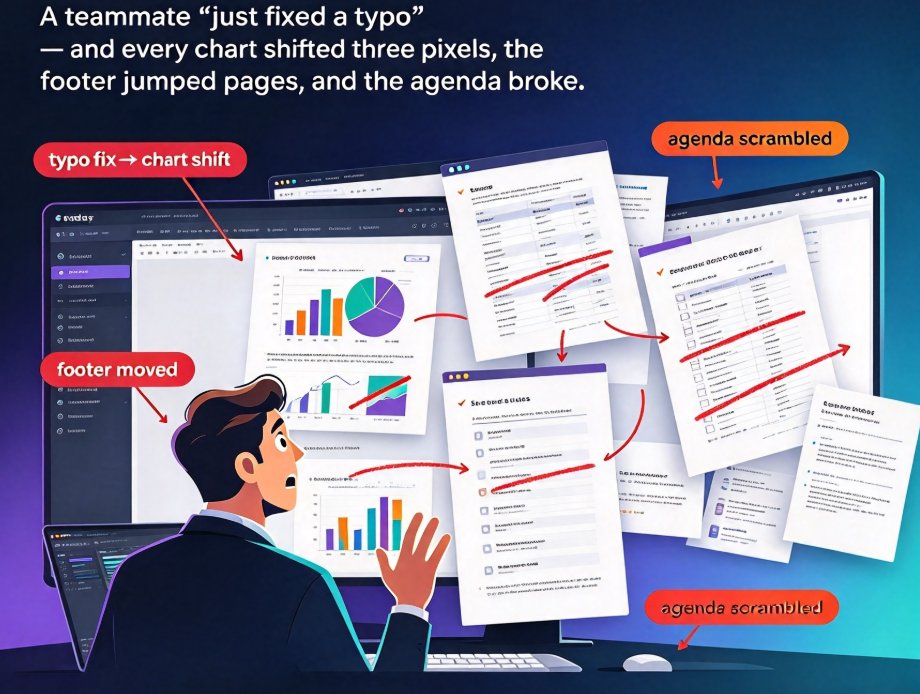
Friday, 4:47 p.m. You just locked the Q3 sales deck. Monday, 9:12 a.m. A teammate "just fixed a typo" — and somehow every chart shifted three pixels, the footer jumped pages, and your carefully ordered agenda now reads like a ransom note.
We've all been there. And let's be real: this isn't a design problem. It's a permissions problem. The fix isn't asking people to be more careful — it's role-based permissions in Zendeck's collaborative editor, where you decide who gets to edit, who simply comments, and who just watches.
Here's the short version up front: set roles before you share a single link, review changes before they reach stakeholders, and let version history be your safety net. Do that, and the "who moved my chart" drama disappears from your workflow — for good.
01 | Why Accidental Overwrites Are the Silent Killer of Team Decks
Shared decks are a blessing right up until they're not. Everyone wants a hand in the slides, so everyone gets edit access. Then one afternoon, someone rearranges the flow, another person "cleans up" the footer, and a third pastes in a graph with the wrong color. Suddenly you're holding a deck that looks like five different designers had a fight in it.
The real cost isn't the redrawing — it's the trust tax. Teammates stop editing because they're scared of breaking things. Stakeholders see the wrong version. Product owners burn an entire morning reconciling who changed what. A deck is a shared file, not a free-for-all. When everyone can edit everything, the loudest keystroke wins — and it's rarely the best slide.
The underlying concept here isn't new. In access control, a role is simply a defined set of permissions assigned to users, each one matching a specific set of tasks and responsibilities. The same logic that protects databases and CRM records applies beautifully to presentation files — most teams just never bother to apply it.
02 | The Permission Ladder: Who Can Do What
Zendeck's collaborative editor uses a clean permission ladder with four roles. Understanding where each person sits is half the battle.
| Role | Can do | Can't do | Best for |
|---|---|---|---|
| Viewer | View, present, copy the deck | No edits, no comments | Executives, auditors, external reviewers |
| Commenter | View + add comments and feedback | No direct changes to slides | Stakeholders, subject-matter experts |
| Editor | Edit slides, swap assets, apply smart layouts | Can't change roles or delete the deck | Core contributors, designers, course creators |
| Owner | Everything, incl. managing roles, deleting, transferring | — | Team lead, project owner |
Here's what the typical distribution of capabilities looks like across roles — a pattern pulled from standard role-based access control (RBAC) matrices, with the fewest permissions on the left:
The pattern is obvious: view-only access is cheap, but every step up the ladder unlocks more destructive power. That's exactly why least privilege isn't a security buzzword — it's a sanity tool that keeps your deck intact while the right people move fast on the right parts.
03 | How to Set Role Permissions in Zendeck, Step by Step
Setting roles in Zendeck takes about sixty seconds, and it's the highest-leverage minute you'll spend all week.
- Open the deck you want to protect, then click the Share button in the top-right corner of the editor.
- Add teammates by email or shareable link — for a link, pick the default role that any anonymous visitor gets. For named people, you can assign each one individually.
- Choose a role per person from the dropdown: Viewer, Commenter, Editor, or Owner. Give the lowest role that still lets them do their job.
- Turn on "Require sign-in" if you want to control exactly who's inside the deck and keep an accurate version history. This also stops link-sharing to whoever happens to forward it.
- Hit Save and share. Teammates get a clean notification, and you never have to wonder who can touch what again.
One tip before you send that link: it's always easier to start strict and loosen up later than to tighten things after someone has already overwritten a slide. If you're unsure, default the person to Commenter. They can still give feedback, and you can bump them to Editor the moment they prove they won't rearrange your agenda.
04 | Least-Privilege Best Practices That Cut Version Chaos
The security world has been preaching least privilege for years, and the logic transfers to presentations one-to-one. The guidance from access-management teams is consistent: prefer custom roles with least privilege instead of defaulting everyone to the top permission, because that distinction keeps teams starting with the minimum instead of the maximum.
Applied to your deck, that means:
- The sales rep who reviews numbers gets Commenter. They flag issues, they don't redesign your charts.
- The designer shaping the layout gets Editor. They need real power, but not the ability to change roles or delete the file.
- The team lead or project owner gets Owner — and usually that's one or two people max. Owners manage roles, handle deletion, and control transfer, so keeping that circle tiny is non-negotiable.
- Anyone outside the working team stays at Viewer. Auditors, executives, and cross-functional reviewers look, they don't touch.
There's a subtler layer here too. In modern access management, teams often use field-level permissions to show, hide, mask, or lock individual fields — protecting things like salary data or personal identifiers. The deck equivalent is slide-level awareness: keep sensitive or confidential slides only with teammates who truly need them, and use Commenter access for everyone else who just needs context. This is especially critical in courseware, where student data privacy and brand consistency sit next to each other — a topic we dig into more in our look at AI courseware data privacy trends.
If you give someone a link, you give them a role. No role, no link. That one rule eliminates most accidental overwrites before they start.
05 | Keep Version History Clean and Spot Accidental Edits
No matter how carefully you set roles, mistakes still happen. That's where Zendeck's version history becomes your best friend.
Every meaningful change gets recorded, so you can see who moved that chart and when. Instead of scrolling through an anonymous shared file, you get a timeline you can actually audit. If an edit looks off, you can roll a single slide back or restore the whole deck to an earlier state — no replaying the last three hours of work by hand.
This pairs beautifully with role-based permissions. A clean permission model means your version history stays legible: you're not sifting through fourteen edits from six people, most of whom shouldn't have been touching the file anyway. When reviewers are locked into Commenter mode and only core contributors carry Editor access, the history reads like a clear story instead of static noise.
The payoff lands right before a big presentation. Stakeholders review the version you meant them to see — not the one where a teammate "quickly adjusted" the fonts. We covered the broader mechanics of this in our article on secure sharing and co-editing trends in AI presentations, but the summary is simple: granular roles plus auditable history means the right version reaches the right people every single time.
06 | Real-World Scenarios: Sales Decks, Courseware, and Training Materials
Let's make this concrete, because the permission ladder looks different depending on what you're building.
Sales and pitch decks
Your CRO wants to move fast, the product team wants their feature screenshots accurate, and your designer is the one keeping it coherent. In this setup, the designer is Owner or Editor, the product lead is Editor for their module only, and the CRO gets Owner-level visibility as the accountable stakeholder. Sales reps reviewing the final version stay at Commenter — they can raise flags without ever risking the layout. That's the exact philosophy we walk through in how AI pitch deck generators help startups win investors.
Courseware and e-learning
Educators have a slightly different problem: the deck is the product. Multiple instructors might build modules, an instructional designer owns the visual system, and a reviewer checks for accessibility and alignment. Give the instructional designer Editor access, keep instructors as Editors on their own modules, and put the curriculum reviewer at Commenter. The result is courseware that stays consistent — no one accidentally wipes out a peer's assessment slide. This is also where AI-governed brand templates enforce consistency across every module your team ships.
Training and enablement materials
Learning and development teams often repurpose the same deck across cohorts, which means permissions need to be strict by default. The L&D manager holds Owner. Subject-matter experts get Commenter so they can correct content without disturbing the design. Facilitators get Editor only when they need to tailor a session. Everything flows through version history, so each cohort starts from the approved master — not from whatever version an over-eager facilitator modified last Tuesday.
The same recipe applies in every scenario: map each person to the lowest role that lets them contribute, keep Owner to a tiny circle, and lean on version history as the backstop.
Frequently Asked Questions
What is the difference between Commenter and Editor roles in Zendeck? A Commenter can view the deck and leave feedback but cannot change slide content, so a stakeholder can weigh in without ever risking your layout. An Editor can modify slides, swap assets, and apply smart layouts, which fits teammates who are actually building the deck. Think of Commenter as a voice in the room and Editor as hands on the slide.
How do I stop a teammate from accidentally overwriting my slides? Assign the lowest role that still lets them work — usually Commenter for reviewers and Editor only for core contributors. Set roles in the Share dialog before sending links, and use version history to restore any slide to an earlier state if something slips through. Least privilege plus a clean history covers most accidents.
What does least privilege mean for a shared presentation? Least privilege means giving each person exactly the access they need and nothing more. Applied to decks, a sales rep reviewing numbers gets Commenter, a designer shaping the layout gets Editor, and only the deck owner gets Owner-level controls. It isn't about policing people — it keeps the file intact so everyone actually moves faster.
Can I restore a previous version of a deck if a teammate messes up a slide? Yes. Zendeck's version history keeps a timeline of changes, so you can compare what changed, roll a single slide back, or restore the whole deck to an earlier state. That is your safety net after an accidental overwrite, and it beats redoing work by hand.
Should every team member have Owner access to the deck? No. Keep Owner access to one or two people — typically the team lead or project owner — because Owners can manage roles, delete the deck, and transfer ownership. Everyone else should sit at Editor or lower. This mirrors standard RBAC advice: avoid defaulting everyone to Administrator and prefer custom, least-privilege roles.
If you're building shared decks with a team every week, set the permissions once and watch the version chaos evaporate. For a broader look at how AI-powered collaboration is reshaping how teams work, browse our office efficiency guides — and give your next deck the permission model it deserves.