Zendeck Collaboration Features for Group Courseware Projects
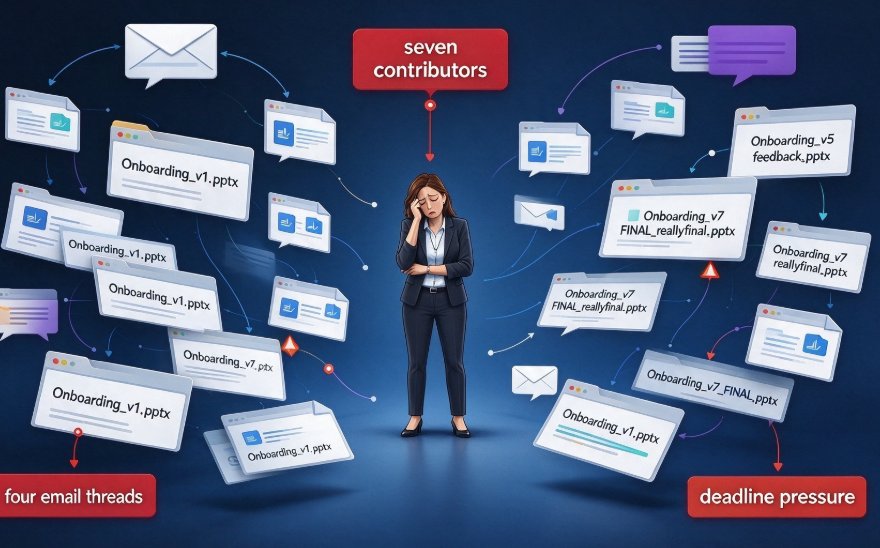
Somewhere on a shared drive right now, there's a file called Onboarding_v7_FINAL_reallyfinal.pptx. It was born the same way most group courseware projects are: seven contributors, four email threads, and a training lead who stopped sleeping. If that file has your team's name on it, you're in the right place.
HR and training teams rarely set out to create chaos. They set out to build an onboarding deck, a compliance course, or a product training that actually teaches. But the moment a second contributor joins, courseware stops being a content problem and becomes a coordination problem. The teams that win are the ones that remove the coordination overhead — and that's exactly what Zendeck's collaboration features are built for.
Over the next few minutes, we'll walk through the failure modes that wreck group courseware, how real-time editing, version control, and link sharing fix each one, and a realistic workflow your training team can steal this week. If you're new to this corner of the site, our office efficiency guides cover more of the workflow side of building faster.
01 — Why group courseware projects turn into chaos
The pattern never changes. You have subject matter experts who know the content, someone who “does the slides,” a reviewer who needs to sign off, and a lead who owns the deadline. Nobody disagrees on the goal. Everybody disagrees on the file.
The classic failure modes:
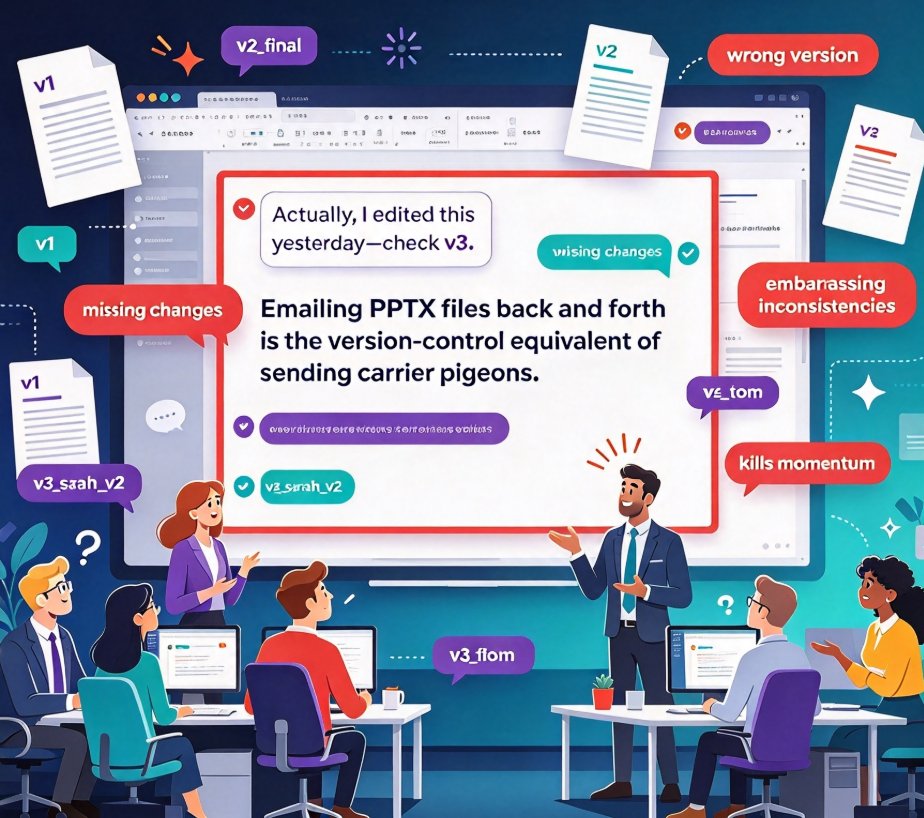
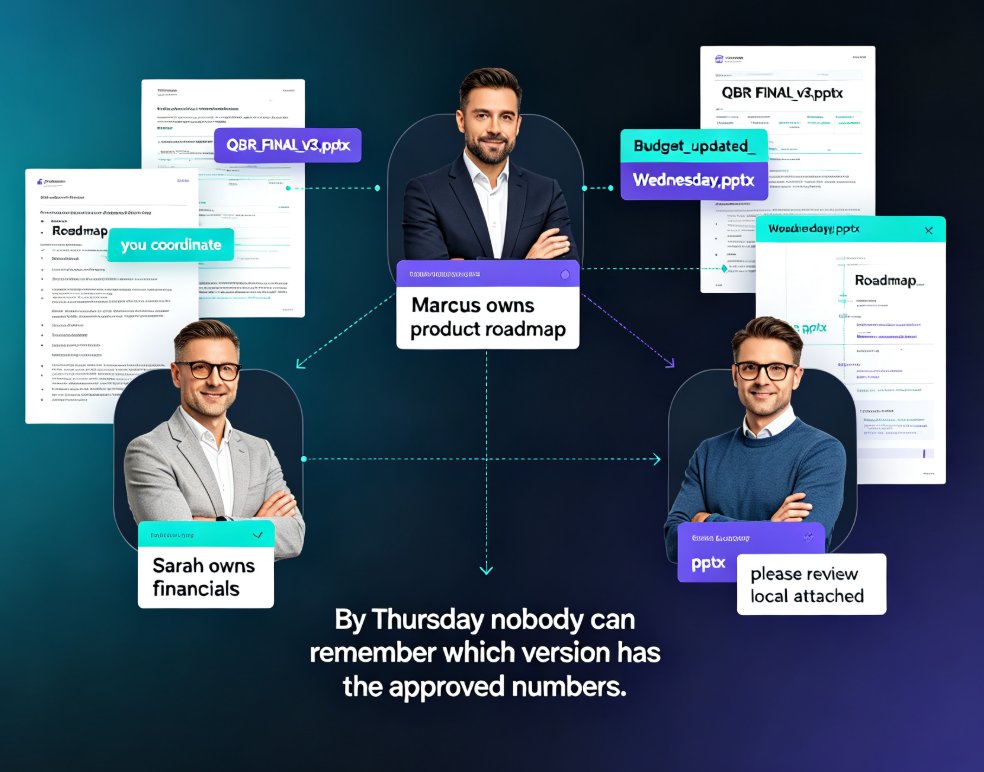
- Version proliferation. “final_v3” becomes “final_v3_FINAL_2”. Nobody remembers which file the reviewer actually saw.
- Offline editing collisions. Two people edit separate local copies, and whoever saves last silently wipes the other's work.
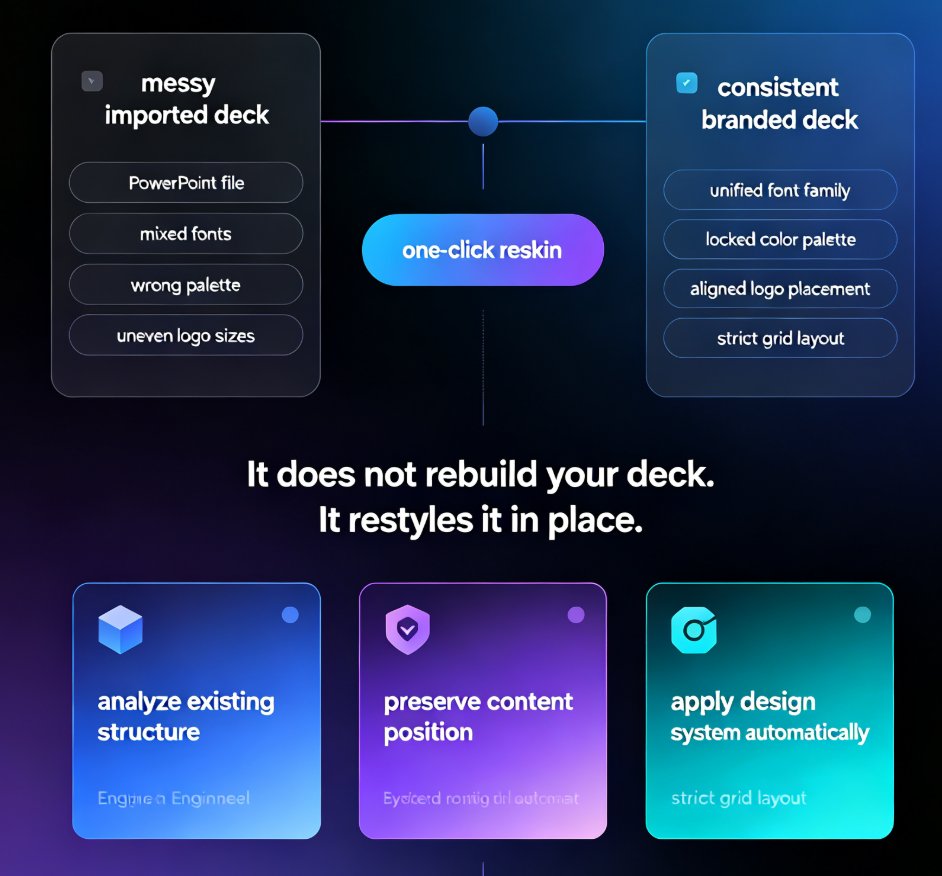
- Design drift. Contributor A uses your brand teal, Contributor B uses a “close enough” cyan, and the deck looks like six different agencies.
- Async feedback loops. Comments travel through email, chat, and hallway conversations. Decisions get lost, and someone asks “did you see my note about slide 9?” for the third time.
For HR teams, there's an extra layer: the reviewer is often a compliance or legal stakeholder who cares about exact wording, and every revision cycle multiplies the coordination cost. The fix isn't more process — it's a tool that kills the coordination overhead in the first place. That's the whole argument behind collaborative courseware, and it's why platforms with live co-editing are steadily replacing the “email the file” workflow. As one industry roundup put it, the core shift is that team members now work on the same document simultaneously, making real-time changes instead of trading files back and forth (Wrike, “Understanding Collaborative Software in the Modern Workplace”).
If you want the bigger picture on where this trend is heading, check out our look at AI Presentation Collaboration in 2026: Secure Sharing, Co-Editing Trends. The short version: the deck gets built once, correctly, without anyone losing work or sanity.
02 — Real-time editing: kill the “final_v3” email chain
Picture this. Your training lead is reviewing slide 12 while a subject matter expert fixes a statistic on slide 4, and the instructional designer rearranges the module flow on slide 18. With real-time co-editing, all of that happens on the same file, at the same time. No “re-sync.” No “is that the latest version?” Everyone sees the same deck, live.
For HR and training teams, this changes the whole rhythm of a courseware project:
- SMEs contribute content in their own words while the design stays locked down.
- Reviewers add comments inline, right next to the slide they're worried about, instead of writing “slide 7 feels off” in an email.
- Contributors work on different sections simultaneously — no queue, no “who's got the file now?”
The result is a shorter cycle and far fewer “my version is newer than yours” arguments. If your team has ever lost an afternoon to a file conflict, this alone is worth the switch.
03 — Version control that lets you roll back without panic
Real-time editing is great — right up until someone edits the wrong thing. Version control is what keeps that from becoming a disaster.
In a traditional workflow, “backup” means fourteen local copies with increasingly desperate names. In Zendeck, the platform auto-saves a full history as your team edits. You can:
- See who changed what and when, across the whole project.
- Roll back to any earlier version without losing later contributions you want to keep.
- Compare versions to see exactly what shifted between last week's deck and today's.
For training teams, that's the difference between “can you put the old intro back?” being a 45-minute archaeology project versus a 30-second click. It also changes how safe it feels to let more people contribute — which is the whole point of group courseware.
A team that can roll back safely is a team that's willing to experiment and improve. That's the hidden productivity win that never shows up in a status report. (For more on that theme, our piece on hidden features of AI presentation tools that boost team productivity digs into the ones people rarely use.)
04 — Link sharing with guardrails
Courseware collaboration doesn't stop at your core team. You'll share decks with stakeholders, remote reviewers, and sometimes learners. That's where link sharing does the heavy lifting.
Instead of emailing a 40 MB attachment that bounces back, you share one link. The important part is what you can control:
- Role-based permissions: decide who can view, comment, or edit.
- Different access for different audiences: the link you send a compliance reviewer doesn't have to be the same one you send the whole team.
- One source of truth: every version of the deck lives in one place, so there's no question about whether the viewer saw the latest draft.
For distributed HR teams — training lead in one city, SMEs in two others, reviewer working as a contractor — this is the difference between a project that runs on email and one that runs on momentum.
05 — Keeping the design consistent across contributors
Now let's be honest about the real problem under the problem. Even when everyone's editing the same file, you still have six different opinions about what the design should look like.
That's where design automation comes in. Zendeck's Smart Layout automatically enforces fonts, colors, and spacing across the whole deck — if an SME pastes a giant block of text into a slide, the layout reflows it to match the visual system. Your brand kit locks in colors and typography, so nobody's “close enough” cyan sneaks in.
For a team courseware project, this is quietly the most valuable feature. It means you can invite contributors who aren't designers and trust the deck will still look professional. It means you stop spending review cycles on “that slide doesn't match the others.” And it means the final deck feels like one cohesive voice — which is exactly what an onboarding or compliance course needs. If you want the mechanics, we've broken down how Zendeck's Smart Layout cuts presentation design time and how to build a custom brand kit for consistent decks. The short version: consistency becomes automatic instead of a negotiation.
06 — A realistic workflow for HR and training teams
Let's stitch it together. Here's what a group courseware project looks like with Zendeck in the loop:
- The lead builds the outline. Training lead drops in the module structure and core learning objectives.
- SMEs fill in the substance. Each subject matter expert adds content to their assigned sections — no file juggling.
- Design stays automatic. Smart Layout and the brand kit handle the look while everyone focuses on substance.
- Reviewers comment inline. Compliance and L&D stakeholders add notes next to specific slides, not in a separate email thread.
- The lead controls the release. Version control and permission-based sharing mean the lead decides when a draft is ready for a wider audience.
That five-step workflow replaces what used to be a two-week email marathon with a process that feels almost boringly smooth. And boring is good — boring means no drama, no lost work, no last-minute “wait, which file is final?”
Here's what that looks like in time saved. The numbers below are illustrative, but they reflect what happens when the revision cycle shrinks — the bigger the team, the more the cost compounds:
And here's the comparison at a glance:
| Capability | Traditional workflow (email + files) | Zendeck collaboration |
|---|---|---|
| Real-time co-editing | No — offline edits, file collisions | Yes — live, simultaneous edits |
| Version history | 14 copies named “final_v2_FINAL” | Auto-saved, instant rollback |
| Link sharing | Emailed attachments, size limits | One link, role-based permissions |
| Design consistency | Depends on who edits last | Smart Layout + brand kit enforce it |
| Feedback loop | Async email threads | Inline comments and mentions |
| Who can contribute | Whoever has the file | Anyone with the right permission |
FAQ
Can multiple people edit the same Zendeck courseware deck at the same time? Yes. Zendeck supports real-time co-editing, so HR and training team members can work on the same slides simultaneously. Changes appear live, which cuts the back-and-forth of emailing files around and eliminates “who has the file now?” questions.
How does Zendeck's version control work for group courseware projects? Zendeck auto-saves a full version history as your team edits. You can see who changed what and when, and roll back to any earlier version without losing later contributions. It turns “can you put the old intro back?” into a 30-second fix instead of a file-archaeology project.
Can I control who sees or edits a shared courseware link? Yes. Zendeck lets you set role-based permissions — view-only, comment, or full edit — for each shared link. That means SMEs and compliance reviewers can give feedback without being able to break core slides.
How does Zendeck keep the design consistent when several contributors add content? Smart Layout and brand kit settings automatically align fonts, colors, and layout across the deck. So six contributors — even ones with zero design training — still ship one cohesive, on-brand courseware style.
Is Zendeck's collaboration suitable for distributed or remote training teams? Absolutely. Everything lives online with link sharing, so remote team members, contractors, and regional reviewers can all contribute from anywhere without emailing attachments or fighting over local files.