Smart Layout Reskin: Unify Fonts, Colors, and Layouts with Zendeck
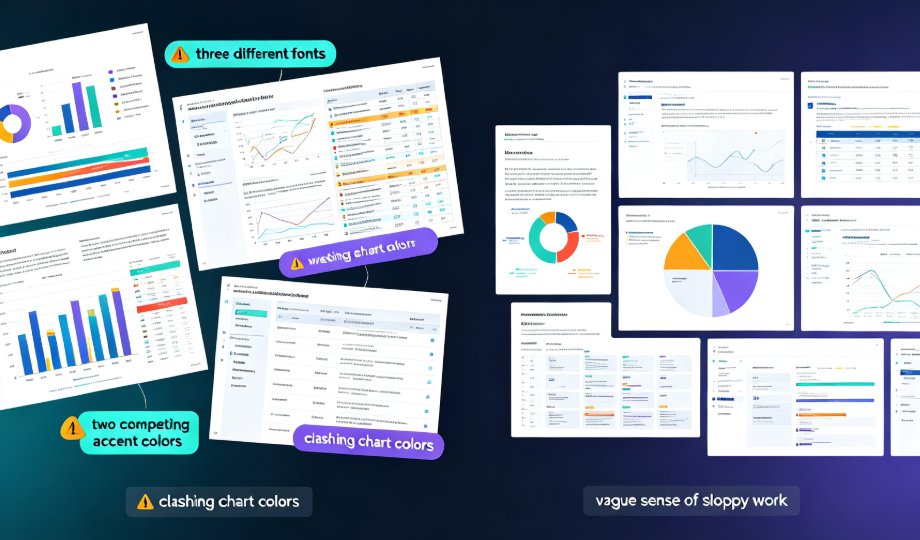
You've just finished building a 40-slide deck for the quarterly review. You open it on your second monitor, step back, and feel that sinking sensation: slide 7 uses a font you don't remember choosing, slide 12 has a color that clashes with everything around it, and slide 23's layout looks like it wandered in from a completely different presentation. Sound familiar?
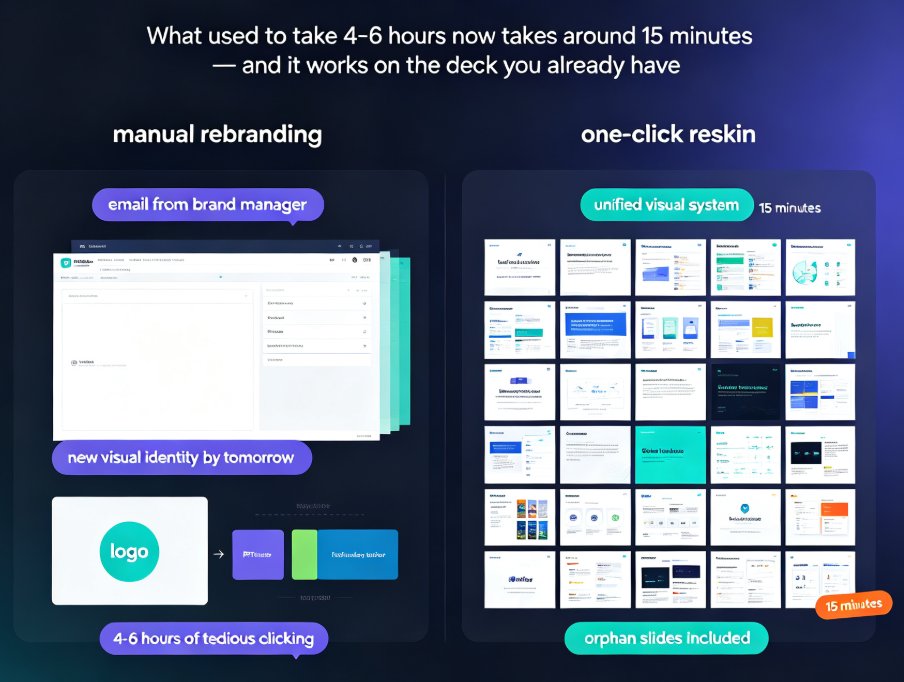
If you've ever tried to manually fix inconsistent formatting across a long deck, you know the drill: select, change, repeat — for every single slide. It's tedious, error-prone, and eats hours you don't have. That's exactly the problem Zendeck's smart layout reskin solves, and it does it in one click.
01 Why Brand Consistency Actually Matters (Not Just for Looks)
Let's be real: inconsistent decks don't just look sloppy — they actively undermine your credibility. When your audience sees mismatched fonts, clashing colors, and layouts that don't follow a system, they subconsciously question the quality of your work.
Brand consistency is what makes your presentation instantly recognizable as yours — before anyone even reads the logo.
A guide from Smallppt on maintaining brand visual identity makes this point well: consistent use of colors, fonts, and layout styles across every deck is what "imprints" your brand on the audience's memory. The same guide shares a real-world case where one team revamped more than 100 sales presentations using consistent templates, and the time spent creating new slides dropped by more than 50% across the board.
The outcome isn't just prettier slides — it's faster production, clearer messaging, and a sales team that presents with more confidence. When your deck looks like it belongs to your brand, your audience spends less energy decoding your design and more energy absorbing your message.
02 What "Reskin" Actually Means (and What It Doesn't)
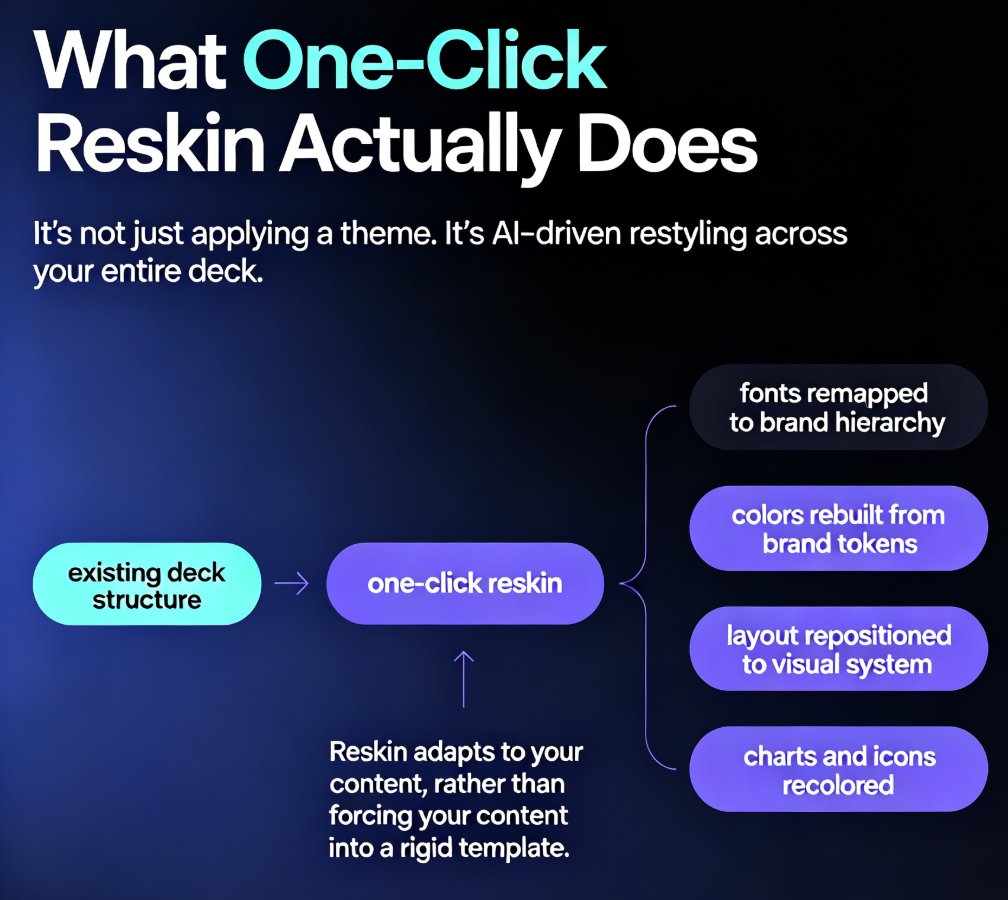
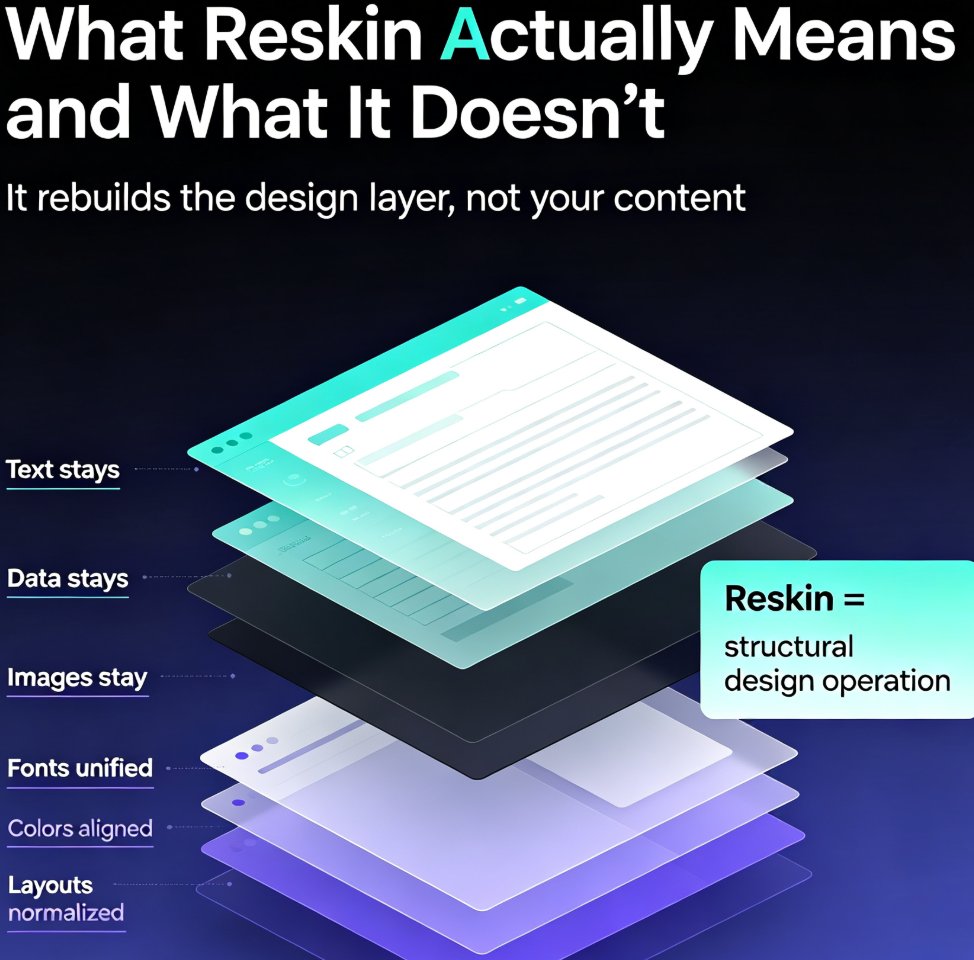
Here's the thing about the word "reskin": it sounds like a cosmetic change, like swapping a phone case. But in Zendeck, reskinning is a structural operation. When you hit that one-click reskin button, the system does three things simultaneously:
- Unifies fonts across every slide — headings, body text, and captions all snap to your chosen type scale
- Aligns colors to your brand palette — no more rogue hex codes from a template you used three years ago
- Normalizes layouts — title positions, content blocks, and image placements follow a consistent grid
What reskin doesn't do is destroy your content. Your text, data, and images stay exactly where they are. The design layer gets rebuilt underneath them. That distinction matters because it means you can reskin fearlessly — even on a deck you've spent days refining.
This is part of a broader shift in how AI presentation tools handle design. As we covered in our piece on AI-driven design automation and smart layouts, the 2026 trend is moving away from manual tweaking and toward systems that enforce design rules automatically.
03 How to Reskin a Deck in Zendeck: Step-by-Step
The process is almost embarrassingly simple. Here's how it works:
- Open your deck in Zendeck's editor — whether you generated it from a Word outline, pasted Markdown, or started from a template.
- Select a target theme or brand kit — if you've set up a brand kit (and you should), Zendeck pulls your fonts, colors, and logo automatically. If you haven't, you can pick from the template library.
- Hit the reskin button — Zendeck applies the new design system across all slides simultaneously.
- Review and fine-tune — spot-check a few slides. If something looks off, you can manually adjust individual elements without breaking the overall consistency.
That's it. No per-slide formatting, no "select all → change font" gymnastics, no checking every slide to make sure the color actually took.
The average user reskins a 30-slide deck in under five minutes — including review time.
If you're new to Zendeck, it's worth setting up a brand kit first. Our guide on creating a custom brand kit for consistent decks walks through the five key steps, and it takes about five minutes total.
04 The Real Cost of Manual Formatting vs. Reskin
Let's put some numbers on this. Based on typical workflows reported by teams using AI presentation tools, here's what manual formatting costs you:
| Deck Size | Manual Formatting (min) | Zendeck Reskin (min) | Time Saved |
|---|---|---|---|
| 10 slides | 50 | 2 | 48 min |
| 20 slides | 90 | 3 | 87 min |
| 30 slides | 140 | 4 | 136 min |
| 50 slides | 220 | 6 | 214 min |
The pattern is obvious: the bigger the deck, the more dramatic the savings. And that's just the direct time cost — it doesn't count the mental energy spent on repetitive tasks, or the risk of missing a slide and shipping something off-brand.
05 Best Practices for Reskinning Without Breaking Your Design
Reskin is powerful, but like any power tool, it works best when you use it thoughtfully. A few things I've learned from watching teams do this well:
Set up a brand kit first. If you reskin to a random template, you'll get consistency — but it might be consistent with the wrong identity. A brand kit locks in your actual fonts, colors, and logo so every reskin reinforces your brand. If you're not sure where to start, our brand kit setup guide covers the whole process.
Reskin early, not late. The best time to reskin is right after you've drafted your content, before you've invested hours in manual formatting. Reskinning a deck you've already hand-formatted is like repainting a wall you just finished — it works, but you wasted effort.
Check the edge cases. After reskinning, flip through your deck and look for slides with unusual content: dense data tables, complex diagrams, or embedded media. These are the slides most likely to need a manual nudge. Zendeck handles the 95% case automatically; you just handle the 5% that needs a human touch.
Don't reskin mid-review. If you're in the middle of a stakeholder review cycle, resist the urge to reskin between rounds. Wait until the content is locked, then reskin once. Otherwise you'll be re-reviewing design changes on top of content changes, and that's a recipe for confusion.
06 When Reskin Isn't Enough: The Bigger Picture
Reskin is a fantastic tool for unifying an existing deck, but it's part of a larger workflow. If you're constantly fighting brand inconsistency across your organization, the real fix is upstream: set up brand kits, standardize templates, and let AI handle the repetitive design decisions.
Zendeck's approach to this is worth understanding. The platform doesn't just reskin — it also generates slides from outlines, enforces brand rules through templates, and even converts finished decks into narrated videos. Reskin is the safety net that catches the decks that slipped through the cracks.
If you want to go deeper on brand consistency, check out our guide on maintaining brand consistency across hundreds of slides with AI brand kits, or learn how to build a custom branded template in five steps. And if your AI-generated slides still look off-brand, this quick fix guide will help you diagnose the root cause.
For teams that need to enforce brand rules across an entire organization, the concept of AI-governed brand consistency with smart templates is worth reading — it explains how template-level governance prevents inconsistency before it happens.
FAQ
Q: Does reskinning in Zendeck change my content or data?
No. Reskin only affects the design layer — fonts, colors, and layout structure. Your text, images, charts, and data remain exactly as they were. That's what makes reskinning safe to use on any deck, even one you've spent days refining.
Q: Can I reskin just a few slides instead of the whole deck?
Yes. While the one-click reskin applies to the entire presentation, you can manually adjust individual slides afterward without breaking the overall consistency. Zendeck also lets you apply specific theme elements to selected slides if you need a hybrid approach.
Q: How long does it take to reskin a large deck?
For a 30-slide deck, the reskin itself takes seconds. Including review time, most users are done in under five minutes. Compare that to the 2+ hours manual formatting typically takes for the same deck size.
Q: Do I need to set up a brand kit before using reskin?
No, but it's strongly recommended. Without a brand kit, you can reskin to any template in Zendeck's library. With a brand kit, your reskin automatically uses your organization's fonts, colors, and logo — which is what makes the result truly on-brand.
Q: What if a slide looks wrong after reskinning?
That's usually a sign the slide has unusual content — a complex diagram, a dense table, or embedded media. You can manually adjust those specific slides. For the vast majority of slides, the reskin will handle everything automatically.