How to Generate a Complete Presentation from Scratch Using Zendeck AI
How to Generate a Complete Presentation from Scratch Using Zendeck AI
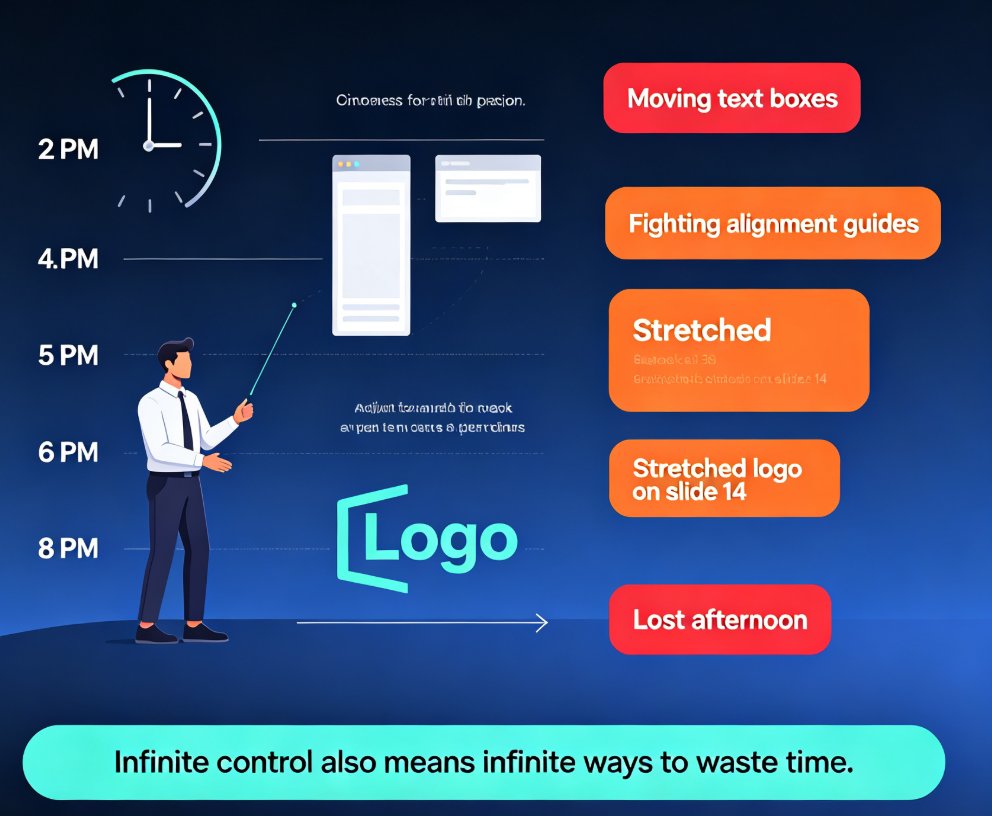
You've got 20 minutes before a meeting and a blank slide deck staring back at you. We've all been there — the cursor blinks, the white canvas mocks you, and suddenly every font choice feels like a life-or-death decision. Here's the thing: you don't need to design a presentation. You need to ship one.
This guide walks you through the entire zero-to-done workflow with Zendeck AI — from pasting a rough outline to sharing a polished, brand-consistent deck. No design skills required. No 3 a.m. template hunts. Just a clear path from your notes to a finished presentation that actually looks like you meant to make it.
01 — Start with an outline, not a blank slide
The biggest mistake most people make isn't bad design — it's starting from nothing. A blank slide forces you to think about layout, color, and structure all at once, which is exactly how you end up with a deck that looks like a ransom note.
The fix is simple: start with your content, not your canvas.
Zendeck AI lets you paste a Word outline, Markdown, or plain TXT file directly into the editor. That's it. No formatting, no styling, no "which template should I pick" paralysis. You just dump your rough notes — bullet points, headings, even half-formed thoughts — and let the AI figure out the structure.
The outcome? You spend your energy on what actually matters: your message. The design work gets handled in the background, and you get a structured deck that doesn't look like it was assembled by a committee.
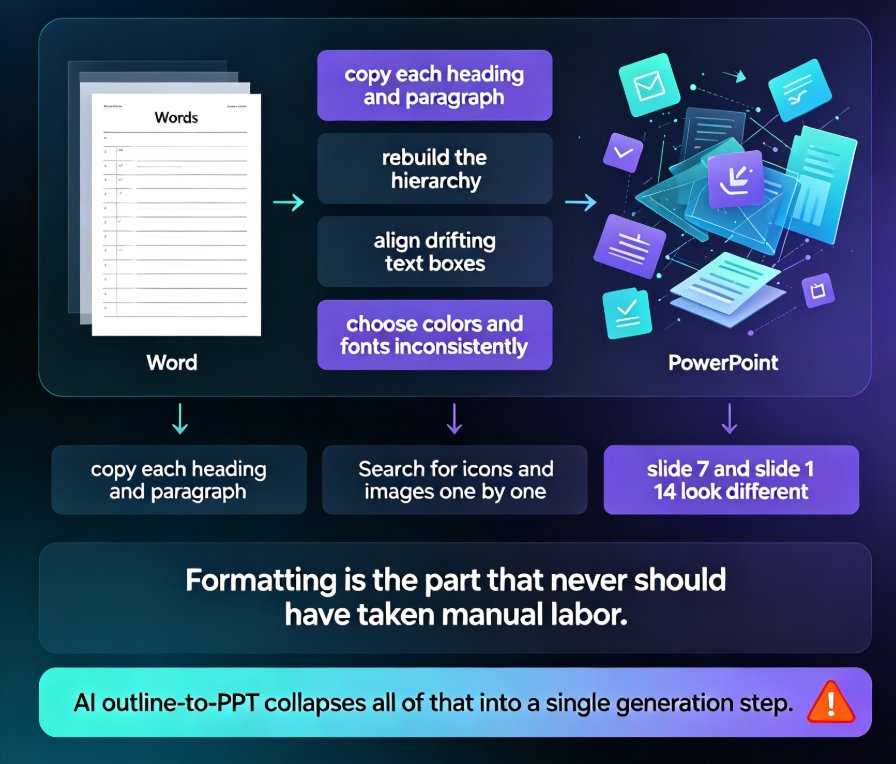
If you're coming from Word or Google Docs, you're in luck — Zendeck integrates directly with both, so you can skip the copy-paste dance entirely. Check out how AI presentation tools integrate with Word and Google Docs for the full rundown.
02 — Let the AI build the skeleton
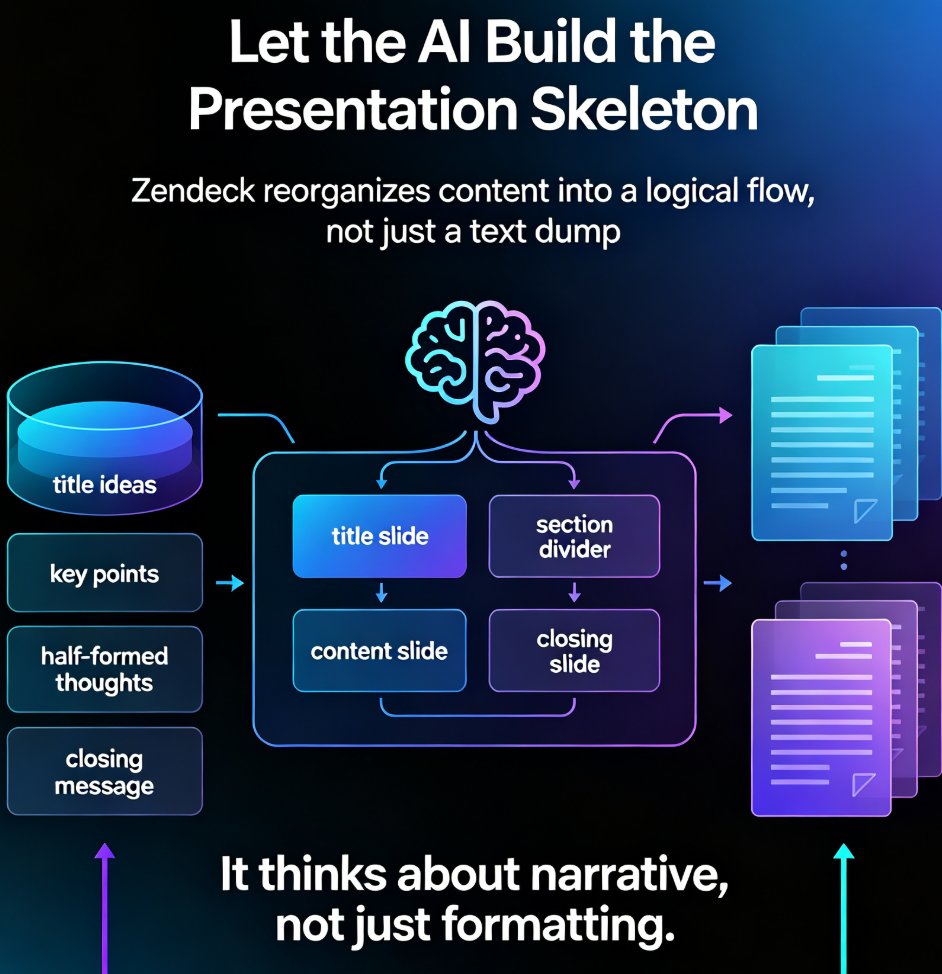
Once your outline is in, Zendeck's AI takes over. It analyzes your content, identifies the key points, and generates a complete slide structure — title slides, section dividers, content slides, and a closing slide. The AI doesn't just dump your text onto slides; it reorganizes it into a logical flow that actually makes sense for a presentation.
This is where Zendeck differs from a simple "text-to-slides" tool: it thinks about narrative, not just formatting.
The AI understands that a presentation isn't a document. It breaks your content into digestible chunks, creates natural transitions, and makes sure each slide has one clear takeaway. You get a deck that's structured like a story, not a data dump.
For a deeper look at how this generation works, check out how Zendeck generates professional slides from a prompt. And if you're wondering why some AI decks still look messy, we've written about why AI-generated slides look off and how Zendeck fixes it — spoiler: it's almost always a structure problem, not a design problem.
03 — One-click reskin: make it yours
Here's where most AI tools fall apart. They generate a deck, but it looks like every other AI-generated deck — generic, soulless, and obviously templated. Zendeck fixes this with smart layout and one-click reskin.
You can change the entire look of your deck — fonts, colors, layout — with a single click, without touching individual slides.
This is a game-changer for anyone who's ever spent an hour manually updating fonts across 40 slides. Zendeck's reskin feature unifies everything automatically. Your headings, body text, accent colors, and spacing all update consistently, so your deck looks intentional rather than assembled.
If you're working with a corporate brand, Zendeck's custom brand kit takes this even further. You can save your brand colors, fonts, and logo placement once, and every deck you generate will automatically follow your brand guidelines. Here's how to create a custom brand kit in Zendeck for consistent decks across your whole team.
04 — Visuals without the scavenger hunt
Now comes the part that usually eats hours: finding visuals. You know the drill — you spend 45 minutes searching for the perfect icon, then settle for a mediocre one because you're out of time.
Zendeck's asset library changes that. It's a built-in collection of icons, charts, illustrations, and graphics that you can drop into your slides instantly. No more tab-hopping between your deck and a stock photo site.
The asset library is context-aware — it suggests visuals that match the content of your slide, not just generic clip art.
So when you're building a slide about quarterly growth, the library surfaces relevant chart types and data visualization options. When you're working on a training module, it suggests instructional icons and diagrams. The visuals feel chosen, not random.
For more on this, check out how to add interactive charts with Zendeck's asset library.
05 — From deck to video (when you need it)
Sometimes a static deck isn't enough. Maybe you need a narrated micro-course for your team, or a training video for remote employees, or a client-facing walkthrough. This is where Zendeck's PPT-to-video feature shines.
You can turn your finished deck into a narrated video without leaving the platform.
The AI adds voiceover narration to your slides, syncs the timing, and produces a video you can share or embed. It's perfect for educators building courseware, trainers onboarding new hires, or anyone who needs to turn a presentation into something people can watch on their own schedule.
If you want to learn more about this workflow, here's how to add narration to your slides with Zendeck's PPT-to-video.
06 — Share, collaborate, ship
The final step is the easiest. Zendeck gives you a shareable link for your deck, so you can send it to stakeholders, embed it in a wiki, or present it directly from the browser. No more emailing 50MB PowerPoint files back and forth.
Collaboration is built in — multiple people can edit the same deck online, and everyone sees the latest version.
This is a huge quality-of-life improvement for teams. You don't have to worry about version control or "which file is the final one" chaos. The deck lives in one place, and everyone works from the same source of truth.
07 — The full workflow at a glance
Here's what the entire process looks like compared to the traditional way:
| Stage | Traditional Workflow | Zendeck AI Workflow |
|---|---|---|
| Starting point | Blank slide, design anxiety | Paste outline (Word/Markdown/TXT) |
| Structure | Manual slide-by-slide planning | AI generates logical flow automatically |
| Design | Hours of font/color/layout decisions | One-click reskin, brand-consistent |
| Visuals | Stock photo scavenger hunt | Context-aware asset library |
| Video (optional) | Separate recording/editing tools | Built-in PPT-to-video with narration |
| Sharing | Email attachments, version chaos | Shareable link, live collaboration |
| Total time | 4-8 hours | 15-30 minutes |
The time savings aren't subtle. You're not saving 10% here and there — you're cutting the presentation creation process from a full workday to a coffee break.
08 — Mistakes to skip (learn from ours)
We've seen a lot of people try AI presentation tools, and a few patterns keep coming up. Here are the ones worth avoiding:
Mistake 1: Overloading slides with text. Just because the AI can fit everything on one slide doesn't mean it should. Keep each slide focused on one idea. If you're cramming, split it into two slides.
Mistake 2: Skipping the reskin step. The default AI design is fine, but it's not yours. Take the 30 seconds to apply your brand kit or pick a template that matches your context. It makes a huge difference in how the deck is received.
Mistake 3: Ignoring the outline quality. Garbage in, garbage out — even with AI. A well-structured outline produces a dramatically better deck than a messy one. Spend five minutes cleaning up your notes before you paste them in.
If you're curious about other common pitfalls, we've written up 5 AI presentation mistakes to avoid in 2026 — including how Zendeck handles each one.
09 — Why this workflow works for busy people
Let's be real: nobody wakes up excited to make a PowerPoint. You make presentations because you need to communicate something important — a strategy, a lesson, a pitch, a plan. The deck is the vehicle, not the destination.
Zendeck AI removes the friction between your idea and your audience.
You bring the thinking. The AI brings the structure, the design, and the polish. The result is a presentation that looks like you spent days on it — because the AI did the heavy lifting, and you spent your time where it counts.
Whether you're building a training deck, a client pitch, or a course module, the workflow is the same: paste your outline, let the AI generate, reskin to match your brand, drop in a few visuals, and ship. If you want to explore more about how AI is reshaping presentation work, browse our AI courseware collection for deeper dives.
FAQ
Do I need design skills to use Zendeck AI? No. Zendeck handles layout, fonts, colors, and spacing automatically. You provide the content, and the AI builds the structure and applies consistent design. If you can write an outline, you can create a polished presentation.
What file formats can I start with? You can paste a Word outline, Markdown, or plain TXT directly into Zendeck. The AI converts your text into a structured slide deck, preserving your headings and key points while reorganizing them into a presentation flow.
Can I change the design after the deck is generated? Yes. Zendeck's one-click reskin lets you swap the entire look — fonts, colors, and layout — without redoing individual slides. You can also apply a custom brand kit to keep every deck consistent with your organization's identity.
Can I turn my deck into a video? Yes. Zendeck's PPT-to-video feature adds AI narration to your slides and produces a shareable video. It's ideal for micro-courses, training materials, and asynchronous presentations.
How long does it take to generate a full presentation? From pasting an outline to having a shareable link, most decks take 15 to 30 minutes. The AI handles the generation in seconds; most of your time goes into refining the content and applying your preferred design.