Word to PPT Import Ruins Formatting? AI Keeps Outline Structure Intact
01. The 2 a.m. Formatting Nightmare
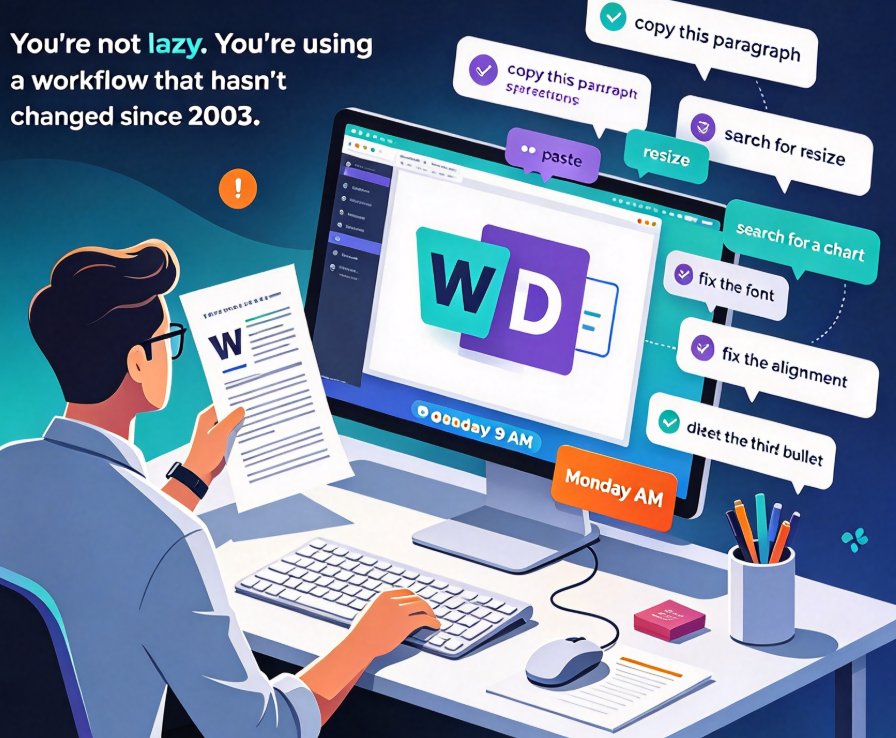
You know the drill. You've spent three days writing training documentation in Word — clean headings, a structure you're proud of, tables that tell the story better than prose ever could. Then you need to turn it into a presentation for Monday morning.
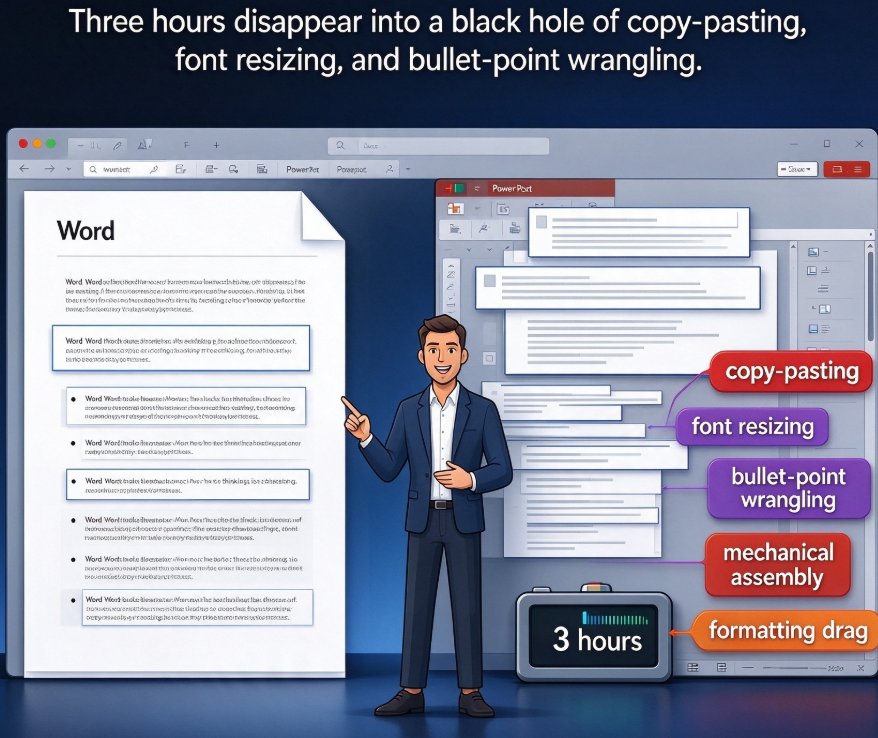
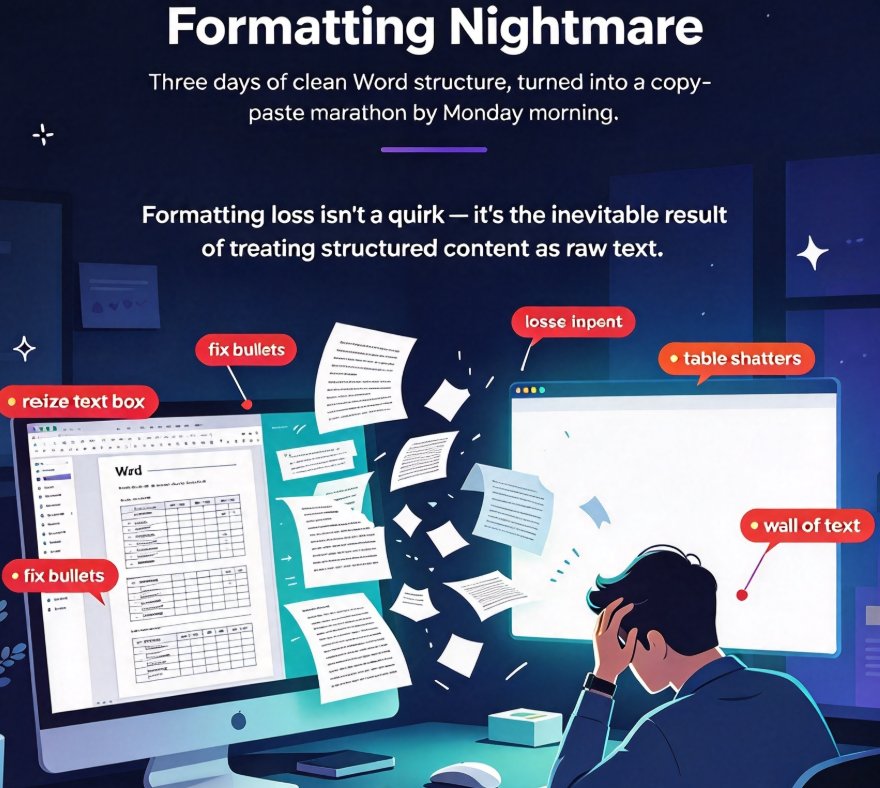
You open PowerPoint, start a blank deck, and begin the copy-paste marathon: highlight a heading, paste it, resize the text box, lose the indent, fix the bullet points, watch the table shatter into a wall of text. By 2 a.m. you're still dragging image placeholders around, wondering why a simple Word-to-PPT task feels like an Olympic sport.
Here's the uncomfortable truth: formatting loss isn't a quirk of your workflow — it's the inevitable result of a tool that treats your document as raw text instead of structured content.
Most Word-to-PPT converters on the market fall into one of two camps. The first camp dumps your entire document onto slides in one giant paragraph block and calls it a day. The second camp requires you to manually rebuild every slide after conversion, because it never understood your heading hierarchy in the first place. Neither approach respects the hours of thinking that went into your document's structure.
That's the gap Zendeck was built to close.
02. Why Word-to-PPT Conversion Breaks Formatting in the First Place
Before we talk about the fix, let's name the real culprits. When a file moves between document formats, three things go wrong:
Style mapping fails to translate. Word's Heading 1, Heading 2, and Body Text styles are logical structure markers — they tell tools "this is a title," "this is a section," "this is a supporting detail." Most converters read these style markers and then... ignore them. They look at the text characters but not the structural meaning behind them.
Content density mismatch. A Word document page carries about 300-500 words. A slide should carry about 40-60. A converter that isn't structure-aware will dump a 500-word section onto a single slide, creating that infamous "wall of text" look that makes audiences lose interest in the first ten seconds.
Tables and lists get flattened. Tables rarely survive a naive cut-and-paste. Column alignment, merged cells, color coding — all collapse into plain text with weird spacing that takes ages to fix manually.
Here's what usually happens in practice: the document's outline — its heading hierarchy — is exactly the thing that should drive the slide structure. But most tools treat it as decoration, forcing you to spend 45 minutes to 3 hours restoring the hierarchy your document already had.
03. Outline-Aware Import: How Heading Hierarchy Becomes Slide Logic
So what fixes the problem? A converter that's actually outline-aware.
An outline-aware Word import reads your document's heading levels first, maps Heading 1 to slide titles, Heading 2 to section dividers, and Heading 3 to content blocks — not because it's doing something exotic, but because it's honoring the structure you already built.
That one design decision eliminates roughly 90% of the manual formatting work in document-to-deck conversion.
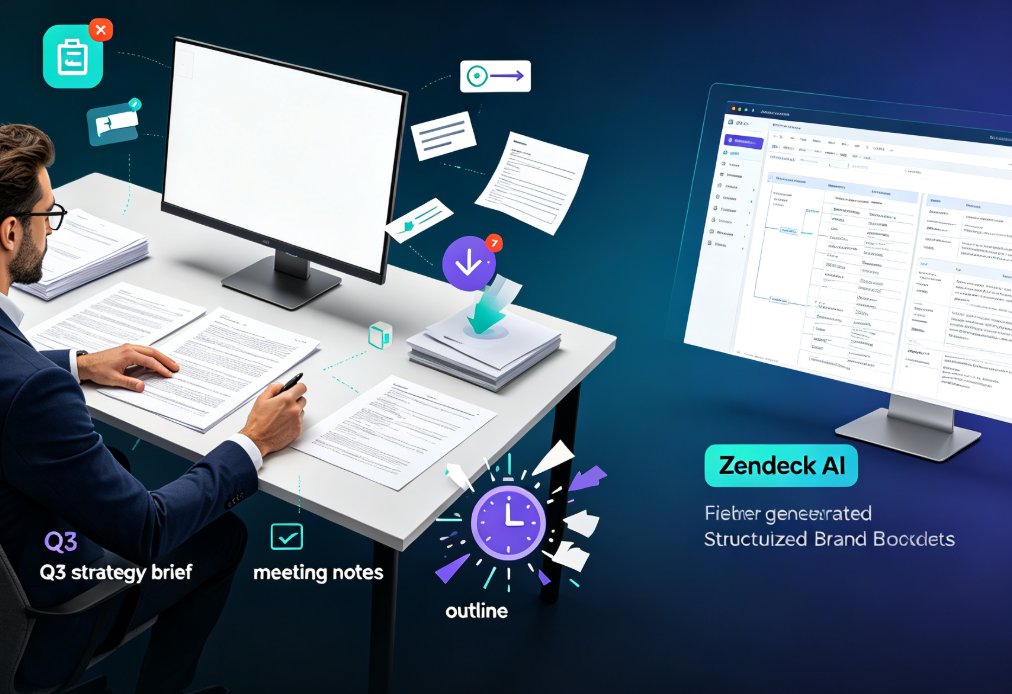
Zendeck's outline-aware import takes this further. When you upload a Word file or paste a Markdown/TXT outline, the AI engine performs a structural scan before generating anything:
- Identifies heading hierarchy — using Word's actual style markers (not just font size), so a bolded paragraph never gets mistaken for a slide title.
- Preserves list nesting — bullet levels stay at their intended depth instead of collapsing into one indentation mess.
- Keeps tables as tables — a three-column comparison table arrives on the slide as a proper table, columns and rows intact.
- Splits long sections intelligently — content that's too dense for one slide is divided across multiple slides with consistent headers, so nothing reads like a page torn from a book.
The result is not a reformatted copy of your document — it's a proper presentation built from the structural logic you already wrote.
04. What Zendeck's Outline-Aware Import Looks Like in Action
Let's walk through a real scenario. You're a corporate trainer with a 40-page Word manual covering new-hire onboarding.
You open Zendeck, choose "Create from Word or outline," upload the file, and either pick a template that matches your brand from the template library or let Zendeck's AI recommend the right template for your audience.
Here's what the import produces:
- Each Heading 1 becomes a section-divider slide — a clean title slide for each major module.
- Each Heading 2 becomes a content slide title, with the body text beneath it.
- Your nested bullet list arrives as properly indented bullet levels, visually weighted by hierarchy.
- Your tables arrive as structured tables — no flattened cells, no re-alignment needed.
- Long sections are automatically split across multiple slides, keeping the heading visible while distributing content logically.
What you don't see is the underlying transformation. The AI engine is making layout decisions the way an experienced designer would — it's not just transferring text, it's converting it into slide logic. Then Smart Layout takes over to unify fonts, colors, and spacing across every slide, so the deck looks like one person designed it.
The kicker: you don't need any design skills to get a polished result. The structure of your document does the heavy lifting.
05. The Zero-Reformat Workflow: Three Steps
Here's the complete workflow, end to end:
Step 1: Prepare your document with structure in mind.
Use Word's built-in Heading 1, Heading 2, and Body Text styles. If you're starting from a plain-text outline, a simple Markdown hierarchy (# for titles, ## for sections, - for bullets) works perfectly. The AI reads these markers — so the more consistent your structure, the cleaner the output.
Step 2: Upload, set preferences, and generate.
In Zendeck, upload the Word file or paste your Markdown outline. Tell the AI how many slides you want (fewer for a high-level overview, more for a detailed breakdown), who the audience is, and which template to use — or let it auto-suggest. Then click once.
Step 3: Polish the 5%, not the 95%.
The AI handles all the formatting. Your job now is reviewing the flow, not fixing alignment. Adjust a title, swap an icon, drop in a chart from the asset library. When you're satisfied, present directly from Zendeck, export to PowerPoint, or turn the deck into a narrated micro-course.
A quick suggestion from experience: if your Word file is 100-plus pages, don't upload it all at once. Split it into logical sections and generate each module separately. Zendeck keeps styling consistent across sessions, so you get one cohesive deck without wrestling a monolithic file.
06. Manual vs. Converter vs. Zendeck: Time Trade-offs at a Glance
Here's what the three approaches look like side by side, based on typical real-world outcomes for a 40-page training document:
| Task | Manual Copy-Paste | Traditional Converter | Zendeck Outline-Aware Import |
|---|---|---|---|
| Heading-to-slide-title mapping | Manual (10-15 min just for titles) | Often ignored; headings become plain text | Automatic — headings map 1:1 to titles |
| Nested bullets | Re-indent everything manually | Flattened into one level | Preserved with correct nesting |
| Table formatting | Rebuild column alignment by hand | Tables collapse into plain text | Tables keep columns, rows, and structure |
| Long sections | Manually split and rephrase | Whole section dumps on one slide | Auto-splits across slides with consistent headers |
| Post-conversion cleanup | 1-3 hours | 45-90 minutes | 5 minutes of fine-tuning |
| Design consistency | Apply theme slide by slide | Inconsistent or template-dependent | Smart Layout unifies style automatically |
The data is blunt: a manual workflow costs you hours per deck; a naive converter saves time but trades it for cleanup work; an outline-aware import gets you to a presentable deck in under 10 minutes.
07. Who Actually Wins With This?
Educators. You're building a lesson from a Word-based syllabus or module plan. The outline-aware import turns your existing structure into courseware instantly, and Smart Layout keeps every lesson visually cohesive across the whole course — so students always know where they are in the material.
Trainers and HR teams. Onboarding docs, policy handbooks, compliance training — all start as Word documents. With structure-aware import, you turn them into training decks without the dread of reformatting. And when the deck needs to become a self-paced micro-course, you're already halfway there.
Content operators. When you're repurposing a written report or article into a stakeholder deck, the last thing you want to spend time on is styling. The outline-aware import means your written logic — section order, priority, detail level — becomes the slide logic automatically.
This is also part of a bigger shift. AI deck generation is rapidly replacing traditional PPT workflows, and outline-aware import is one of the main reasons. The document-to-deck pipeline used to be: write, copy, paste, reformat, present. Now it's: write once, generate, present.
08. Stop Reformatting, Start Presenting
Every hour you spend fixing formatting is an hour you're not investing in the actual content. Formatting loss after Word-to-PPT conversion isn't inevitable — it's a design flaw of the tools you've been using.
Zendeck's outline-aware Word import treats your document's structure as its primary asset. It reads heading hierarchy, preserves list nesting, keeps tables intact, and splits long sections the way a designer would. That means the thinking you put into organizing your content survives the conversion — and you get to spend your time on the parts that actually matter.
Try it with a document you already have. Upload your Word file or paste your Markdown outline into Zendeck and see how long it takes to get a deck worth presenting. My bet? Under 10 minutes.
FAQ
Does Zendeck's Word import preserve heading hierarchy?
Yes. Zendeck reads Word's built-in style markers (Heading 1, Heading 2, Body Text) and maps them directly to slide titles, section dividers, and content blocks. Your document's structure becomes the deck's structure, with correct visual hierarchy.
What file formats can I import into Zendeck?
Zendeck accepts Word (.docx) files, Markdown, and TXT outlines. If you paste a plain-text outline, the AI infers hierarchy from heading markers (#, ##, ###) and generates slides accordingly.
Are the generated slides editable after import?
Yes. Zendeck generates the deck as fully editable slides, so you can adjust text, swap visuals, change templates, or add elements from the asset library after the import. The AI handles the first pass; you control the final 5%.
Does Zendeck keep tables and bullet lists intact?
Yes. Tables are recreated as proper slide tables with column and row structure preserved, and nested bullet lists keep their levels instead of being flattened into plain text.
How long does a typical Word-to-deck conversion take?
Most users go from upload to a presentable deck in 5-10 minutes. A manual copy-paste workflow typically takes 1-3 hours for the same document — and most of that time goes to reformatting, not content.