Broken Media in PPT? Zendeck Converts Slides to Video That Plays
You built a beautiful deck. Embedded a demo video, a product walkthrough, a training clip. You hit send. And then the reply comes: "The video doesn't play." Or worse — you're standing in front of a room, you click the slide, and nothing happens. The file is there. The link is there. But on this laptop, with this codec, on this projector, it just... doesn't play.
If that scene feels familiar, you're not alone. Embedded media in PowerPoint is one of the most fragile parts of any deck. And the fix isn't a better codec or a bigger file — it's converting the whole slide deck into a video that plays anywhere.
01 Why embedded media breaks (and why it's not your fault)
Let's be real: the problem is rarely your content. It's the container.
When you embed a video in a PPTX, you're relying on a chain of assumptions:
- The receiving device has the right codec installed
- The video file travels with the deck (or the link stays alive)
- The version of PowerPoint (or Keynote, or Google Slides) handles the format
- The file size doesn't get stripped by email or file-sharing limits
Any one of those breaks, and your media is dead on arrival.
The most common culprits:
| Cause | What happens | How it shows up |
|---|---|---|
| Codec mismatch | The video plays on your machine but not on theirs | Black box, no sound, or a "codec not supported" error |
| Broken file link | The video was linked, not embedded, and the file didn't travel | Empty frame or a spinning icon |
| File size limits | Email or sharing tools strip attachments over a limit | Video missing entirely, deck arrives truncated |
| Device/OS differences | Windows vs Mac vs mobile vs projector | Video plays in preview but freezes in slideshow |
The core problem: a PPTX with embedded media only works when every device in the chain cooperates. That's a fragile bet.
And here's the kicker — you often don't find out until you're live. In a meeting. In front of a client. In a classroom. That's the worst possible moment to discover your media is broken.
02 The real cost of broken media
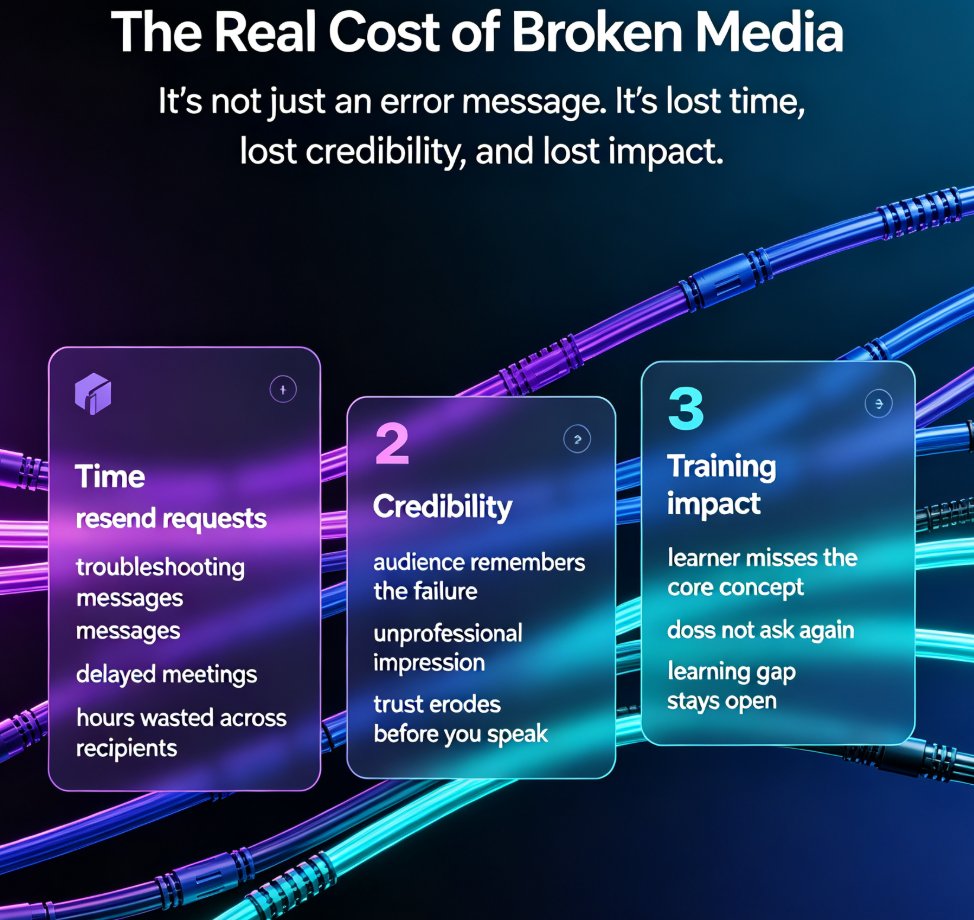
It's not just an inconvenience. Broken media has a measurable cost:
- Time: Every "can you resend the video?" or "it doesn't play on my end" exchange eats minutes. Multiply that by every recipient, and you've lost hours.
- Credibility: When your deck fails mid-presentation, the audience remembers the failure, not your content. It reads as unprofessional, even though it's not your fault.
- Training impact: In corporate training or education, a broken video means the learner misses the core concept. They don't come back to ask — they just move on, and the learning gap stays.
The hidden cost of broken media isn't the error message. It's the trust you lose every time a deck fails to deliver.
Let's be honest: you didn't build that deck so it could fail on someone else's laptop. You built it to communicate. And communication that doesn't reach the audience isn't communication at all.
03 Why video is the reliability answer
Here's the shift that solves this: stop shipping a container that depends on the viewer's setup, and ship a format that plays everywhere.
When you convert your slides to video, you bake the media into the file. There's no codec to install, no link to keep alive, no file to accidentally leave behind. A video file is self-contained. It plays in a browser, on a phone, on a projector, on a smart TV — anywhere there's a player.
This is exactly why AI PPT-to-video is becoming the 2026 corporate training standard. Training teams realized they can't control what device a learner uses, but they can control the format. Video wins every time.
The comparison is stark:
| Dimension | PPTX with embedded media | Video (MP4) |
|---|---|---|
| Plays on any device | Depends on codecs & software | Yes, universally |
| Media stays intact | Breaks if links die or files are stripped | Baked in, always plays |
| File size | Large, often stripped by email | Compressed, shareable |
| Editing | Full editing, but fragile | Fixed, but reliable |
| Viewer experience | Requires PowerPoint or compatible app | Plays in any browser/player |
The reliability gap between a deck with embedded media and a video file is the difference between "it might work" and "it works."
Here's a look at the typical breakdown of why media fails in shared decks — most of it is out of your control:
04 How Zendeck's PPT-to-video converts slides into something that always plays
So how do you get from fragile deck to reliable video without rebuilding everything? That's where Zendeck's PPT-to-video comes in.
The workflow is simple:
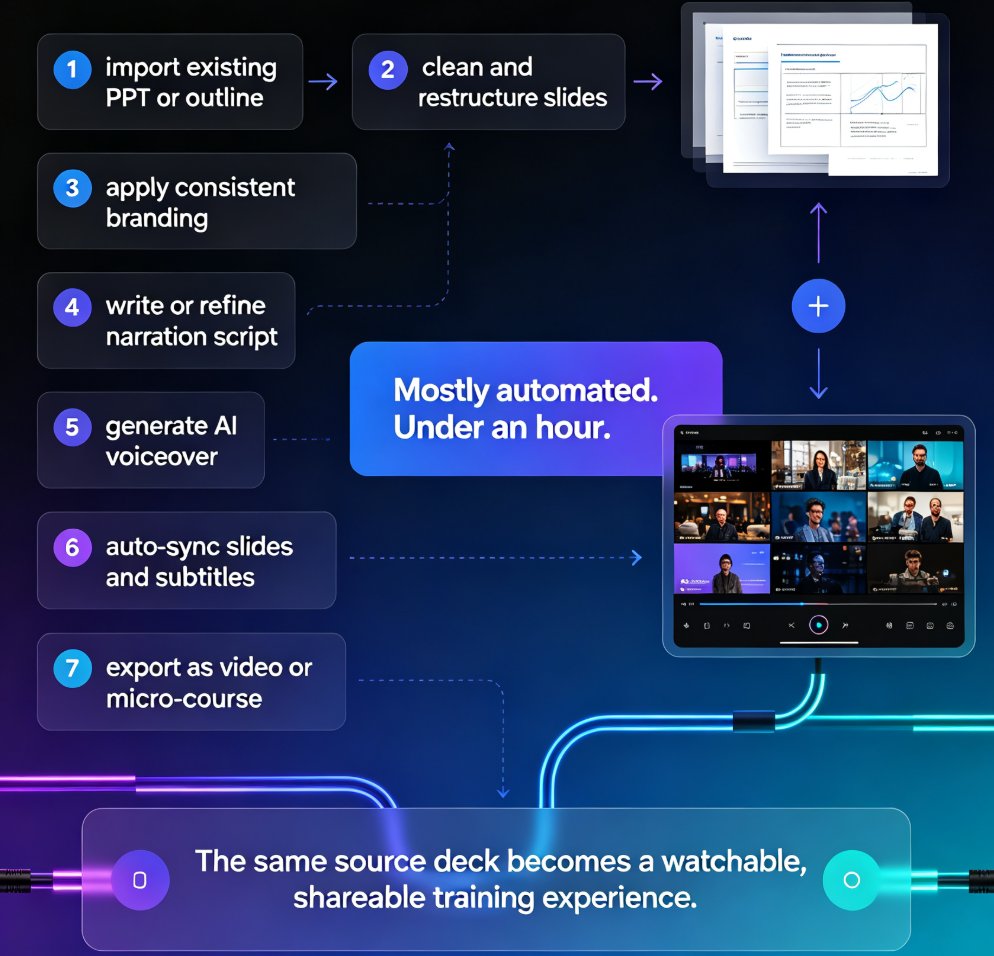
- Upload or build your deck — Zendeck takes your slides, whether you start from a Word outline, Markdown, or an existing presentation.
- Add narration — record or upload audio for each slide, or let Zendeck's AI generate a voiceover. You can also add voiceover and subtitles directly to your slides.
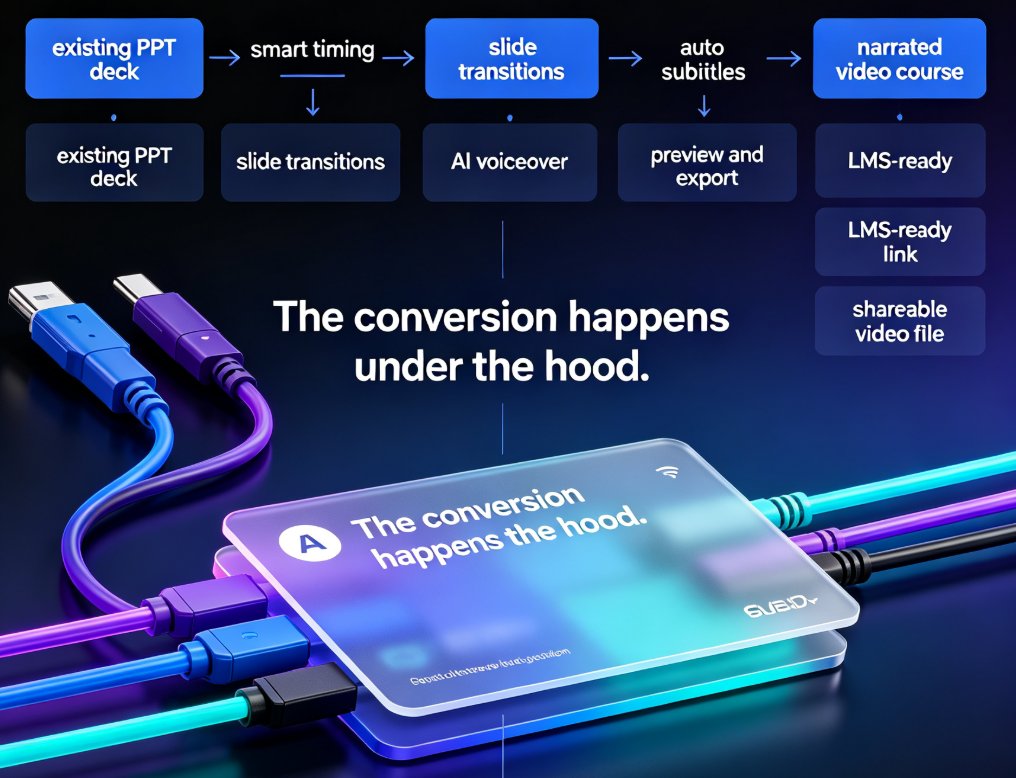
- Convert to video — Zendeck renders your slides, transitions, narration, and any embedded media into a single, self-contained video file.
The result: a video where every element — the slide, the chart, the demo clip, the narration — is locked into the timeline. Nothing can break, because nothing is external.
Zendeck's PPT-to-video doesn't just record your slides — it bakes every media element into a single file that plays anywhere.
And if you want to add narration to specific slides or fine-tune the pacing, that's built in too. Check out how to add narration to your slides with Zendeck's PPT-to-video for the step-by-step.
05 When converting to video is the right call
Not every deck needs to be a video. But there are clear scenarios where converting is the smart move:
- Training and onboarding: Learners are on different devices, often mobile. A video plays everywhere. This is why AI-generated video decks are replacing traditional corporate training.
- Client and stakeholder decks: You send a deck, they forward it, it gets opened on a laptop in a meeting room. Video survives the chain.
- Recorded presentations: Webinars, micro-courses, product demos — these are inherently video, not slides.
- Reusable content: A video deck can be clipped, repurposed, and shared on platforms that don't accept PPTX.
One honest caveat: if your deck needs live interactivity — clickable links, live polls, embedded dashboards — a static video isn't the right format. Keep those as slides. But for anything that's meant to be watched, video is the better container.
The rule of thumb: if the deck is meant to be watched, convert it. If it's meant to be interacted with, keep it as slides.
06 The workflow that saves your next presentation
Let's put this into a practical workflow you can use today:
- Audit your deck — check every embedded video and link. Ask: "Will this survive being emailed, forwarded, and opened on a different device?"
- If in doubt, convert — for anything you're sending out or presenting remotely, convert to video.
- Keep the source — keep your editable deck in Zendeck so you can update content and re-convert when needed. The video is the delivery format; the deck is the source of truth.
- Test once, share everywhere — after conversion, the video plays everywhere. No more per-recipient troubleshooting.
And if you're worried about common AI presentation mistakes — like off-brand slides or messy layouts — Zendeck's fixes for common AI presentation mistakes are worth a read before you convert.
The workflow that ends broken media: build once, convert to video, share everywhere. No more per-device troubleshooting.
FAQ
Q: Why does embedded video in my PPT not play on other computers?
A: Embedded video in PPTX depends on codecs, software versions, and file links. If the receiving device lacks the right codec, or the linked video file didn't travel with the deck, the media won't play. Converting the deck to video bakes the media into a single file that plays anywhere.
Q: Does Zendeck's PPT-to-video keep my embedded videos and audio?
A: Yes. Zendeck renders your slides along with any embedded media, narration, and transitions into a single video file, so everything plays in sequence without external dependencies.
Q: Can I add narration to my slides before converting to video?
A: Yes. You can record or upload narration per slide, or use AI-generated voiceover, then add subtitles if needed. The narration is synced into the video timeline during conversion.
Q: What's the difference between PPT-to-video and just recording my screen?
A: Screen recording captures whatever is on your screen, including glitches and pauses. Zendeck's PPT-to-video renders the slides cleanly with transitions and narration, producing a polished, self-contained video without the mess.
Q: Is a video deck editable after conversion?
A: The video file itself is fixed, but you keep your editable deck in Zendeck. Update the slides and re-convert when needed — the video is the delivery format, and the deck remains the source of truth.