Team Edited the Same Slide? Recover It Now with Version Control
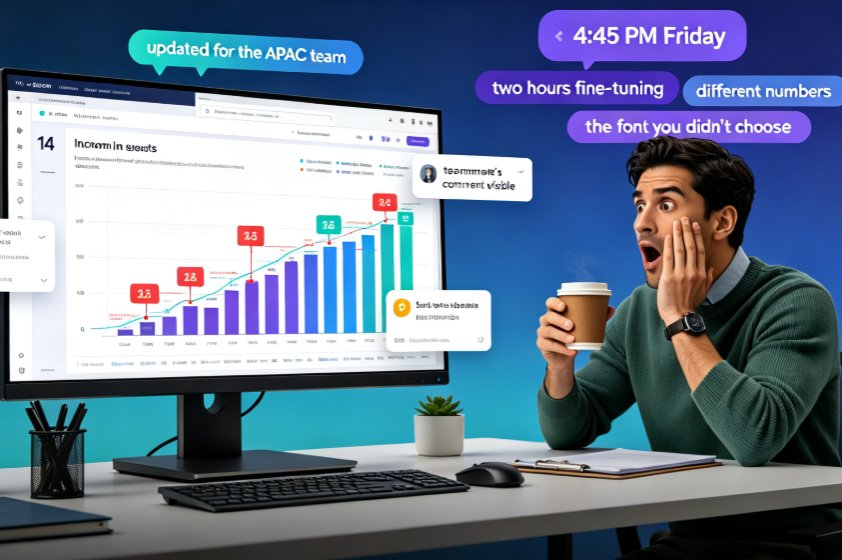
It's 4:45 PM on a Friday. The client deck is due Monday morning. You just spent two hours fine-tuning slide 14 — the revenue chart with the annotations, the color-matched callouts, the narrative arc that finally works. You step away for coffee. When you come back, slide 14 shows different numbers, a font you didn't choose, and a teammate's comment: "updated for the APAC team." Your work is gone.
The panic is real. But here's what you probably didn't know: if your team builds decks in Zendeck, this is a two-minute fix — not a weekend of rework. Every version is saved, and every version can be restored.
This article walks through exactly what to do when a teammate overwrites your slide, how Zendeck's version history and restore points work, and how to turn version chaos into a calm, repeatable workflow. Let's get your slide back.
01 | The Scenario We've All Lived: Your Slide, Their Cursor
It happens to every team eventually. Two people own the same deck. One person polishes the narrative while another updates the data. Neither sees the other's edits until it's too late. Then the classic chat exchange happens: "Wait, did you change slide 14? I had an annotation there." "Oh, I replaced it with the APAC numbers." "Do you still have the old version?" ... Silence.
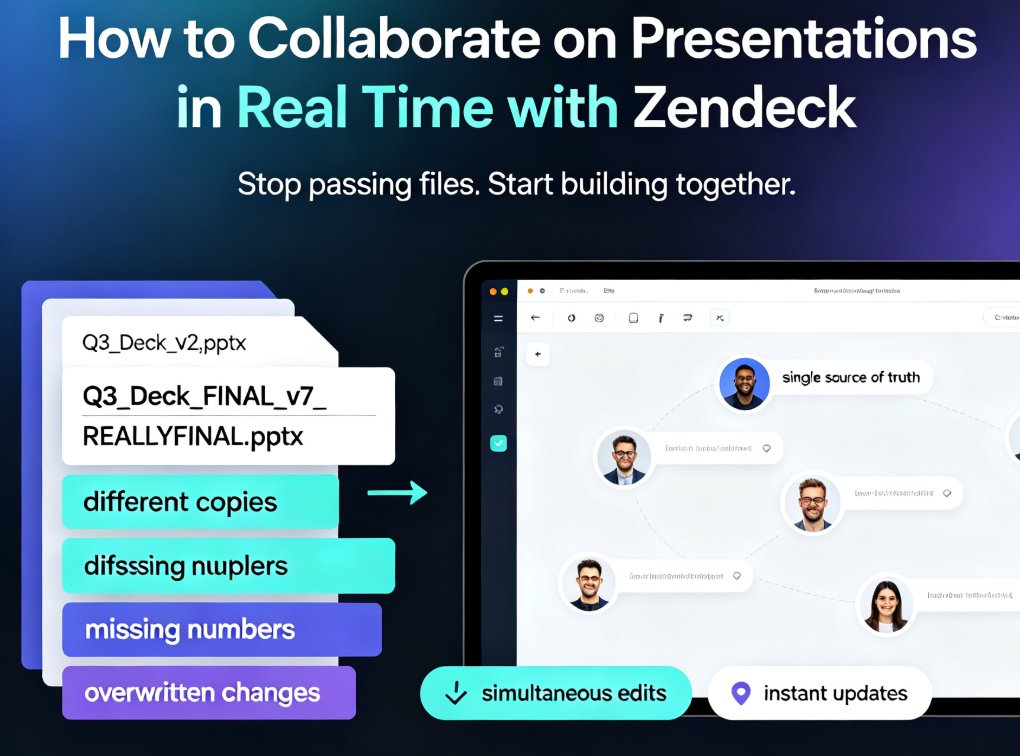
That's not a discipline problem, it's a workflow problem. The old rule of passing one file around the office stops working the moment five people edit in real time. When collaboration and versioning aren't built into the tool, every edit becomes a potential overwrite.
Here's the good news: in a tool built for collaboration, the version is always there. The question isn't whether you can recover — it's whether you know the two clicks it takes.
02 | Why Version Chaos Is the Default for Team Decks
Let's be honest about how most teams "manage" versions. It usually looks like this:
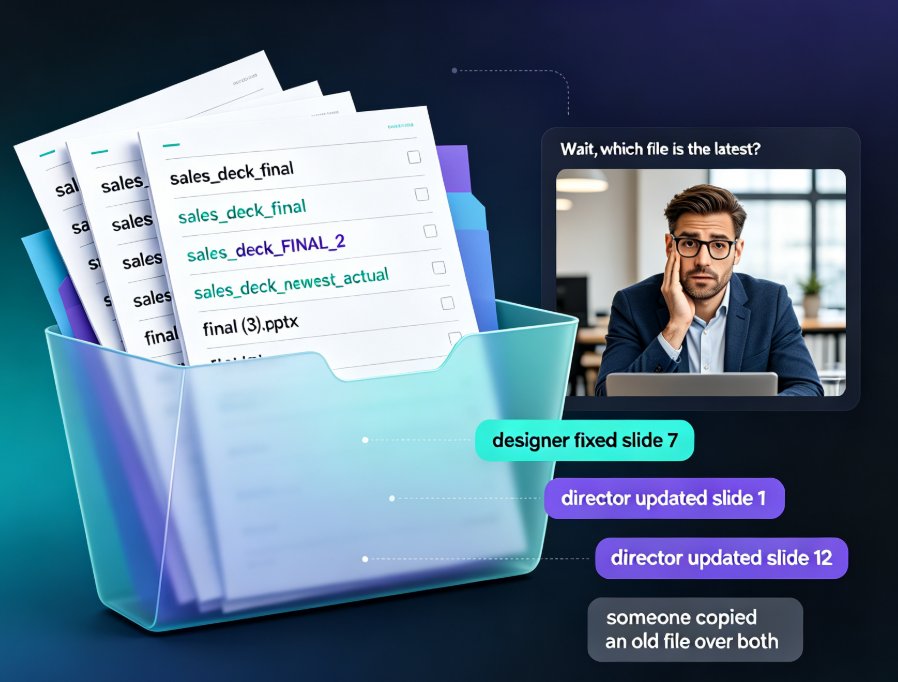
- Decks emailed back and forth with names like
Q3_deck_FINAL_v3_reallyfinal.pptx - One person's "final" silently replaces another person's "final"
- A teammate rebuilds a chart from scratch because the original is "lost"
- Someone spends 40 minutes hunting through their download folder
None of that is your fault. It's the legacy of tools that treat a presentation as a single fragile file instead of a living document with a memory.
That's why Zendeck treats every edit differently. Instead of one file that can be wrecked, your deck keeps a full revision history — every autosave, every publish, every meaningful change. Version history isn't a hidden feature you dig out during emergencies; it's the safety net that makes real-time collaboration sane.
The math is brutal: recovering from version chaos can eat 55 to 120 minutes per incident, while a restore in Zendeck takes about two. Across a month of heavy editing, that difference adds up to hours — not minutes — saved.
03 | Version History: The Undo Button You Actually Control
Here's how it works in plain terms. When your team edits a deck, the platform continuously records revisions. Any time someone makes a change — a full slide redesign, a data update, a layout tweak — a new version is captured. Open version history at any moment and you'll see what changed, when it changed, and which revision contains the content you need.
The recovery flow when a slide gets wrecked:
- Open the deck and click the version history icon. You'll see a timeline of saved revisions with timestamps and edit activity.
- Preview the revision from before the unwanted edit. Compare it against the current version so you know you're restoring the right content.
- Click Restore. The previous version comes back — no file digging, no asking a teammate if they kept a copy.
That's it. No command line, no version control jargon, no "please resend the old file." If you can click a button, you can recover a slide.
04 | Conflict Resolution Without the Awkward Group Chat
The worst part of a version conflict isn't the lost work — it's the second-guessing. "Was mine better? Did they have newer data?" You end up spending more emotional energy on the relationship than on the content.
Revision comparison changes that. Before restoring anything, compare conflicting versions side by side. See exactly which slides differ, which numbers changed, and which version actually contains the content you need. That clarity turns a tense conversation into a quick decision.
And here's the part that saves your sanity: restoring an older version doesn't nuke your team's other progress. If a colleague made a great new chart on slide 9 while you were fixing slide 14, that chart stays. You restore the one slide, not the whole deck.
For more small features that quietly make team work easier, check out 5 hidden features of AI presentation tools that boost team productivity.
05 | Recover One Slide, Not the Whole Deck
Can you really restore just one slide? Yes — and this is the difference between a hammer and a scalpel. You don't have to roll the entire deck back to a previous state and lose a week's worth of edits from everyone else. You target the exact slide that was overwritten, pull back its previous version, and everything else in the deck stays untouched.
Why this matters: in a team deck, a full rollback is almost always the wrong move. Someone else probably made good edits somewhere else on the same timeline. The granular approach respects everyone's work while fixing the one casualty.
So the workflow for messy conflicts is: open version history → find the revision that contains the slide you want → restore that slide's version. The deck updates, the rest of the team's work is preserved, and the uncomfortable group chat never has to happen.
For a broader view of how to avoid collision-prone workflows altogether — and how a shared visual system reduces "which version looks right?" debates — see how to create a custom brand kit for consistent decks. When every version looks intentional, conflicts get easier to spot and resolve.
06 | Make Recovery a Habit, Not a Rescue
Here's the thing about version history: it's most valuable when you never think about it. The goal is a workflow where overwriting a slide is a non-event.
A few habits that keep team decks painless:
- Declare slide ownership. Divide the deck into sections and let each person own their slides. Fewer simultaneous edits on the same slide, fewer collisions.
- Use the comment layer, not text boxes. If a teammate needs to flag something, use comments. Notes buried in slide content get lost in version chaos.
- Visit version history after edits, not just during emergencies. Get comfortable with the panel so that when a conflict happens, you know exactly where to look.
- Communicate before big changes. If you're replacing a chart or restructuring a section, say so in a comment. A heads-up beats a restore.
And if you're worried about the classic mistakes people make when they first adopt AI presentation tools — accidentally reverting, fighting the template, or deleting the wrong element — we've gathered the five AI presentation mistakes to avoid in 2026 so your team doesn't learn them the hard way.
The real competitive advantage of a modern deck tool isn't flashy design — it's that losing two hours of work becomes physically impossible. When every version is one click away, your team can be braver, faster, and more collaborative without fear of breaking something.
That's the version where you win: no panic, no rework, no apology messages. Just a deck that's better because more people worked on it — and a slide 14 that's exactly the way you left it.
FAQ
Can I recover a slide after a teammate overwrote it in Zendeck?
Yes. Open the deck's version history, preview the revision from before the overwrite, and click Restore. The previous version of that slide comes back in seconds — no file digging or resend requests needed.
Does Zendeck save a version every time someone edits the deck?
Zendeck continuously records revisions of your deck as edits happen. Open the version history at any time to see what changed, when it changed, and which version contains the content you want.
Can I restore just one slide without rolling back the whole deck?
Yes. You can target a single slide and pull back its previous version while keeping every other edit in the deck intact. No need to lose a week of your teammates' work to fix one slide.
What if two people edited the same slide at the same time?
Open version history and compare the conflicting revisions side by side. Pick the version that contains the correct content, restore it, and the other changes remain in history if you need them later.
Will restoring an older version erase my latest changes?
No. Restoring brings back the version you selected, but later revisions stay in the history. You can always switch back if you change your mind.