Why Is My PPT to Video Export Blurry? Fix Quality in 5 Steps
Why Is My PPT to Video Export Blurry? Fix Quality in 5 Steps
You spent an afternoon polishing the deck. The narration is recorded. The transitions? Silky. And then you export to MP4, open the file, and the text looks like it survived a round of pixel roulette. Blurry PPT-to-video exports are the #1 post-production complaint among educators and trainers — and the fix is almost always configuration, not luck.
Let's be real: when this happens to us, the first instinct is to blame the software, then the computer, then the universe in general. But in nearly every case we've debugged, the real culprit is one of five settings in the export pipeline. Fix those once, and you stop exporting pixelated micro-courses forever.
01 — Why your PPT-to-video export looks blurry
Before we touch any settings, it helps to separate "soft" from "glitchy." A soft export looks low-resolution and mushy — text edges feather out and small fonts become unreadable. A glitchy export throws random flashes, distorted frames, or dropped transitions. Both are fixable, but they come from different places.
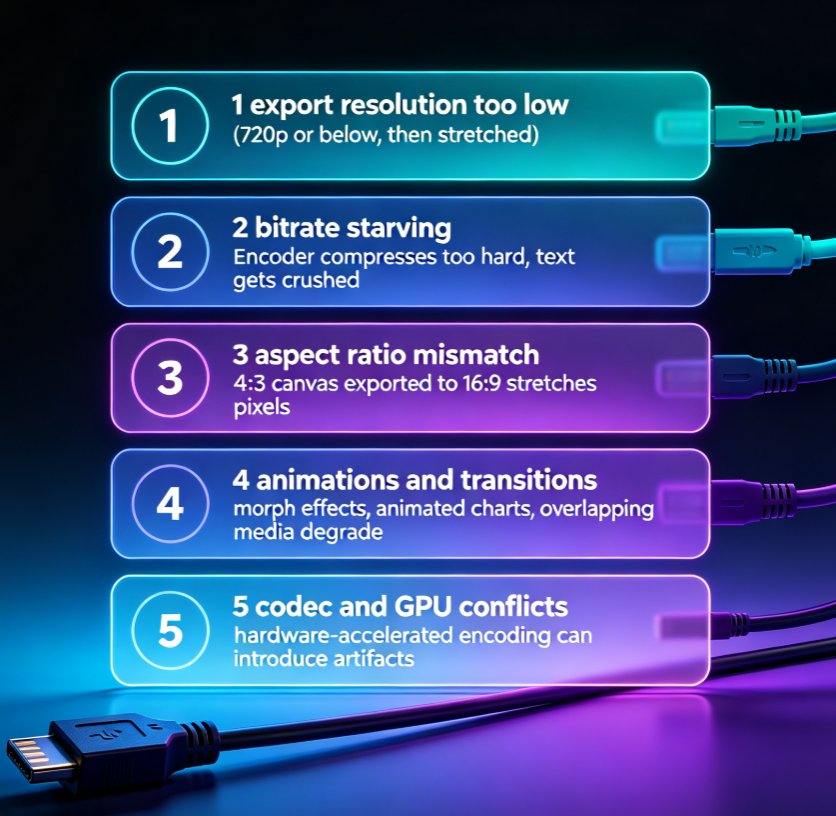
The five root causes we see in practice:
- Export resolution set too low — slides rendered at 720p or below, then stretched to full screen.
- Bitrate starving — the encoder compresses too aggressively, and fine details like text get crushed.
- Aspect ratio mismatch — your canvas is 4:3 but you export to 16:9, so the player stretches pixels.
- Animations and transitions — morph effects, animated charts, and overlapping media often degrade during encoding.
- Codec and GPU conflicts — hardware-accelerated encoding can introduce artifacts, especially on Windows machines.
If your text edges look fuzzy but the overall image is sharp, it's a bitrate or resolution problem. If frames randomly flicker, it's an encoding or animation problem. That single distinction points you to the right fix below.
02 — The 5-step fix: from pixel soup to crisp MP4
Here's the workflow we use every single time — it's five ordered steps, because each one builds on the previous.
Step 1: Match export resolution to your slide canvas
Before exporting, check your slide dimensions in the source file. If your slides are set to 16:9, they should be 13.33 x 7.5 inches at 10-12 px per inch of design intent. Export at a resolution that matches or scales cleanly from that canvas.
Pain point: exporting a standard deck at 720p when your slides contain 14pt body text. Solution: bump to 1080p (1920x1080) as the baseline for any text-heavy deck. Outcome: small text stays legible on projector and mobile screens.
The old PowerPoint export dialog even defaults to 1920x1080 in most recent versions, but legacy custom widescreen formats (like 13.33 x 7.5 with hidden crop areas) can silently reduce effective resolution.
Step 2: Raise the bitrate
This is the fix people overlook. You can export at 4K and still get a mushy result if the bitrate is capped low.
Pain point: your 1080p export shows banding in gradients and fuzz around text. Solution: target 8–12 Mbps for 1080p30, and 15–20 Mbps for 4K output. Outcome: clean edges, no compression artifacts, and a video that still compresses well for LMS delivery.
Friend advice, not an official memo: if your deck is chart-heavy (think dense data slides), always stay at the top of the bitrate range. Encoders love smooth gradients and hate dense text — throw them a bone.
Step 3: Lock the aspect ratio
Nothing reads "amateur" faster than a 4:3 deck stretched into a 16:9 video. Set your export aspect ratio to match the slide master, and disable any auto-fit or stretch options in the export dialog.
Pain point: circles become ellipses and logos look squished. Solution: export 16:9 slides at 16:9, and 4:3 slides at 4:3 (or commit to a widescreen redesign). Outcome: geometry stays true, and you avoid the "letterboxed or stretched" debate in review meetings.
Step 4: Tame the animations
Animations are the number one trigger for export glitches. If you're shipping a micro-course, you don't need 14 animated graph entrances — you need a video that renders reliably.
Pain point: random full-screen flashes during MP4 export, even after re-exporting and repairing the software (a problem Microsoft's own Q&A forums confirm). Solution: create a simplified copy, strip morph transitions and heavy animation, and re-export. If the simplified file is clean, reintroduce elements one by one to find the culprit. Outcome: a glitch-free video, and a much shorter export wait time.
Step 5: Choose the right codec and rendering path
On Windows, PowerPoint's MP4 export can clash with GPU drivers. If you see artifacts or color shifts, force software rendering during export, or switch to a different container entirely.
Pain point: hardware-accelerated encoding produces flicker on some NVIDIA/AMD setups. Solution: try exporting as WMV first to isolate whether it's a hardware conflict, then switch back to MP4 with software rendering forced. Outcome: stable exports across machines — important if you share templates with a remote team.
03 — Export settings that actually matter
Not all settings pull equal weight. Here's the reference table we keep by our desks — it's what we check in the exact order that matters:
| Setting | Recommendation for crisp output | What happens if you get it wrong |
|---|---|---|
| Resolution | 1080p minimum; 4K if you'll crop or zoom in post | Soft text, pixelated edges |
| Bitrate | 8–12 Mbps (1080p30); 15–20 Mbps (4K) | Banding, fuzz around text, blocky gradients |
| Aspect ratio | Must match slide master (16:9 or 4:3) | Stretched geometry, squished logos |
| Frame rate | 24 or 30 FPS; avoid 60 FPS unless animating heavily | Larger files, potential playback jitter |
| Animations | Simplify or strip for export | Random flashes, dropped transitions |
| Codec path | Software rendering if GPU glitches | Artifacts, color shifts, flicker |
The quickest quality win is usually the bitrate — not the resolution. Most people re-export at 4K and still see blur, because the encoder is starving for data. Doubling the bitrate at 1080p almost always looks better than a starved 4K file.
The chart below shows why resolution alone can mislead you. Each step up sounds impressive, but the pixel count jumps far faster than perceived sharpness — which is exactly why bitrate and source quality matter more:
04 — Inside Zendeck's export pipeline
Here's where this gets practical. On our ppt-to-video overview page, we've documented how Zendeck handles the fiddly parts of the pipeline so you don't have to debug them slide by slide — resolution normalization, aspect-ratio locking, and bitrate presets tuned for talking-head courseware.
When you build a deck in Zendeck, your slides are generated at a consistent canvas size from the start, which is half the battle. The other half is that export and narration are treated as one workflow, not two separate tools fighting each other. That's covered in our guide on adding narration to slides with Zendeck's PPT-to-video — one pipeline, one quality bar.
If you're producing corporate training, the AI PPT-to-video standard we outlined for 2026 goes deeper into why consistent export quality is becoming a compliance issue, not just a cosmetic one. And if you're adding subtitles for accessibility, remember that auto-generated subtitles are also encoding through the same pipeline — so a blurry export makes closed captions hard to read too.
Pain point: your team exports from different tools on different laptops, and every file looks slightly different. Solution: a single export pipeline with preset output profiles. Outcome: every micro-course ships with the same sharpness, frame rate, and container format.
05 — Prevention checklist: stop exporting pixelated micro-courses
Before you hit export on the next one, run through this checklist. It takes 90 seconds and saves you an hour of rework:
- Verify canvas size in the source file — mismatched custom sizes are the sneakiest cause.
- Set bitrate explicitly at 8–12 Mbps for 1080p, even if the tool defaults lower.
- Check aspect ratio against the slide master — this is the one you'll forget at 11 pm.
- Duplicate the file and strip animations for the video pass if you're in a hurry.
- Export a 30-second test clip of your most text-dense slide before the full render.
- Watch the file on a phone, not just your monitor — that's how your learners see it.
One habit that pays off on every project: never crop or zoom a live deck video in post if you can avoid it. Export at 4K first if you know you'll crop, because downscaling a 4K source to 1080p looks dramatically sharper than upscaling a 720p one. That single habit has saved more projects than any codec tweak we've ever tried.
FAQ
Why does my PowerPoint export to video look blurry even at 1080p?
Resolution alone doesn't guarantee sharpness. The most common culprits are low bitrate (under 8 Mbps for 1080p), an aspect ratio mismatch that forces stretching, or embedded media and complex animations that degrade during encoding. Check bitrate first, then verify your canvas and export dimensions match.
What resolution should I export for a micro-course?
For text-heavy training slides, export at 1080p (1920x1080) as the minimum and 4K if you plan to crop or zoom in post. A 4K export downscaled to 1080p will always look sharper than an original 720p export because of oversampling.
Can animations cause blurry or glitchy video exports?
Yes. Complex animations, morph transitions, and animated charts are common triggers for rendering glitches and motion blur in exported MP4s. If your export shows random flashes or soft frames, simplify the animations and re-export to isolate the problem.
Does Zendeck fix blurry exports automatically?
Zendeck handles most of the pipeline for you — slide resolution, aspect ratio, and preset bitrate are optimized for video output. You still control narration, subtitles, and export quality settings, which makes the whole path from outline to video consistent and sharp.
What bitrate should I use for a crisp 1080p PPT-to-video export?
Aim for 8–12 Mbps for 1080p30 talking-head courseware, and 15–20 Mbps for 4K. If your source slides contain small text or dense charts, stay at the higher end of the range. Below 5 Mbps, text edges will start to fuzz even at full HD.