From Word to PowerPoint: AI Tools That Automate Slide Deck Creation
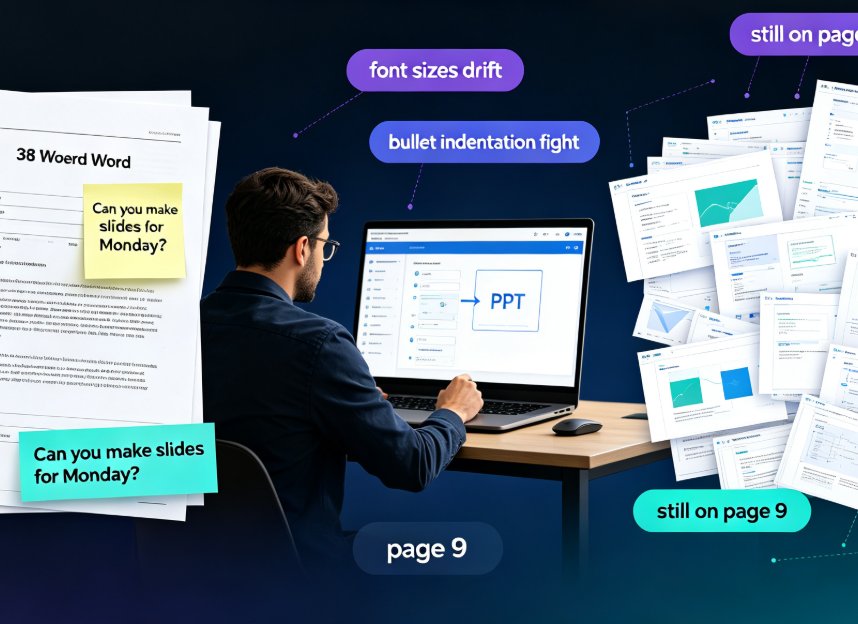
It's 4:30 PM on a Friday. Someone drops a 38-page Word report on you — product launch, Q3 results, whatever — with a cheerful note: "Can you make slides for Monday?" You open PowerPoint, start copy-pasting, fight with bullet indentation, and by 6 PM you're still on page 9, watching font sizes drift. We've all been there. The good news: you don't have to be that person anymore.
Modern AI presentation platforms can turn that same Word document into a structured, on-brand slide deck in about the time it takes to make a coffee. This guide walks through how that conversion actually works, what separates a real AI converter from a glorified text paster, and the exact workflow you can use today — no design skills required.
I. The Real Cost of Manual Word-to-PowerPoint Conversion
Let's be real about what manual conversion actually involves. You're not just moving text. You're making hundreds of micro-decisions: which heading becomes a slide title, which paragraph becomes a bullet, where the data table goes, whether that three-line quote deserves its own slide.
Most professionals spend 3 to 4 hours converting a dense 40-page document into slides — and the result is usually worse than the original. Here's why:
- Copy-paste preserves paragraph dumps. Word paragraphs become slide paragraphs, and suddenly every slide has 120 words of body text.
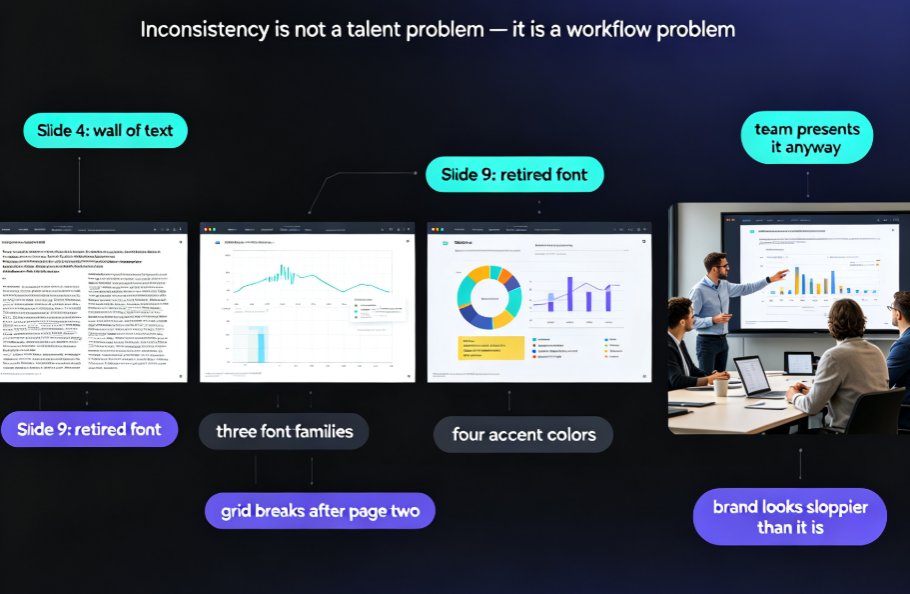
- Formatting drifts. You paste, adjust, paste again, and by slide 17 the fonts and spacing have quietly stopped matching.
- Structure gets flattened. Word uses heading levels to signal hierarchy. PowerPoint doesn't care, so most people manually re-create that hierarchy bullet by bullet.
- The narrative is lost. Word documents explain, in sequence. Slides need to persuade, visually. A straight copy rarely does either.
The outcome? A deck that reads like the document (bad) and looks like five different people made it (worse). This isn't a skill problem — it's a workflow problem, and AI is the fix.
II. What AI Actually Does When It "Reads" Your Word File
Here's the key distinction: a proper AI Word-to-PPT converter doesn't reformat your document — it transforms it. It reads the structure, extracts the core message, and rebuilds the content as presentation-appropriate copy.
Most AI converters follow a similar internal pipeline:
- Parse the hierarchy. The AI detects your heading levels, so it knows your main sections from their subsections. That map becomes the skeleton of your deck.
- Extract the core message. It identifies the thesis, the key arguments, and the supporting evidence — the stuff that belongs on slides.
- Rewrite for the medium. Long paragraphs become short headlines. Sparse chains of thought become clear bullets. Data points get pulled into visual-ready formats like tables and callouts.
- Map presentation logic. The AI decides slide order, how much content each slide can hold, and where transitions make sense.
This is why the old complaint — "converters just paste text onto blank slides" — no longer applies to modern platforms. As one industry tool notes, "Most Word to PPT converters paste your text straight onto blank slides. You end up with walls of text no one will read. Same content, different file format. That's not a presentation." The new generation of tools reads the whole document, finds the key ideas, and rewrites the content as proper slide copy — short headlines, clear bullets, real talking points.
If you're curious how this plays out in broader design automation, our deep dive on AI-driven design automation covers how smart layouts are replacing manual positioning across the industry.
III. Beyond Text: Layout, Tempo, and Brand Consistency
Converting text is only half the battle. The other half is making the deck look like someone with taste and a brand guide made it. Here's where the modern platforms separate themselves.
Smart Layouts Do the Design Grunt Work
Instead of dumping text and letting it land wherever PowerPoint puts it, AI applies context-aware smart layouts. A table-heavy slide gets a data-friendly grid. A quote gets a typographic treatment. A process list becomes a timeline graphic. The AI asks, "What kind of content is this?" and picks a layout that fits.
Zendeck's smart layout engine is built around exactly this — it analyzes each slide's content type and applies spacing, alignment, and visual hierarchy automatically. We've detailed the mechanics in our piece on how Zendeck Smart Layout cuts presentation design time, and the short version is: the system makes the same layout decisions an experienced designer would, just in milliseconds.
Brand Kits Kill the Off-Brand Problem
Here's a scenario that happens constantly: a global team, each person converting their own regional Word docs into decks, and every deck uses slightly different fonts and a purple that's "almost but not quite" the brand purple.
A proper AI converter stores your brand — colors, fonts, logo — once, and applies it automatically to every converted slide. No more cleaning up decks slide by slide. No more off-brand charts sneaking into a QBR. Upload your brand kit once and every conversion looks like it came from your design team.
If brand governance across a whole company sounds like a rabbit hole, our guide on zero-design brand governance with smart templates explains how template enforcement scales it across teams. And for the hands-on version, see how to create a custom brand kit in Zendeck.
IV. Let's Be Real: Manual vs AI, Side by Side
Numbers help. Here's a realistic comparison for converting a 40-page Word document into a 15–20 slide deck, based on how teams actually work (your mileage may vary, but honestly, not by much):
| Step | Manual Workflow | Basic Converter | AI Platform (e.g., Zendeck) |
|---|---|---|---|
| Upload & parse | — | 1 min | 1 min |
| Structure detection | You scan headings manually | Raw paste, ignores hierarchy | Automatic, preserves hierarchy |
| Content rewriting | None — text stays as paragraphs | None | Rewrites into slide-ready copy |
| Layout design | Done slide by slide by hand | Default template, misaligned | Smart layouts per content type |
| Brand application | Manual font/color fixes | Manual fixes, often skipped | Auto via brand kit |
| Total time | 210–240 min | 90–120 min | 10–15 min |
| Result quality | Dense, inconsistent | Wall-of-text, messy | Clean, on-brand, presentation-ready |
And here's that time gap visualized — because some numbers deserve a chart:
Now, to be fair to the basic converters: they have their place. If you just need a rough skeleton to edit by hand, a free converter saves you the initial typing. But if your goal is a deck you'd actually present in a meeting, the AI path wins on both time and quality. If you're wondering whether this is a temporary trend, we've covered why AI deck generation is replacing traditional PPT in 2026 — the short answer: because it's faster and the output quality keeps rising.
V. Your Word-to-PPT Workflow in 5 Steps
Enough theory. Here's the practical workflow you can use with Zendeck or any competent AI converter today.
Step 1: Set Up Your Foundation (Once)
Before your first conversion, spend five minutes uploading your logo, brand colors, and fonts into a brand kit. It feels like setup overhead — until every deck from then on is on-brand automatically. This is the single highest-leverage prep step.
Step 2: Choose Your Input Format
Paste your Markdown or TXT outline directly, upload the Word file, or copy-paste the outline text. Most modern tools, including Zendeck, accept all three. If your source is a dense report, consider trimming it to an outline format first — AI works best when the hierarchy is clear.
Step 3: Set Your Preferences
Tell the tool how many slides you want, what language the deck should be in, and who the audience is. The AI shapes content depth and visual style around these parameters — a boardroom deck and a training module get very different treatments.
Step 4: Generate and Preview
Hit convert. The AI parses the structure, extracts the core messages, maps everything into presentation logic, and produces clean, editable slides. Preview it immediately in slideshow mode. Look for logical sections, smooth transitions, and emphasized key points — not paragraph dumps.
Step 5: Polish, Don't Rebuild
Here's the trick: the goal is to review content, not to redesign slides. Fix a headline here, reorder a slide there, tweak the talking points. That's 10–15 minutes of work, not three hours. When you spot a layout that's off, resist the urge to fix it manually — check if the tool's template selection would serve it better first. Our guide on how Zendeck picks the right template for you explains how automated template selection works.
VI. Two Mistakes That Still Wreck AI-Generated Decks
Even with great tools, I see the same two slips cost people time. Avoid them and you'll be ahead of 80% of users.
Mistake #1: Feeding the AI a messy or unstructured document. If your Word file has inconsistent heading styles, random formatting, and no clear narrative arc, the AI has to guess what's important. A little cleanup up front — make headings use real heading styles, delete stray commentary — pays off massively in output quality. Garbage in, slideshow out.
Mistake #2: Treating the output as final without review. AI gets the structure and design right, but it doesn't know the inside-baseball context of your project. A bullet might be technically accurate but miss the strategic nuance only you know. Budget 10 minutes to read every slide as though you were the audience — not skim, read. That pass separates a "just generated" deck from a "delivered" one.
One more thing, and this is just friendly advice: don't fall in love with the first draft. Run the same outline through two template styles and pick the stronger one. The tool makes iteration cheap — use that to your advantage rather than settling for the first hit.
Let the AI Carry the Busywork
Here's the takeaway: the job of AI conversion isn't to make slides for you — it's to free you up to make the deck's message better. The AI handles parsing, layout, hierarchy, and branding. You handle judgment, tone, and the two or three slides that genuinely need a human touch.
If you haven't tried converting a Word outline with a modern AI platform yet, that Friday-afternoon panic is the perfect excuse. Import your last report, set your brand kit, and see what 15 minutes of work (instead of 4 hours of paste-and-pray) actually feels like. You can start with the AI courseware category for more workflows, or just open a tool and make the thing. Your Monday-morning self will thank you.
FAQ
Can AI really turn a Word outline into an editable PowerPoint?
Yes. Modern AI converters parse the document's heading hierarchy, key points, and supporting data, then rebuild the content as short headlines, clear bullets, and talking points on designed slides. The output stays fully editable, so you can polish wording and move elements afterward. It's not a one-way export — it's a smart rebuild of your material.
What's the difference between a basic Word-to-PPT converter and an AI platform like Zendeck?
Basic converters paste your paragraphs straight onto blank slides — essentially reformatting, which leaves walls of text nobody reads. AI platforms read the whole document, find the core messages, rewrite content as proper slide copy, and apply layouts based on context. Headings, data, and examples land on the right slides naturally instead of being dumped in order.
Will AI conversion mess with my company's brand?
Only if the tool ignores branding. Zendeck's brand kit stores your colors, fonts, and logo once, then applies them automatically on every slide of every conversion. You don't clean up off-brand decks slide by slide — every output looks like it came from your design team.
How long does converting a 40-page Word document take?
With an AI converter, roughly 10–15 minutes including review and polish. Manual copy-paste and formatting usually eats three to four hours. For most teams, the AI route is a 10x saving on a task nobody enjoys.
Do I still need design skills to get a good deck from a Word file?
No. Smart layouts handle spacing, alignment, and visual hierarchy automatically, while context-aware template selection picks an appropriate look based on your content. Your job shifts from executing design to reviewing message and flow — which is where your time is worth more.