How to Import a Google Doc into Zendeck and Generate a Presentation
Let's be real: your team probably wrote the strategy in Google Docs, the training outline in Google Docs, and the quarterly review in Google Docs. Then someone opens PowerPoint and starts the slow, soul-draining work of copying bullet points into slides. That gap between "the doc" and "the deck" is where hours disappear.
You don't need to rebuild slides from scratch. You need a tool that reads your document and builds the deck for you.
That's exactly what Zendeck does. Import your Google Doc outline, and the AI generates a structured, visually consistent presentation in minutes. Here's how to make it work, step by step.
01 — Why the document-to-deck gap is killing your workflow
Every team I've worked with has the same ritual. The document gets finalized in Google Docs — comments resolved, version history clean, stakeholders happy. Then the real work begins: someone manually copies headings into slides, reformats text, hunts for icons, and prays the font sizes don't break.
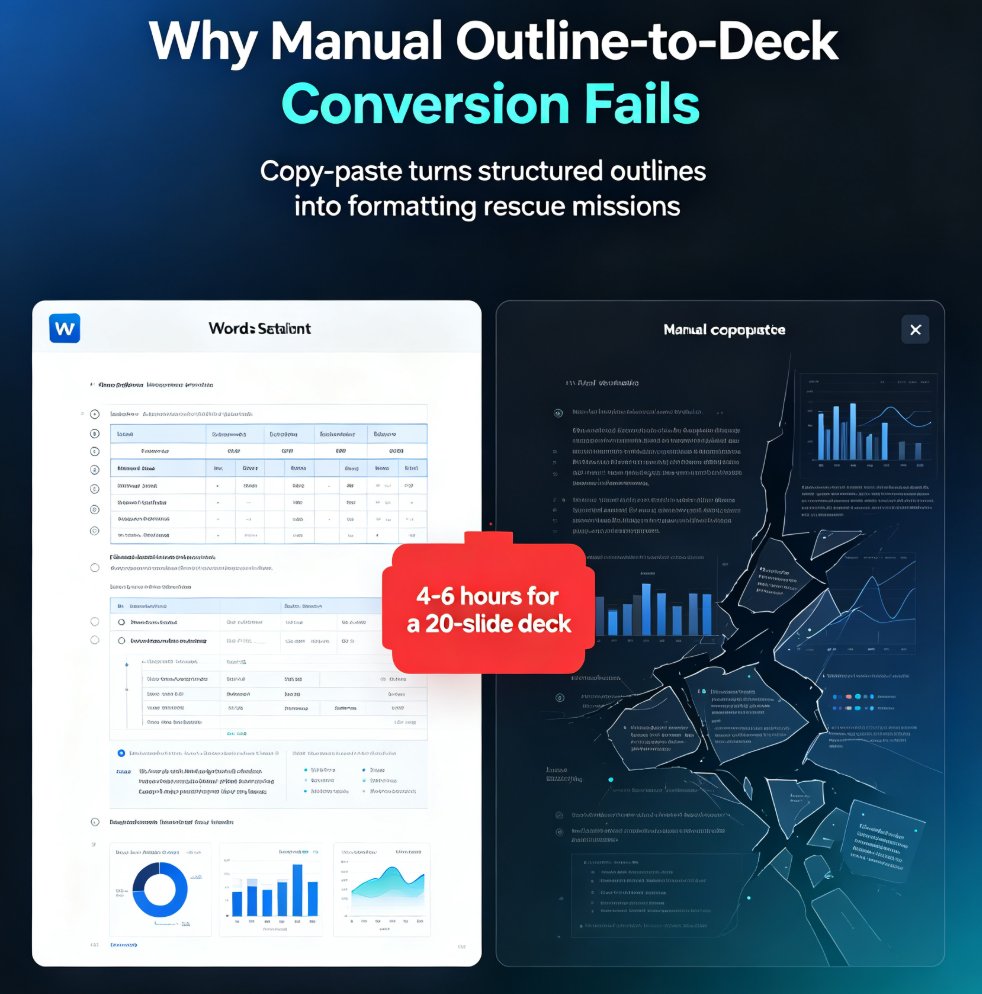
The math is brutal. A 20-page strategy doc can take three to four hours to turn into a half-decent deck. And that's before the design revisions start.
The core problem isn't laziness — it's that documents and slides are different formats with different logic. A doc flows linearly. A deck needs visual hierarchy, chunked content, and breathing room. Reformatting by hand means making hundreds of micro-decisions that an AI can handle in seconds.
The fix isn't working faster in PowerPoint. It's removing the manual reformatting step entirely.
Zendeck sits right in that gap: it takes the structure of your Google Doc — headings, subheadings, bullet points — and maps them onto slide layouts automatically. You keep the thinking you already did in the doc; the tool handles the presentation logic.
02 — What Zendeck actually does when you import a Google Doc
Let's be clear about what "import" means here. The tool doesn't just paste your text into a slide template. It reads the document's structure and makes decisions:
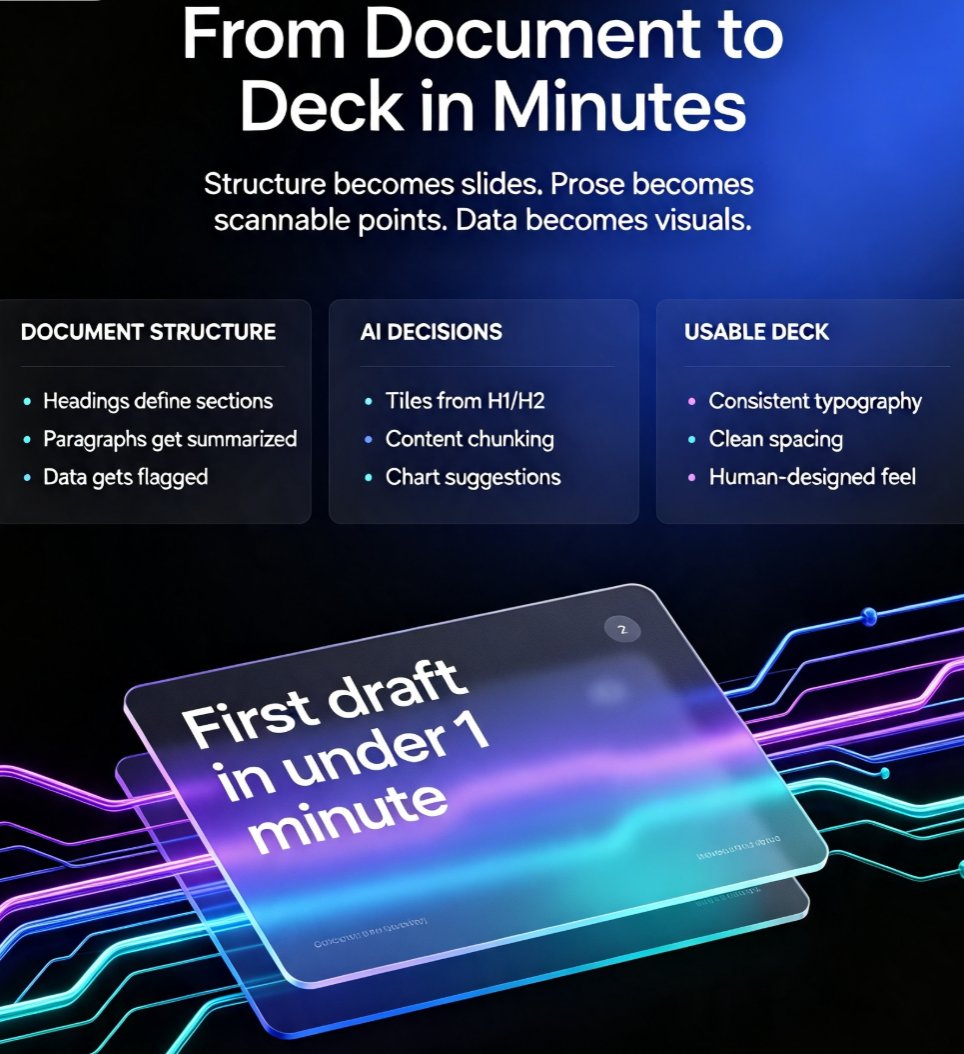
- Headings become slide titles. Your H1s and H2s define the section breaks.
- Bullet points become slide content. The AI trims, rephrases, and chunks them so they fit on a slide without overwhelming it.
- Paragraphs get summarized. Long prose gets condensed into scannable points.
- Data gets flagged. If your doc contains numbers, the AI can suggest chart layouts.
The result is a first draft that's actually usable — not a wall of text on 40 slides. You get a structured deck with consistent typography, spacing, and layout, ready for refinement.
This is different from the "paste into a template" approach most people expect. Its AI treats your document as a source of truth and builds the presentation around it, which is why the output feels like a deck a human designed — not a text dump.
03 — Step-by-step: Import your Google Doc into Zendeck
Here's the exact workflow. It takes about ten minutes from start to finish.
Step 1: Clean up your Google Doc's structure.
Before you import, make sure your doc uses proper heading styles (Heading 1, Heading 2, etc.) rather than just bolded text. The AI reads structure, so headings matter. If your doc is one long wall of text, the output will be too.
Step 2: Export or copy your content.
You have two options: - Copy the full text from Google Docs and paste it into Zendeck's editor. - Export the doc as a .txt or .md file and upload it.
Both work. Zendeck accepts raw text, Markdown, and Word outlines, so you don't need to reformat anything before importing. If you're a developer or technical writer, the Markdown route is especially clean — you can check out how importing Markdown into Zendeck works for that workflow.
Step 3: Let Zendeck generate the deck.
Paste or upload, choose a template, and hit generate. The AI builds the slide structure, applies the layout, and produces a first draft in under a minute.
Step 4: Review and refine.
This is where you add value. The AI handles the heavy lifting; you handle the judgment. Adjust wording, swap layouts, and make sure the narrative flows the way you want.
Step 5: Export.
Once you're happy, export to PPTX, PDF, or Google Slides. If your team lives in Google Workspace, you can bring the finished deck right back into Slides for further collaboration. See the full export options for Zendeck presentations if you need specifics.
04 — Format your Google Doc for the best AI output
The quality of your deck depends heavily on how your document is structured. Here's what makes a difference:
| What you do in Google Docs | What Zendeck does with it | Result |
|---|---|---|
| Use Heading 1 for main sections | Creates slide section breaks | Clear narrative arc |
| Use Heading 2 for sub-topics | Creates individual slides | Logical flow |
| Keep bullets to 5-7 per section | Chunks them into slide content | Scannable slides |
| Write short paragraphs | Summarizes into key points | No text walls |
| Include data points | Flags them for charts | Visual impact |
| Avoid excessive bolding | Keeps hierarchy clean | Consistent design |
The single biggest mistake people make is importing a messy document and expecting magic. The AI can only work with what you give it. Spend five minutes structuring your doc, and the output quality jumps dramatically.
If you're starting from a rough brain dump rather than a clean outline, you might want to read about turning a brain dump into a structured presentation with AI — the same principles apply.
05 — After the import: polish, brand, and export
The generated deck is a strong first draft, but it's not the finish line. Here's what to do next:
Apply your brand kit. If your team has brand colors, fonts, and logo guidelines, the brand kit feature applies them across all slides in one click. No more hunting for the right hex code. This is covered in depth in our guide on creating a custom brand kit in Zendeck.
Add speaker notes. The AI can auto-generate speaker notes for each slide, which is a lifesaver if you're presenting to stakeholders or training a team. It's one less thing to write from scratch.
Tighten the visuals. Swap in real charts, icons, and images from the asset library. The AI gives you a solid skeleton; your judgment makes it sing.
Export and share. Whether you need a PPTX for a client, a PDF for review, or a Google Slides link for collaboration, the tool handles all of it.
06 — When this workflow saves you the most time
Not every document needs to become a deck. But when it does, this workflow shines in specific scenarios:
- Strategy documents → board decks. The structure is already there; the AI just visualizes it.
- Training outlines → courseware. Turn a curriculum doc into slides with speaker notes in minutes.
- Research reports → executive summaries. Import the report, let the AI extract the key points, and present the highlights.
- Meeting notes → follow-up decks. Yes, it works for that too.
Here's a rough comparison of the time investment:
When you're producing decks regularly — weekly, monthly, or for every client — the time savings compound fast. One deck saved is nice. Twenty decks saved is a different way of working.
If your team is producing training or courseware from documents, the same import workflow feeds directly into creating micro-courses from scratch with Zendeck, including the PPT-to-video pipeline.
FAQ
Q: Can I import a Google Doc directly into Zendeck?
A: Yes. You can either copy and paste the full text from your Google Doc into Zendeck's editor, or export the doc as a .txt or .md file and upload it. Zendeck reads the document's structure — headings, bullets, paragraphs — and generates a presentation from it.
Q: What format should my Google Doc be in for the best AI-generated deck?
A: Use proper heading styles (Heading 1 for main sections, Heading 2 for sub-topics) and keep bullet points concise. The cleaner your document structure, the better the AI can map content onto slides. Avoid walls of unformatted text.
Q: Can I export my Zendeck presentation back to Google Slides?
A: Yes. Zendeck supports export to PPTX, PDF, and Google Slides, so you can bring the finished deck back into Google Workspace for further collaboration or sharing.
Q: Does Zendeck preserve my brand colors and fonts when importing?
A: Zendeck applies your brand kit — colors, fonts, and logo guidelines — to the generated deck automatically. You can set up a brand kit once and apply it to every presentation.
Q: How long does it take to generate a deck from a Google Doc?
A: The AI generates a structured first draft in under a minute. The full workflow — import, review, refine, and export — typically takes 10 to 15 minutes for a standard deck, compared to three to four hours of manual work.