From Word Outline to Polished Deck: Zendeck's AI Conversion Workflow
Let's be honest: you didn't open Word to make a presentation. You opened Word to think. To outline. To dump every half-formed idea onto a page and sort it out later. Then the meeting invite lands, and suddenly that outline needs to become a deck — by tomorrow morning.
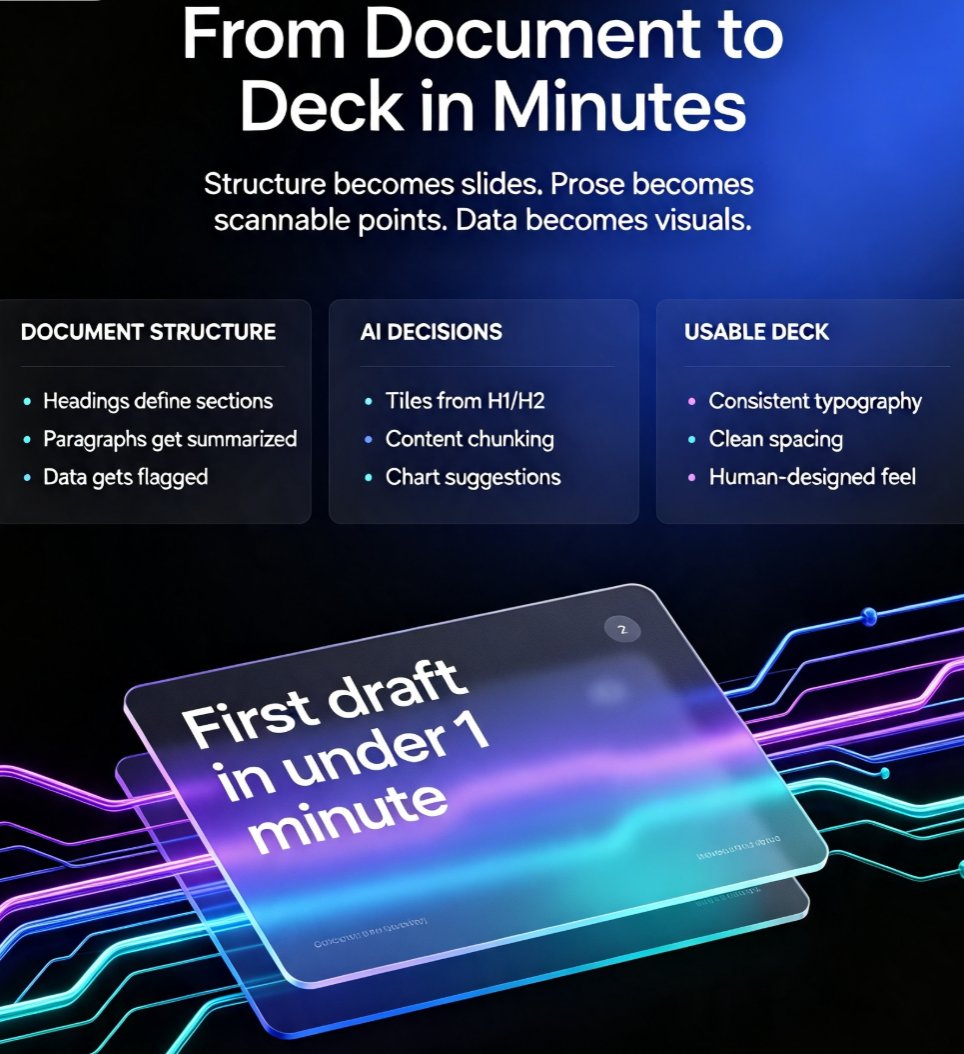
The old way? Copy each bullet into PowerPoint, fight the text boxes, re-align everything, and pray the font doesn't break. The new way? Let an AI tool like Zendeck read your outline and build the deck for you. Here's how the whole workflow actually works, step by step.
01 | Why Manual Outline-to-Deck Conversion Fails
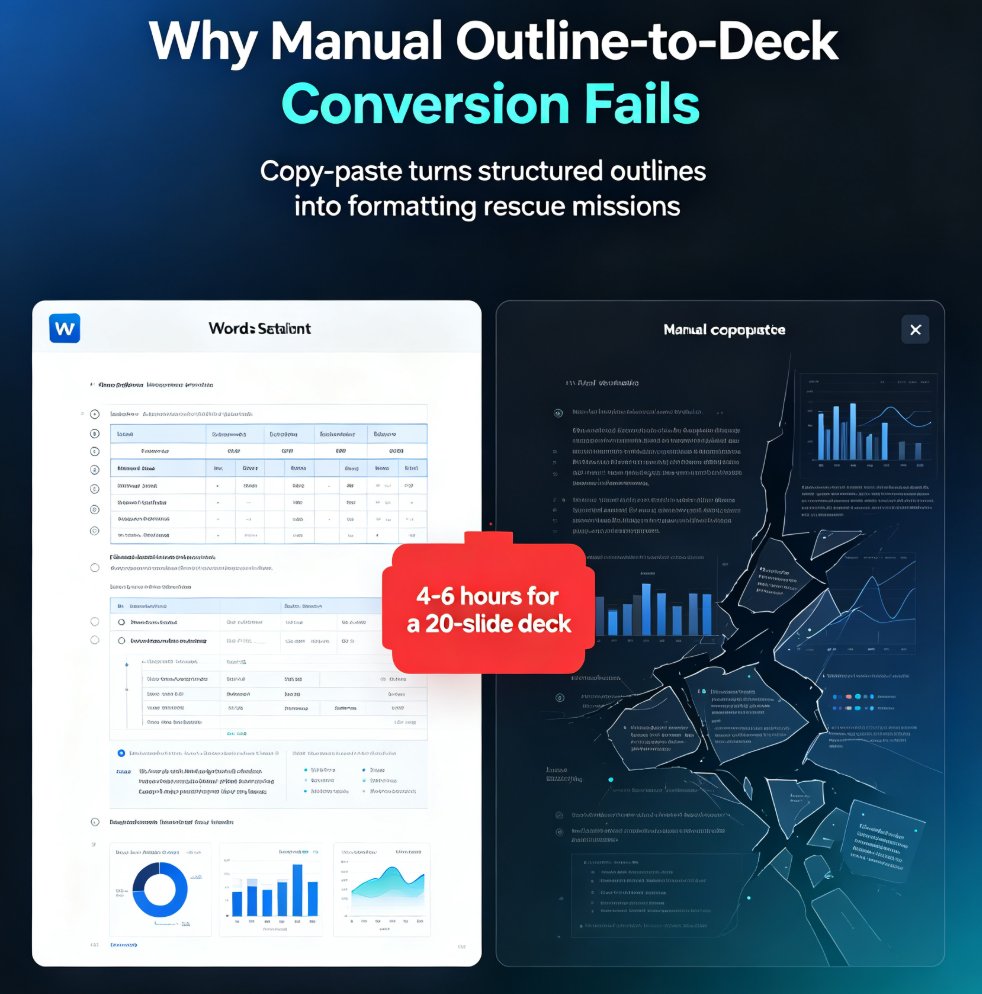
The average professional spends 4-6 hours building a 20-slide deck from a Word outline. That's not a guess — it's the reality of copy-paste workflows. You're not just moving text; you're rethinking hierarchy, redesigning layouts, and redoing formatting that Word already solved.
The pain points are predictable:
- Nested bullets collapse into unreadable walls of text
- Headings lose their visual hierarchy
- Tables and charts break during the copy-paste
- Brand fonts and colors get lost in the transfer
The fix isn't working harder at formatting — it's removing the formatting step entirely. When you hand your outline to an AI deck generator, the tool handles structure, layout, and visual consistency. You stay in the thinking role, which is where you belong.
This is exactly the problem Zendeck was built to solve. Instead of treating your outline as raw material for manual assembly, it treats it as the blueprint for a finished product. The AI reads your heading hierarchy, understands your bullet structure, and maps everything to a professionally designed slide layout. If you're the type who brain-dumps everything into a document and figures out the structure later, you're in good company — the AI handles that chaos and turns it into a coherent narrative flow.
02 | The Zendeck Workflow: Outline to Deck in Five Steps
Here's the workflow I use, and it's the same one Zendeck's AI is built around. It takes about 10 minutes from start to finish for a 20-slide deck.
Step 1: Write your outline like you normally would
Don't overthink the formatting. Zendeck accepts Word documents, Markdown, and plain text. Messy nested bullets? Fine. Stream-of-consciousness notes? Also fine. The AI parses structure from headings and bullet levels, so the cleaner your hierarchy, the better the result — but it won't punish you for imperfect formatting.
Step 2: Import and set your parameters
Upload your outline, then tell the AI what you need: slide count (5 to 50+), tone (boardroom-ready, casual, technical), and audience. This is where you set the guardrails so the output matches your intent. The parameter step is worth taking seriously — a deck for a client pitch needs a different tone than one for an internal training session. Setting these upfront means fewer revisions later.
Step 3: Let the AI build the deck
One click. The AI transforms your outline into a structured narrative flow — each section becomes a logical slide sequence, with professional layouts, relevant imagery, and consistent typography applied automatically. This is the step that surprises most first-time users. It's not generating a rough draft with placeholder text. It's producing a fully designed deck with real layouts, real imagery, and real typography — the kind of thing that would take hours to assemble manually.
Step 4: Review and refine
Here's the part people don't expect: the output is a finished product, not a draft. You preview it as a slideshow, then use natural-language prompts to tweak — "make slide 7 more visual," "shorten the intro," "add a comparison chart here." No manual redesign needed. You can also manually edit any slide directly — the AI doesn't lock you out of the design, it just does the heavy lifting first.
Step 5: Export or share
Download as PowerPoint, share via link, or collaborate in real time with your team. The deck is yours to use however you need.
03 | Manual vs. AI Conversion: A Side-by-Side Look
Let's put numbers on this. Here's what a typical 20-slide deck conversion looks like:
| Task | Manual (PowerPoint) | AI Conversion (Zendeck) |
|---|---|---|
| Copying content into slides | 60-90 min | 0 min (auto) |
| Structuring slide hierarchy | 45-60 min | 0 min (auto) |
| Applying layouts and design | 60-90 min | 0 min (auto) |
| Adding imagery and icons | 30-45 min | 0 min (auto) |
| Brand font/color consistency | 30-60 min | 0 min (auto) |
| Review and refinement | 30-60 min | 10-20 min |
| Total | 4.5-6 hours | 10-20 minutes |
That's a 90%+ reduction in production time for a deck that's more visually consistent than what most people build by hand. The catch? You need to review the output carefully — AI gets structure right, but it can't read your audience's mind.
Here's the visual version of that comparison:
04 | Making the Workflow Work: Practical Tips
A few things I've learned from running this workflow dozens of times:
Tip 1: Use heading levels as your outline's skeleton. The AI maps Heading 1 to section dividers and Heading 2 to slide titles. If your outline uses consistent heading levels, the deck structure will feel intentional. If you've been formatting everything as plain text, take five minutes to apply proper heading styles before importing.
Tip 2: Keep bullet depth to three levels max. Deeply nested bullets (four or five levels deep) confuse any converter — human or AI. Flatten your hierarchy before importing. If a bullet has more than three levels of nesting, it's probably a sign that your outline needs restructuring anyway.
Tip 3: Review for narrative flow, not just accuracy. The AI will faithfully convert your outline, but it won't know if your argument has a logical gap. Read the deck top to bottom once, then use prompts to fix the flow. This is where the real value of the workflow shows up — you spend your time on thinking, not formatting.
Tip 4: Set up a brand kit once, reuse it forever. If you're converting outlines regularly, configure your brand colors, fonts, and logo in Zendeck's brand kit. Every deck you generate will match your visual identity automatically. This is a game-changer for teams that produce decks weekly.
Tip 5: Don't be afraid to regenerate. If the first pass doesn't hit the mark, tweak your parameters and regenerate. The AI doesn't have ego — it will happily produce a different version. Sometimes the second or third pass is dramatically better.
05 | When This Workflow Saves You the Most
This isn't just for the occasional board deck. The outline-to-deck workflow shines in specific scenarios:
- Courseware development: Turn a training outline into a full course deck in minutes. If you're building micro-courses or training materials, this workflow is a massive time-saver.
- Consulting deliverables: Convert research notes into client-ready case study decks. Consultants who produce data-rich decks regularly will find this especially useful.
- Internal updates: Transform meeting notes into shareable team briefings. The faster you can turn notes into a polished deck, the faster your team can act on them.
- Pitch preparation: Move from a rough idea to a polished investor deck without the formatting grind. The thinking is the hard part — the deck should be the easy part.
If you're curious about the broader shift, the trend is clear: AI slide generation is moving from design to strategy. The tools handle the visual heavy lifting so you can focus on the message. That's the real promise of the outline-to-deck workflow — not faster formatting, but better thinking.
FAQ
Q: How does Zendeck convert a Word outline into a deck?
A: Zendeck's AI parses your Word document's heading structure and bullet hierarchy, then maps them to slide layouts automatically. You upload the file, set parameters like slide count and tone, and the AI generates a fully designed deck in one click. Messy formatting and nested bullets are handled without requiring clean, pre-formatted input.
Q: What file formats can I import into Zendeck?
A: Zendeck accepts Word documents (.docx), Markdown, and plain text files. You can also paste content directly. The AI handles messy formatting, nested bullets, and even stream-of-consciousness writing — so you don't need to clean up your outline before importing.
Q: Can I edit the slides after the AI generates them?
A: Yes. Zendeck produces a finished, editable deck — not a locked template. You can manually adjust any slide directly, or use natural-language prompts to request changes like "make slide 7 more visual" or "shorten the intro" without redesigning by hand.
Q: How long does the conversion take?
A: A typical 20-slide deck converts in under a minute. The full workflow — import, parameter setup, generation, and review — takes about 10-20 minutes, compared to 4-6 hours for manual copy-paste conversion in PowerPoint.
Q: Does Zendeck preserve my brand colors and fonts?
A: Yes, if you set up a brand kit. Zendeck's brand kit stores your colors, fonts, and logo, and applies them automatically to every deck you generate. This ensures consistent branding across all your presentations without manual styling work.