How to Create a Webinar Slide Deck That Converts with Zendeck
Let's be honest: most webinar decks are boring. Not because the presenter lacks ideas, but because the deck was built as a bullet-point dump instead of a story. You've sat through those webinars too — the ones where the host reads slide after slide, and you're mentally checking email by slide three. The fix isn't more animation or fancier graphics. It's structure. And that's exactly where AI tools like Zendeck earn their keep.
In this guide, I'll walk through how to create a webinar slide deck that converts — from narrative arc to final replay video — using Zendeck's AI generation, templates, and PPT-to-video features. Whether you're running a product demo, a training session, or a thought-leadership talk, the workflow stays the same: build a story, generate clean slides, design for attention, and turn the deck into an asset that works after the live event ends.
01 Why webinar decks fail (and what to do instead)
The problem isn't your content. It's the container. Most webinar decks fail for three reasons: they try to say everything, they look like a corporate template from 2012, and they don't end with a clear ask. When every slide carries five bullets and three sub-points, the audience stops listening and starts skimming. By the time you reach the call to action, they've already decided whether to stay or leave.
The solution is to treat the deck like a conversation, not a document. One idea per slide. One emotional beat per section. One clear action at the end. That's the narrative arc we'll build in the next section.
A webinar deck that converts is a story with a single ask, not a document with fifty bullets.
When you design around that principle, the outcome changes: viewers stay longer, questions get sharper, and your conversion rate stops being a guessing game. If you want more on the fundamentals, the presentation skills library covers the same principles in different formats.
02 Start with the narrative arc, not the template
Here's a mistake I see all the time: people open a presentation tool, pick a pretty template, and start filling in slides. That's backwards. The template should serve the story, not the other way around.
What does a converting webinar deck look like?
Before you generate a single slide, map out the arc. A webinar that converts usually follows six beats:
| Beat | Purpose | Slide count |
|---|---|---|
| Hook | Grab attention with a problem or surprising stat | 1-2 |
| Context | Frame the problem in the audience's world | 2-3 |
| Solution | Introduce your approach, product, or framework | 3-5 |
| Proof | Show evidence, case studies, or demos | 3-4 |
| Objection handling | Address the "yes, but..." questions | 2-3 |
| Call to action | Tell them exactly what to do next | 1-2 |
You don't need to follow this exactly, but you do need a spine. If you can't explain your webinar in one sentence, your deck won't either. This is also where AI helps: paste a rough brain dump into the tool and it will group your thoughts into a logical structure. The brain dump to structured presentation guide shows the same principle in action.
03 Build the deck in Zendeck: from brain dump to slides
Once your arc is clear, the next step is turning it into slides. This is where most people lose hours. You open PowerPoint, search for icons, resize boxes, fight with alignment, and suddenly it's 6 PM and you've made eight slides.
Zendeck removes the grunt work. You can paste a Markdown outline, upload a Word document, or just type a topic, and the AI generates a structured deck with consistent layouts. You're not handing over creative control — you're skipping the mechanical parts so you can spend your energy on the story and the delivery.
Here's how the workflow compares:
| Task | Manual workflow | Zendeck workflow |
|---|---|---|
| Outline | Type, reorganize, rewrite | Paste notes or upload a doc; AI generates a structured outline |
| Slide design | Search templates, adjust fonts, align shapes | Pick a template; AI applies consistent layout and brand colors |
| Speaker notes | Write notes separately | Auto-generate speaker notes per slide |
| Replay video | Record screen, edit, caption | Convert the deck to a narrated video in one click |
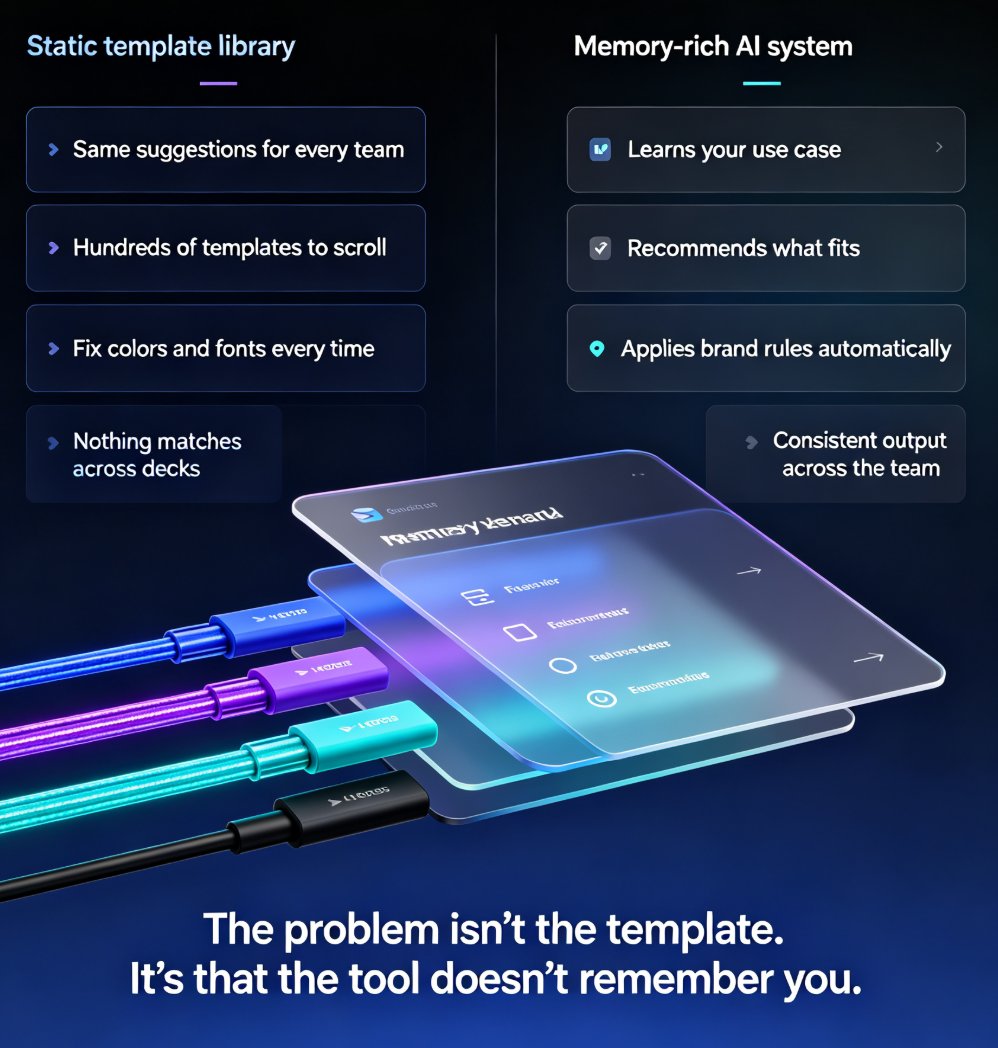
The result isn't just faster; it's more consistent. If you've ever opened a deck where slide 3 uses one font and slide 12 uses another, you know how quickly trust erodes. The platform's templates and brand kits keep everything aligned. For a deeper look at why AI slides can still look messy and how to fix them, check out why your AI-generated slides look messy. And if you want a ready-made starting point, the webinar deck templates article shows how to use Zendeck's templates specifically for conversion.
04 Design for attention: templates, brand kit, and consistency
Let's talk about design, because "just use a template" isn't advice. It's a starting point. The real goal is to make the deck feel like it belongs to your brand and your topic, not like a generic slide shop.
The first thing I'd do is set up a brand kit. Colors, fonts, logo placement — define them once, and every deck you create follows the same rules. That matters more than you think. Consistency is the cheapest credibility you can buy. When your slides look like they were made by the same team, the audience subconsciously trusts the content more.
The one-click reskin feature is the tool I'd use here. If you generate a deck and the color palette feels off, you can restyle the entire presentation without rebuilding it. That's a huge time-saver when you're iterating on a webinar the day before the event. The custom brand kit guide walks through the setup in detail.
A few practical design rules for webinar decks: - Keep slides visual: one headline, one visual, minimal text. - Use contrast to direct attention to the key message. - Avoid more than two typefaces per deck. - Leave whitespace; it's not empty, it's breathing room.
05 Add speaker notes and rehearse like a human
Here's the uncomfortable truth: your slides are not the presentation. You are. The deck is a backdrop, and the best backdrop is one the audience barely notices because they're focused on you.
That's why speaker notes matter. The platform can auto-generate speaker notes for each slide, which gives you a starting point for your script. But don't read them verbatim. Rewrite them in your voice. Add a story, a pause, a question. The notes are scaffolding, not the final building.
A trick I use: after generating the notes, I read them out loud once and delete every sentence that doesn't feel natural. If I stumble over a phrase, I rewrite it. The goal is to sound like a person explaining something to a friend, not like a teleprompter reciting a report. The auto-generate speaker notes guide shows how to set this up.
06 Turn the deck into a replay asset with PPT-to-video
The live webinar is only half the story. In most cases, more people will watch the replay than attend live. If your deck dies after the event, you're leaving value on the table.
The PPT-to-video feature turns your slides into a narrated video. Add your voiceover, let the AI generate an avatar-led version, or record your own narration — the point is that the content becomes a standalone asset. You can share it with no-shows, post it on your website, or use it as a follow-up email. The add narration to slides guide covers the options in detail.
This is also where the narrative arc pays off twice. A deck built for live delivery works just as well as a video because it already has a clear structure and a single ask. If you're building training content instead of a marketing webinar, the interactive training modules guide is worth a read.
07 Measure conversion, not just attendance
You can't improve what you don't measure. After the webinar, look beyond attendance. Ask yourself:
- How many people clicked the call-to-action?
- How many watched the replay to the end?
- How many questions referenced the core message?
- How many follow-up meetings were booked?
These numbers tell you whether your deck actually converted. If the CTA click rate is low, the problem is often the ask, not the design. If replay drop-off happens early, the hook needs work. If people ask questions that were already answered, the message wasn't clear enough.
The good news is that iterating is fast. Because the AI generates slides from your outline, you can adjust the story, regenerate the deck, and test a new version in minutes. That's the real advantage of an AI workflow: you can afford to experiment.
FAQ
How long should a webinar slide deck be?
Aim for 15 to 25 slides for a 30- to 45-minute webinar. That's roughly one slide every two minutes. The exact number matters less than the rhythm: if you're spending more than three minutes on a slide, it's probably doing too much work.
Can I edit AI-generated slides in Zendeck?
Yes. Zendeck generates a starting point, not a finished monument. You can edit text, swap images, change layouts, and restyle the whole deck with one click. The AI handles the heavy lifting; you keep final control.
How do I make a webinar deck that converts?
Start with a narrative arc, not a template. Define the hook, the problem, the solution, the proof, and a single call to action. Then build slides that support that story with one idea per slide. Finally, turn the deck into a replay asset so the content keeps working after the live event.
Do I need design skills to use Zendeck?
No. The templates and smart layout features handle visual consistency for you. If you can write an outline, you can create a professional-looking deck. Design skills help with polish, but they're not a prerequisite.
Can Zendeck turn my webinar slides into a video?
Yes. The PPT-to-video feature converts slides into a narrated video, with options for AI avatar-led narration or your own voiceover. That makes it easy to create a replay, a micro-course, or a follow-up asset from the same deck.