Rebrand Old PPT Fast: Zendeck One-Click Theme Change
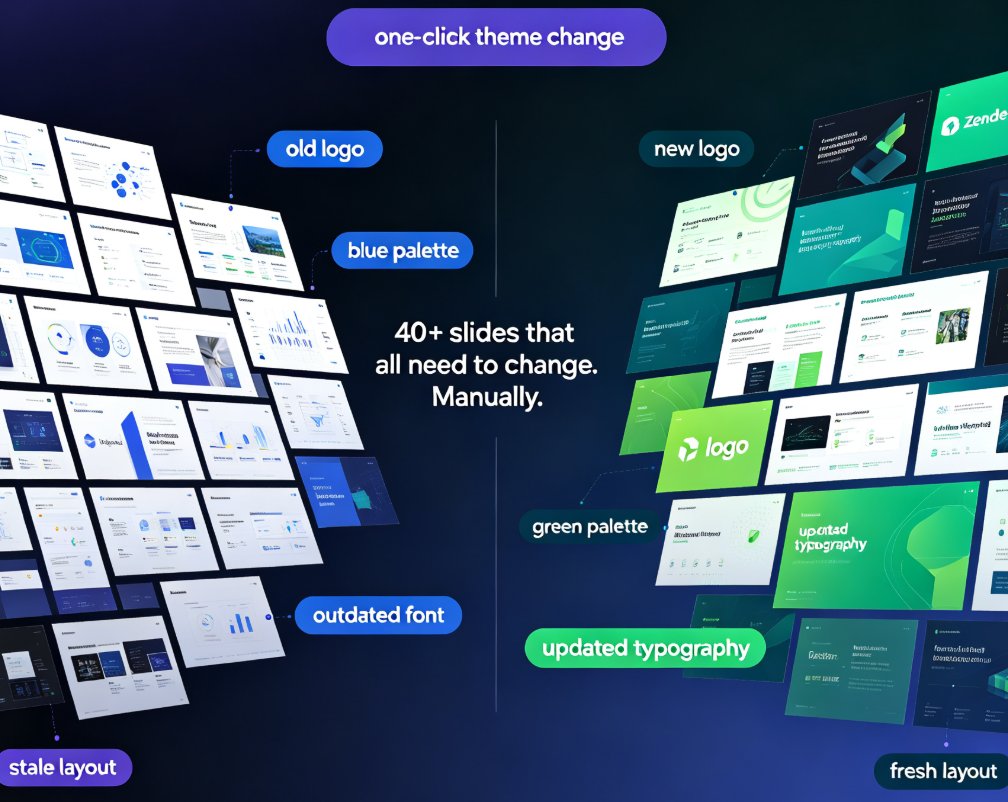
Let's be real for a second. You've been meaning to update that old deck for weeks. The new brand guidelines landed in your inbox, the logo changed, the color palette shifted from blue to green, and somewhere in the middle of all that, someone decided the font needed a refresh too. Now you're staring at 40+ slides that all need to change. Manually.
Here's the thing: rebranding an old PPT doesn't have to mean rebuilding it. With Zendeck's one-click theme change, you can reskin an entire deck to match new brand guidelines in minutes — not hours. No design skills required, no starting from a blank slide.
I. Why Old Decks Become a Brand Liability
Every company has them. The sales deck from two quarters ago. The onboarding presentation that's been through four hands. The training courseware that still uses the pre-merger logo. They sit in shared drives, get pulled up in meetings, and quietly undermine the brand every single time.
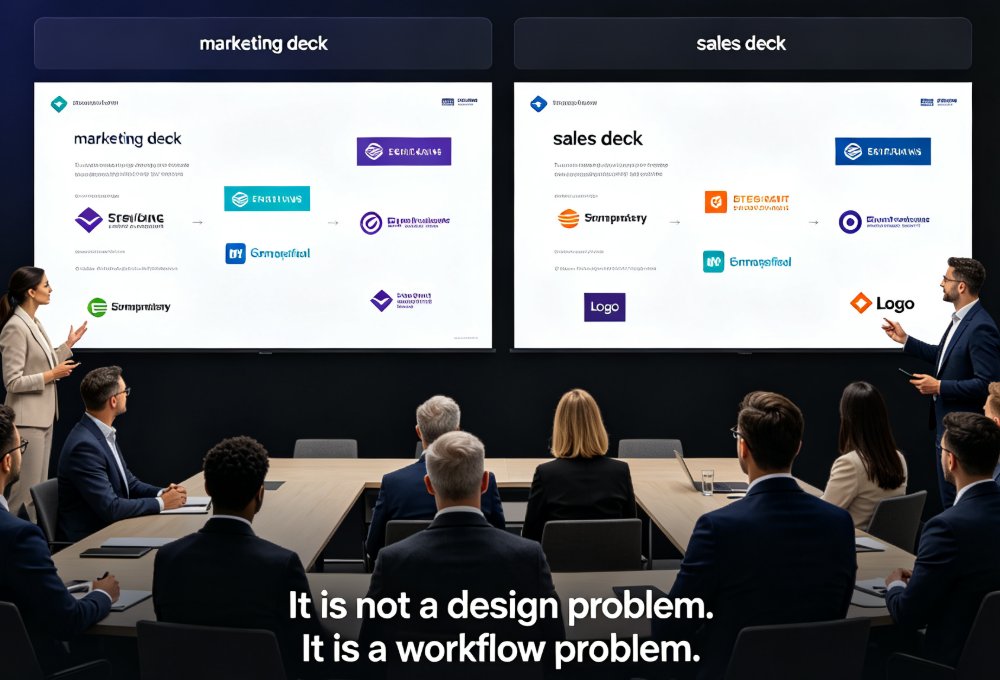
The problem isn't that the content is bad. It's that the presentation looks dated. Inconsistent branding across presentations erodes trust faster than most teams realize. When a client sees three different logo versions in one week, they notice. When your own sales team can't tell which template is current, that's a workflow problem.
The pain points are predictable: - Colors that clash with the new brand palette - Fonts that don't match the updated typography system - Logos that are two versions old - Layouts that feel stale next to your competitor's polished decks
And here's the kicker: nobody wants to volunteer for the rebranding task. It's tedious, it's detail-heavy, and it eats an entire afternoon. So the deck stays outdated. And the brand stays inconsistent.
II. The Manual Rebrand: A Time Black Hole
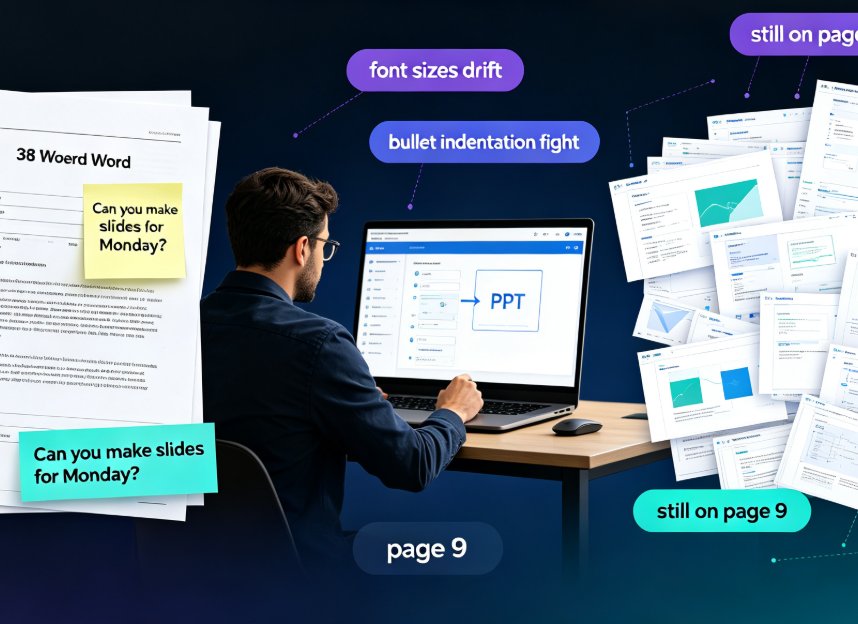
Let's walk through what manual rebranding actually looks like. You open the old PPT, and you start clicking. Change the background color on slide 3. Update the font on slide 7. Swap the logo on slide 12. Realize slide 14 has a chart that uses the old palette. Fix that. Then slide 19 has a text box that didn't inherit the theme correctly. Fix that too.
A typical 40-slide deck takes 4 to 6 hours to manually rebrand — and that's if you're focused. Most people stretch it across two days because it's so mind-numbing they keep finding excuses to stop.
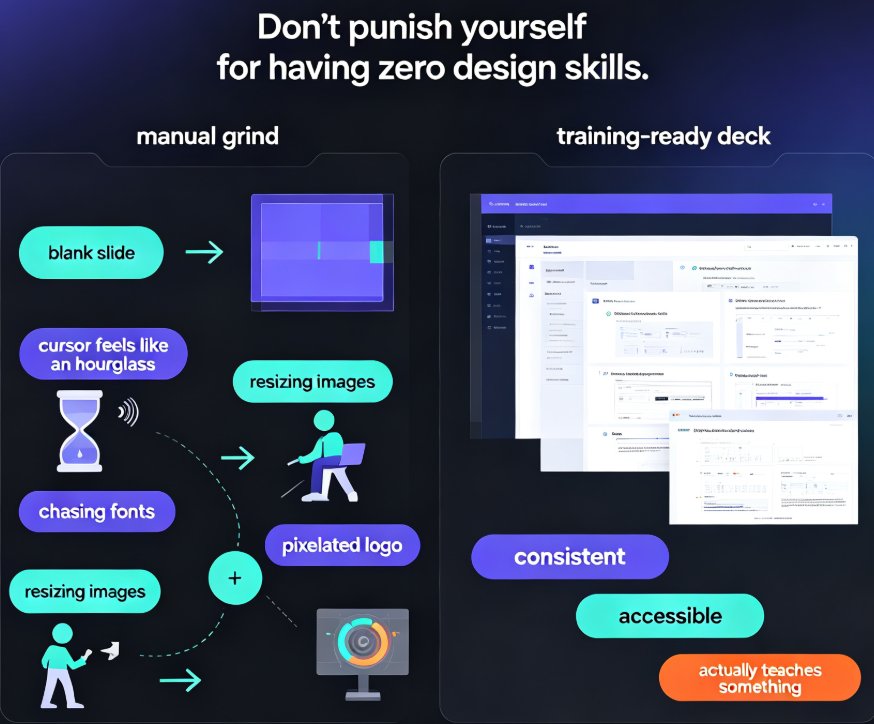
The hidden costs are worse: - You miss slides. There's always one slide that keeps the old font. - You introduce inconsistencies. The new logo is slightly too big on slide 8. - You burn creative energy on mechanical work. The hours you spend on color matching are hours you're not spending on messaging or strategy.
Sound familiar? This is exactly the scenario that pushed us to build a better way.
III. What One-Click Theme Change Actually Does
Here's where Zendeck changes the game. Instead of editing slide by slide, you apply a new theme to the entire deck at once. One click. The system handles the heavy lifting:
- Colors: Every slide's palette updates to match your new brand colors, including charts, icons, and accent elements.
- Fonts: Headings and body text switch to your updated typography system automatically.
- Layouts: Slide structures reflow to fit the new theme's spacing and alignment rules.
- Assets: Logos and brand elements swap to the current versions from your asset library.
The key insight is that Zendeck doesn't just slap a new background on your slides. It understands the structure of each slide — where the title is, where the body text sits, where the chart lives — and rebuilds the visual layer around that structure. The result is a deck that looks native to the new brand, not one that's been painted over.
IV. Step-by-Step: Rebranding an Old PPT in Zendeck
If you're ready to stop dreading the rebrand, here's the workflow. It takes about ten minutes from start to finish.
Step 1: Import your old deck. Upload your existing PPT or Word outline into Zendeck. The platform parses the content and preserves your slide structure.
Step 2: Pick your new theme. Browse the template library or select a theme that matches your updated brand guidelines. If you've set up a custom brand kit, Zendeck will prioritize those settings. We've written a full guide on creating a custom brand kit in Zendeck if you need a refresher.
Step 3: Apply the theme. Click the theme change button. Zendeck reskins every slide — colors, fonts, layouts, and assets — in one pass.
Step 4: Review and refine. Scan through the deck. Zendeck's smart layout tools will flag any slides that need manual attention, like charts that need data updates or images that need repositioning.
Step 5: Export or share. When you're happy, export to PPT, PDF, or share a link with your team for collaborative review.
The whole process replaces a 4-to-6-hour manual slog with a 10-minute automated pass. That's not a marginal improvement; it's a different category of workflow.
V. Manual vs. Zendeck: The Real Cost Comparison
Let's put some numbers on this. Here's what a typical rebranding task looks like with and without Zendeck:
| Task | Manual Rebrand | Zendeck One-Click |
|---|---|---|
| Color palette update (40 slides) | 60-90 min | < 1 min |
| Font replacement across deck | 45-60 min | < 1 min |
| Logo swap on all slides | 30-45 min | < 1 min |
| Chart and icon color fixes | 45-60 min | < 1 min |
| Layout reflow for new theme | 60-90 min | < 1 min |
| Quality review | 30-45 min | 10-15 min |
| Total | 4.5-6.5 hours | 10-15 minutes |
The math is stark. Teams that rebrand decks with Zendeck save 90-95% of the time they'd spend doing it manually. That's not just an efficiency win; it's a strategic one. The hours you reclaim go back into content quality, message refinement, and actually preparing for the presentation.
And the consistency is better, too. Manual rebrands always have a stray slide or two that didn't get the memo. Zendeck applies the theme uniformly across the entire deck, so every slide follows the same rules.
VI. Best Practices for a Clean Rebrand
A one-click theme change is powerful, but a few habits make the results even better.
Set up your brand kit first. The more complete your brand kit — colors, fonts, logo versions, accent styles — the better Zendeck can match your guidelines. This is worth doing once and reusing across every future deck. Our guide on AI-governed brand consistency with smart templates walks through the setup.
Audit your content before you reskin. A theme change updates the visual layer, but it won't fix outdated data or broken links. Take the ten minutes to review your content while you're in there. You're already touching the deck; make it count.
Check the charts. Charts and data visualizations often carry their own color schemes. Zendeck's AI data visualization tools handle most of this automatically, but it's worth a quick scan to make sure every chart reads clearly in the new palette.
Keep your asset library current. When your logo changes, update it in Zendeck's asset library. That way, every future deck — and every reskin — automatically uses the right version. This is the kind of asset library discipline that keeps brands consistent across the whole organization.
Don't forget accessibility. While you're refreshing the deck, check that color contrast still meets WCAG standards. New brand colors sometimes introduce contrast issues, especially for text on colored backgrounds. Our guide on accessible AI presentations covers the essentials.
FAQ
Q: Can Zendeck rebrand a PPT that was created in Microsoft PowerPoint?
Yes. You can upload an existing PPT file into Zendeck, and the one-click theme change will reskin all slides to your new brand guidelines. The platform preserves your content and structure while updating colors, fonts, layouts, and assets.
Q: How long does it take to rebrand a 40-slide deck with Zendeck?
The theme change itself takes under a minute. Including import, review, and export, most users complete a full rebrand in 10 to 15 minutes — compared to 4 to 6 hours for manual editing.
Q: Will my charts and data visualizations update to the new brand colors?
Yes. Zendeck's theme change applies your brand palette to charts, icons, and accent elements across the deck. You can also use the asset library to add or replace interactive charts if needed.
Q: Do I need design skills to use the one-click theme change?
No. The entire point is to remove design work from the equation. Zendeck handles the visual decisions based on your brand kit and the selected theme, so anyone on your team can rebrand a deck.
Q: Can I save my new brand as a reusable theme for future decks?
Absolutely. Once you've set up a custom brand kit in Zendeck, it becomes the default for all your future presentations. Every new deck you create — or reskin — will automatically follow your brand guidelines.