How to Rebrand Legacy PowerPoints with Zendeck's One-Click Reskin
How to Rebrand Legacy PowerPoints with Zendeck's One-Click Reskin
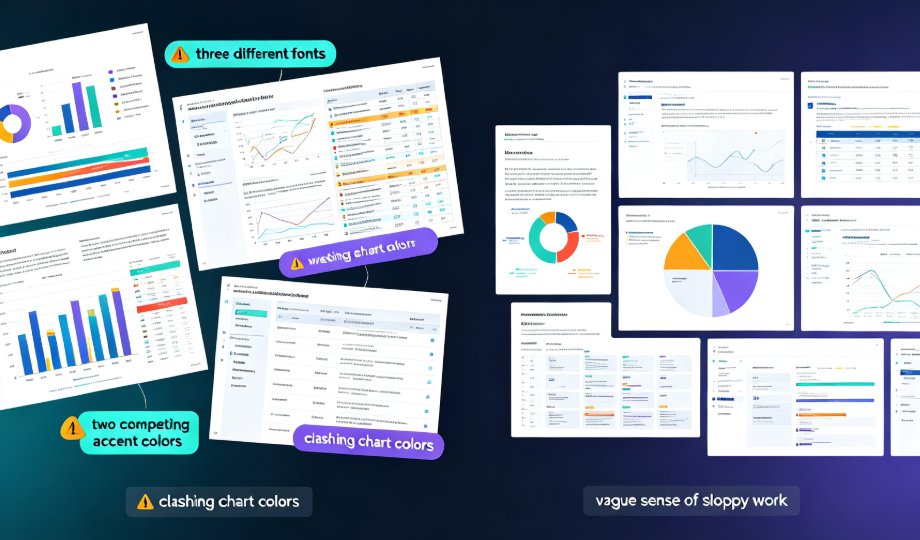
Every team has one. That folder of old PPTX files from 2019 — the ones with the outdated logo, the mismatched fonts, and the color scheme that makes your current brand look like a stranger. You know they need a refresh, but the thought of manually reformatting 60 slides makes you want to close the laptop.
Think about the last time you had to present an old deck to a new client. You opened the file, saw the outdated branding, and felt that pang of embarrassment. Then you spent the next two hours trying to fix it — and gave up halfway through, telling yourself "it's fine, nobody will notice." They noticed.
Let's be real: manually rebranding a legacy deck is one of the most tedious tasks in modern work. You're not designing anything new — you're just updating, and updating is where hours disappear.
Here's the good news: Zendeck's one-click reskin turns that chore into a few minutes of work. Upload your old PPTX, apply a brand kit, and watch the fonts, colors, and layout unify across every slide. No design skills required.
I. Why Legacy Decks Pile Up (and Why Manual Rebranding Fails)
The deck graveyard is real. It happens for three reasons:
- Brand changes outpace deck updates. Your company rebranded in 2022, but the sales deck from 2021 still uses the old palette.
- Nobody owns the cleanup. The person who made the original deck left, and no one wants to touch a 90-slide file with fragile formatting.
- Manual reformatting is slow and error-prone. Change the font on slide 12, and the text box overflows. Fix the overflow, and the bullet indent breaks. It's whack-a-mole.
The result? You present with outdated branding, or you burn a weekend fixing it. Neither is acceptable.
The pain point is clear: rebranding legacy decks is a time sink with zero creative payoff. The solution isn't more manual effort — it's automation that understands layout.
II. What Zendeck's One-Click Reskin Actually Does
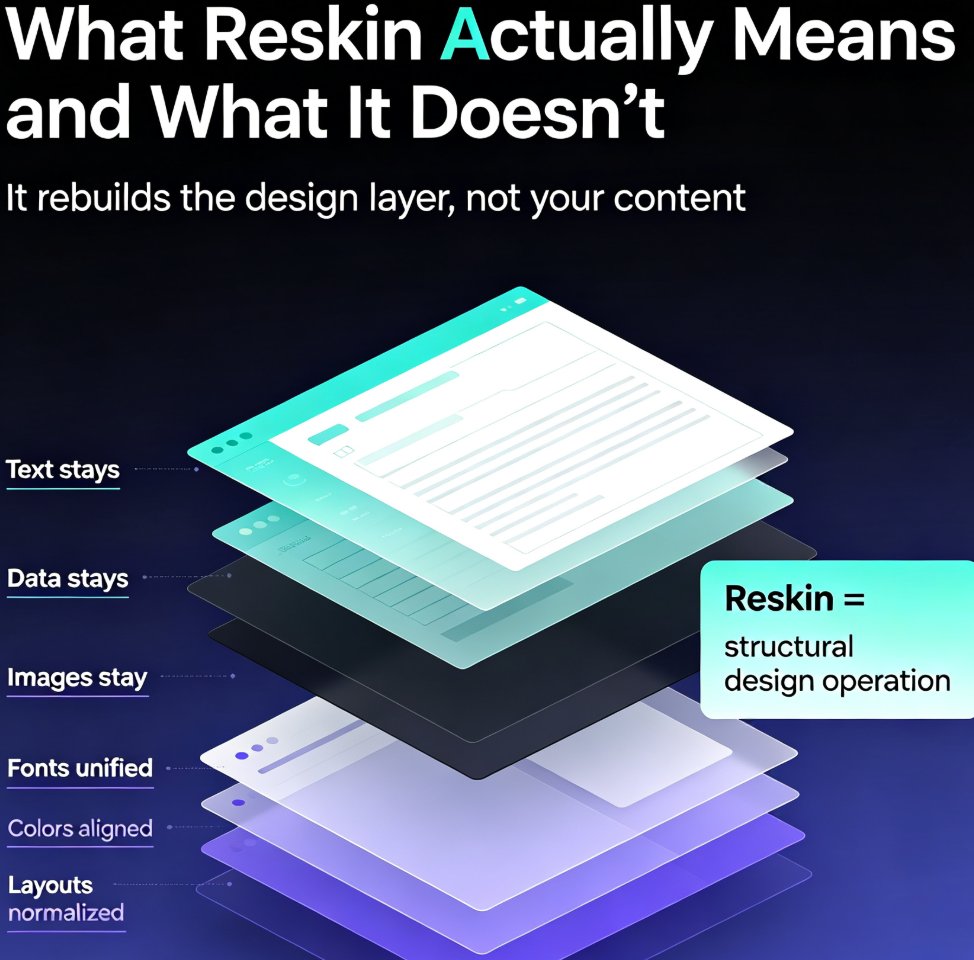
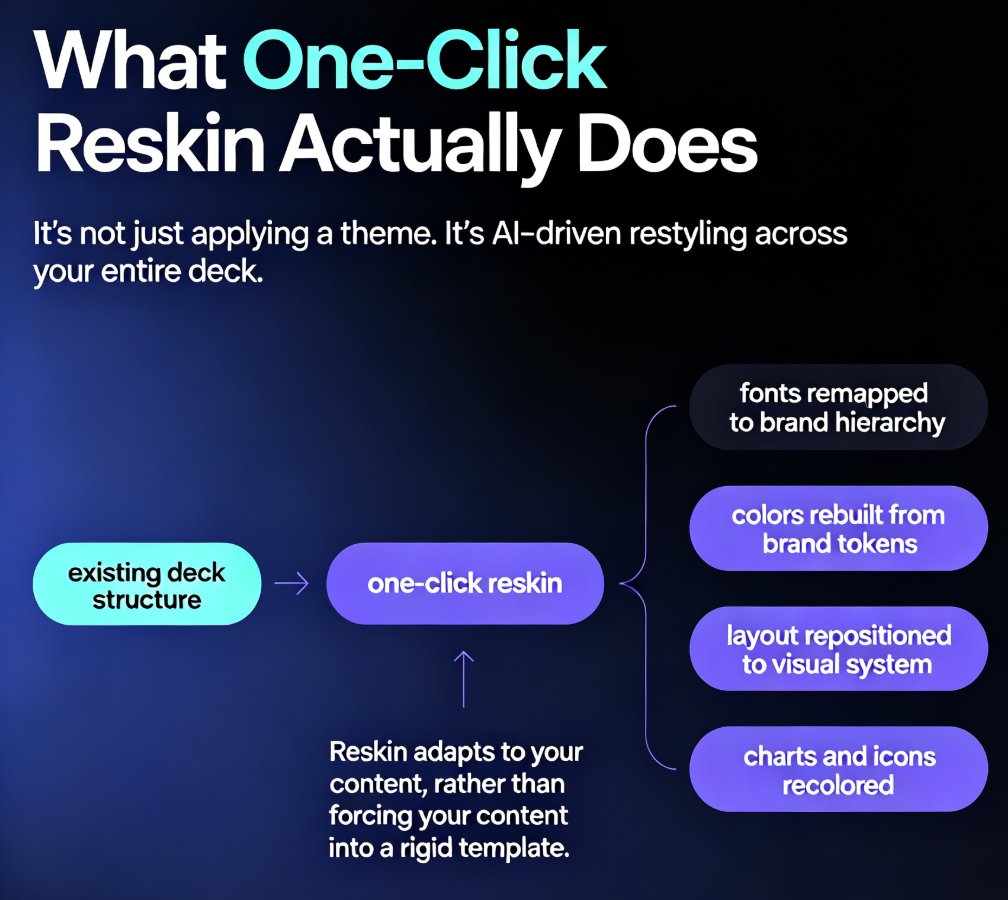
Zendeck's reskin isn't a find-and-replace for colors. It's a smart layout engine that reinterprets your existing slides through a new visual system. Here's what happens when you hit reskin:
- Fonts unify. Every heading, body, and caption snaps to your brand kit's type scale.
- Colors re-map. Your old palette is replaced with your current brand colors, applied consistently across backgrounds, text, and accents.
- Layout reflows. Text boxes, images, and charts get repositioned to fit the new template's grid — no more overflowing text or orphaned bullets.
- Assets stay intact. Your charts, icons, and photos aren't deleted; they're re-styled to match the new look.
The key difference from manual work: Zendeck treats your deck as a system, not a collection of slides. It applies the same rules everywhere, which is exactly what manual editing can't guarantee.
If you want to dig into how brand kits work under the hood, check out how to set up and use brand kits in Zendeck — it covers the setup in detail.
III. Step-by-Step: Rebrand a Legacy PPTX in Minutes
Here's the workflow I'd recommend. It takes about 10 minutes for a typical 40-60 slide deck.
Step 1: Upload your old PPTX Drag your legacy file into Zendeck. It accepts standard PowerPoint files, so no conversion needed.
Step 2: Apply or create a brand kit If you already have a brand kit, select it. If not, create one — this is where you define your fonts, colors, and logo. It's a one-time setup that pays off across every future deck. (Here's a guide on creating a custom brand kit for consistent decks.)
Step 3: Hit reskin One click. Zendeck re-maps your entire deck to the new visual system.
Step 4: Review the reflow This is the important part. Scroll through and check for anything that needs a nudge — a chart that got squeezed, a text box that reflowed awkwardly. You can manually edit AI-generated slides in Zendeck, so nothing is locked in stone.
Step 5: Export Export the refreshed deck as PPTX or PDF, or share it via link for team review.
Let me give you a real scenario. A sales ops manager I know had 14 regional pitch decks, all built by different people over three years, each with its own font and color scheme. The company had rebranded twice in that window. Manually, that's a two-week project. With reskin, she uploaded all 14 files, applied the same brand kit, and had them all consistent by lunch. The regional leads barely noticed the change — which is exactly the point. Good rebranding is invisible.
The outcome: a fully on-brand deck in minutes, not hours. And because the brand kit enforces the rules, you don't have to re-check every slide for consistency — the system did it for you.
IV. Manual vs. Zendeck Reskin: A Side-by-Side Look
Let's be honest about what you're trading. Here's a realistic comparison based on typical team workflows:
| Task | Manual Rebranding | Zendeck One-Click Reskin |
|---|---|---|
| Time for a 50-slide deck | 4-8 hours | 10-15 minutes |
| Font consistency | Depends on your patience | Guaranteed by brand kit |
| Color accuracy | Easy to miss a shade | System-wide re-map |
| Layout reflow | Manual, slide by slide | Automatic grid reflow |
| Risk of breaking formatting | High | Low |
| Team collaboration | File back-and-forth | Real-time link sharing |
| Reuse for future decks | Start over each time | Brand kit persists |
The honest take: manual rebranding gives you control but costs you days. Zendeck's reskin gives you consistency and speed — and you keep the ability to fine-tune anything afterward.
V. What to Check After the Reskin (A 5-Minute Polish Checklist)
Even with automation, a quick human pass makes the difference between "good" and "great." Here's what I check every time:
- Charts and data visuals — did any get re-scaled awkwardly? Resize or re-place them if needed.
- Images with embedded text — screenshots and diagrams don't auto-recolor. If they clash with the new palette, consider replacing them.
- Slide titles — make sure the reskin didn't truncate any long titles in the new layout.
- Footer and page numbers — verify they're still present and styled correctly.
- Speaker notes — reskin shouldn't touch your notes, but double-check they survived the import.
That's it. Five minutes of review, and you're done.
If you're dealing with a deck that's really off-brand — like, the old logo is baked into every slide — you might want to read up on why AI slides look off-brand and how to fix it fast. It covers the edge cases that reskin alone can't solve.
VI. When Reskin Isn't Enough (Know the Limits)
Let's be straight: reskin is a transformation tool, not a magic wand. It works brilliantly when your content is solid and you just need a new visual identity. It won't fix:
- Badly structured content — if the original deck is a wall of text, reskin will give you a prettier wall of text.
- Broken or low-res images — reskin re-styles, it doesn't upscale.
- Outdated data — if your numbers are from 2021, no amount of styling helps.
For those cases, the better move is to rebuild the deck from scratch using Zendeck's AI generation — start from an outline and let the tool build fresh slides. That's a different workflow, and it's worth it when the content itself needs a rethink.
The rule of thumb: reskin when the content is good but the look is wrong; rebuild when the content itself is the problem.
VII. Why This Matters for Your Whole Team
Here's the thing that makes reskin a team-level win, not just a personal convenience. When rebranding is fast and cheap, it stops being a "someday" project. You can:
- Refresh quarterly business reviews without dreading the formatting.
- Bring old training decks in line with current branding before they're presented again.
- Standardize decks from different departments so the whole company looks like one brand.
That last point is the real payoff. Consistency across every deck — not just the new ones — is what makes a brand feel trustworthy. And that's exactly what brand consistency with AI brand kits delivers at scale.
For more hands-on tutorials like this one, browse the PPT tutorial library — there's a lot more where this came from.
FAQ
Q: Can Zendeck's reskin handle very old PPTX files with complex formatting? A: Yes, in most cases. Zendeck imports standard PowerPoint files and re-maps their content through the new visual system. Complex layouts — nested text boxes, grouped objects, embedded charts — are preserved and re-styled. If anything reflows awkwardly, you can manually adjust individual slides afterward.
Q: Will reskin change my content or delete any assets? A: No. Reskin changes the visual styling — fonts, colors, layout grid — but your text, charts, images, and data stay intact. It's a re-styling, not a rewrite.
Q: Do I need a brand kit before I can use reskin? A: It's strongly recommended. The brand kit defines your fonts, colors, and logo, which is what reskin applies across the deck. You can create one in a few minutes, and it's reusable for every future deck.
Q: How long does it take to rebrand a 50-slide deck? A: With Zendeck's one-click reskin, expect 10-15 minutes including a quick review pass. A manual rebrand of the same deck typically takes 4-8 hours.
Q: Can I edit slides after the reskin? A: Absolutely. Nothing is locked. You can manually adjust any slide after reskinning — move elements, change text, swap images — just like you would in a normal editor.