PPT Tutorial

PPT creation tips, step-by-step guides, efficiency methods, and hands-on playbooks.

34 articles

PPTX, PDF, or MP4? Choosing the Right Export Format for Training Content

PPT Tutorial 2026-08-18 1069

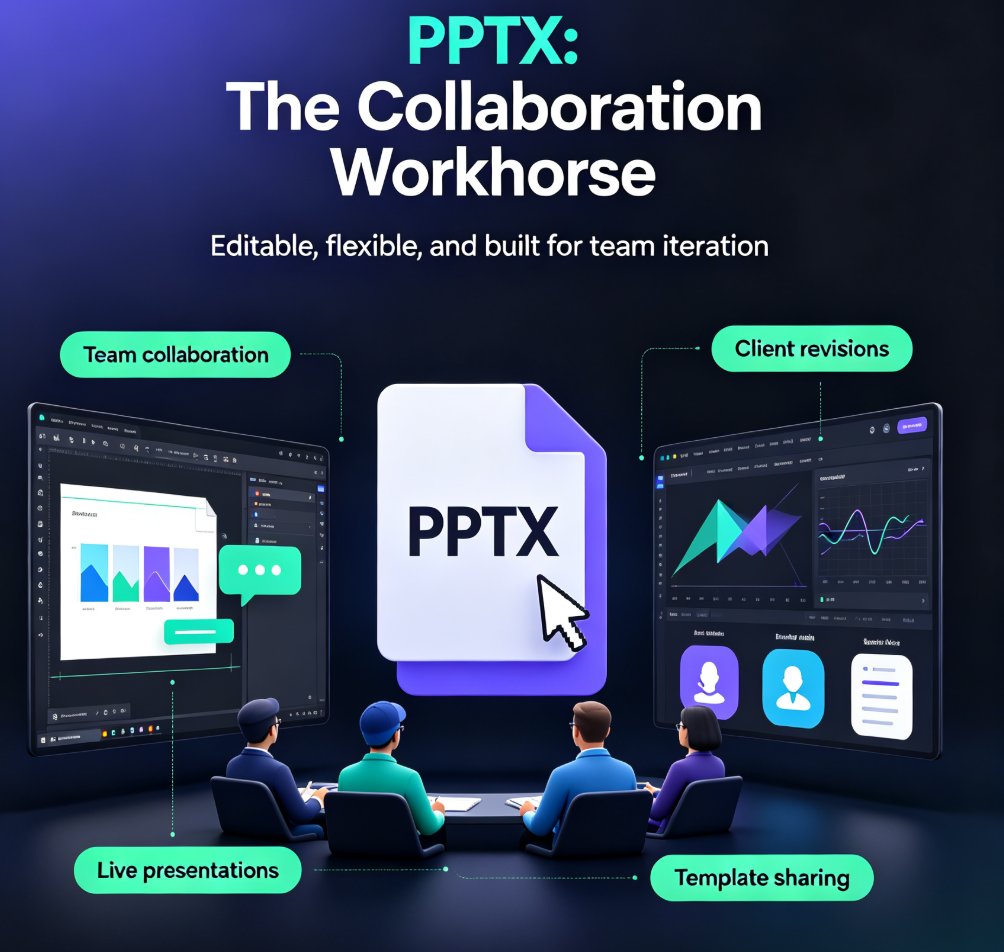
Stop guessing which export format to use. This guide matches PPTX, PDF, and MP4 to specific training scenarios. For editable collaboration, choose PPTX; for review and distribution, PDF; for self-paced micro-courses, MP4. Zendeck makes all three exports effortless, so you can deliver training content that actually lands. Learn the trade-offs and pick the right format every time.

PPTX, PDF, or Google Slides? Zendeck Multi-Format Export Guide

PPT Tutorial 2026-08-18 840

Choosing the right export format for your presentation doesn't have to be guesswork. Zendeck's multi-format export — PPTX, PDF, and Google Slides — means your deck drops seamlessly into whatever platform your team, clients, or students already use. No lock-in, no 'which tool do I open this in' friction. This guide breaks down when to use each format, how Zendeck's export workflow keeps your design intact, and practical tips for handing off decks to different audiences. Whether you need an editable PPTX for internal collaboration, a locked PDF for final approval, or a cloud-native Google Slides deck for real-time co-editing, Zendeck covers all three. Learn how to match format to audience, avoid common export pitfalls, and keep your branding consistent across every output. A practical, scenario-driven guide for educators, trainers, HR teams, and content operators who need their decks to work everywhere.

Can I Manually Edit AI-Generated Slides in Zendeck? Yes, Here's How

PPT Tutorial 2026-08-12 1218

Yes, you can manually edit every slide after Zendeck's AI generates your deck. This guide covers what's editable — text, images, layout, colors, and speaker notes — plus when to edit manually versus regenerating with AI. Learn the step-by-step workflow, common mistakes to avoid, and how to keep your deck consistent while making surgical changes. If you've been holding back from using AI presentation tools because you're afraid of losing control, this article shows exactly why that fear is unfounded. Zendeck's editor keeps you in the driver's seat: the AI drafts, you refine. Every element on every slide remains fully editable, so you get the speed of AI generation without sacrificing your creative control or brand standards.

How to Create a Branded Onboarding Deck in 5 Steps with Zendeck

PPT Tutorial 2026-08-12 2313

Creating a branded onboarding deck used to take days. With Zendeck, you can assemble a polished, on-brand presentation in under 30 minutes. This step-by-step guide walks you through 5 steps: setting up your brand kit, choosing a template, adding assets, customizing with AI, and collaborating with your team. Learn how Zendeck's brand kits, template library, and asset library ensure consistency across every slide. Whether you're an HR professional or a team lead, this tutorial shows you how to turn a chaotic manual process into a streamlined workflow. Save time, maintain brand standards, and impress new hires from day one. Start with Zendeck today.

How to Import a Google Doc into Zendeck and Generate a Presentation

PPT Tutorial 2026-08-12 3745

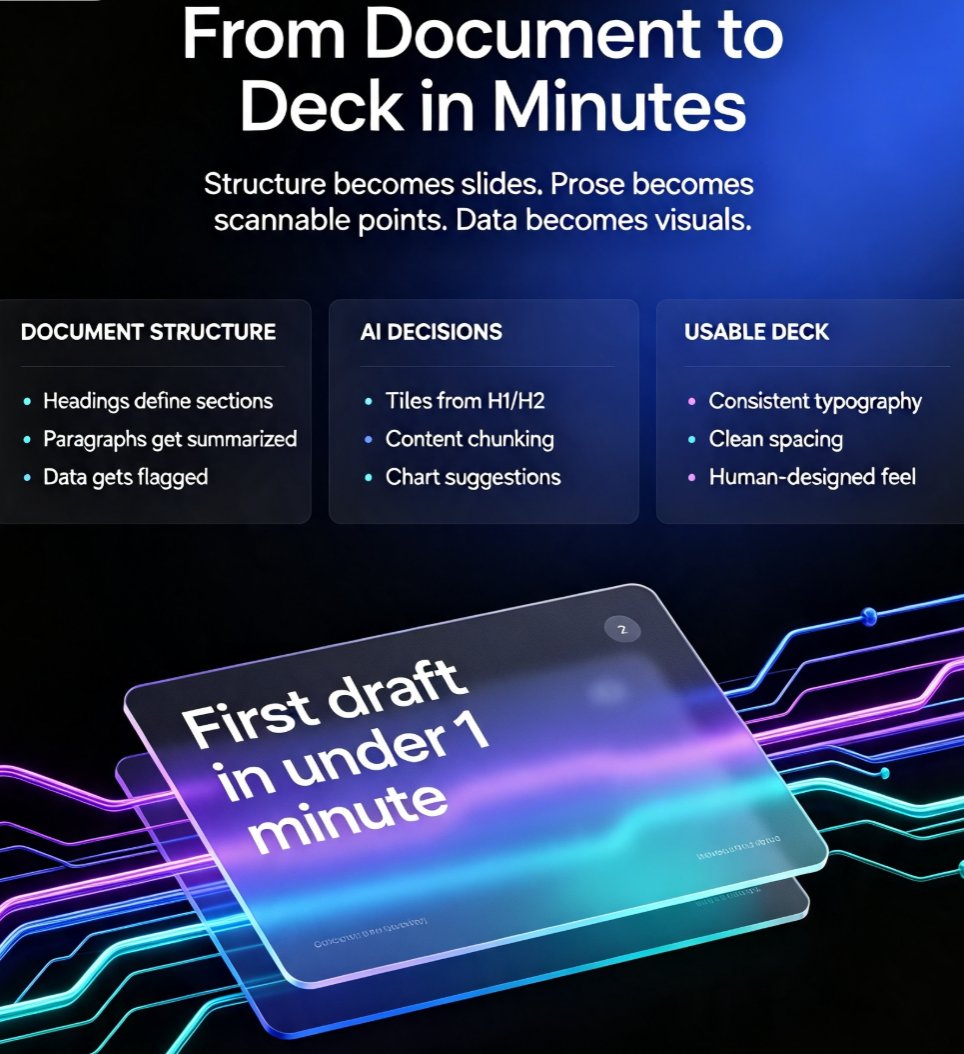
Learn how to import a Google Doc into Zendeck and generate a polished presentation in minutes. If your team lives in Google Docs but presents in slides, you know the pain of copy-pasting content into PowerPoint or Google Slides. Zendeck bridges that gap: paste a Google Doc outline or export it as text, and the AI structures your content into clean, on-brand slides with smart layouts, charts, and speaker notes. This guide walks through the exact workflow — from formatting your doc for best results to exporting the final deck as PPTX, PDF, or Google Slides. Whether you're turning a strategy doc into a board deck or a training outline into courseware, this document-to-deck workflow cuts hours of manual work. Stop rebuilding slides from scratch. Here's how to make Google Docs and Zendeck work together.

How to Rebrand Legacy PowerPoints with Zendeck's One-Click Reskin

PPT Tutorial 2026-08-12 818

Rebrand legacy PowerPoints with Zendeck's one-click reskin and cut hours of manual reformatting. Learn how to unify fonts, colors, and layout across old PPTX files in minutes. This tutorial walks through uploading legacy decks, applying brand kits, reviewing the reflow, and exporting on-brand presentations. Includes a manual vs. AI reskin comparison, a post-reskin polish checklist, and honest advice on when reskin isn't enough. Zendeck's smart layout engine treats your deck as a system, not a collection of slides, so consistency is guaranteed across every slide. Perfect for marketing teams, trainers, and consultants with a folder of outdated decks. Stop dreading the refresh — reskin it in minutes.